Divi Product Highlight: Divi Events Extended
An events website needs to answer a few practical questions. What’s happening? When does it start, where is it, and how do I join? For a venue with workshops, performances, and community gatherings, those answers should be easy to find on a phone and fit the rest of the website’s design.
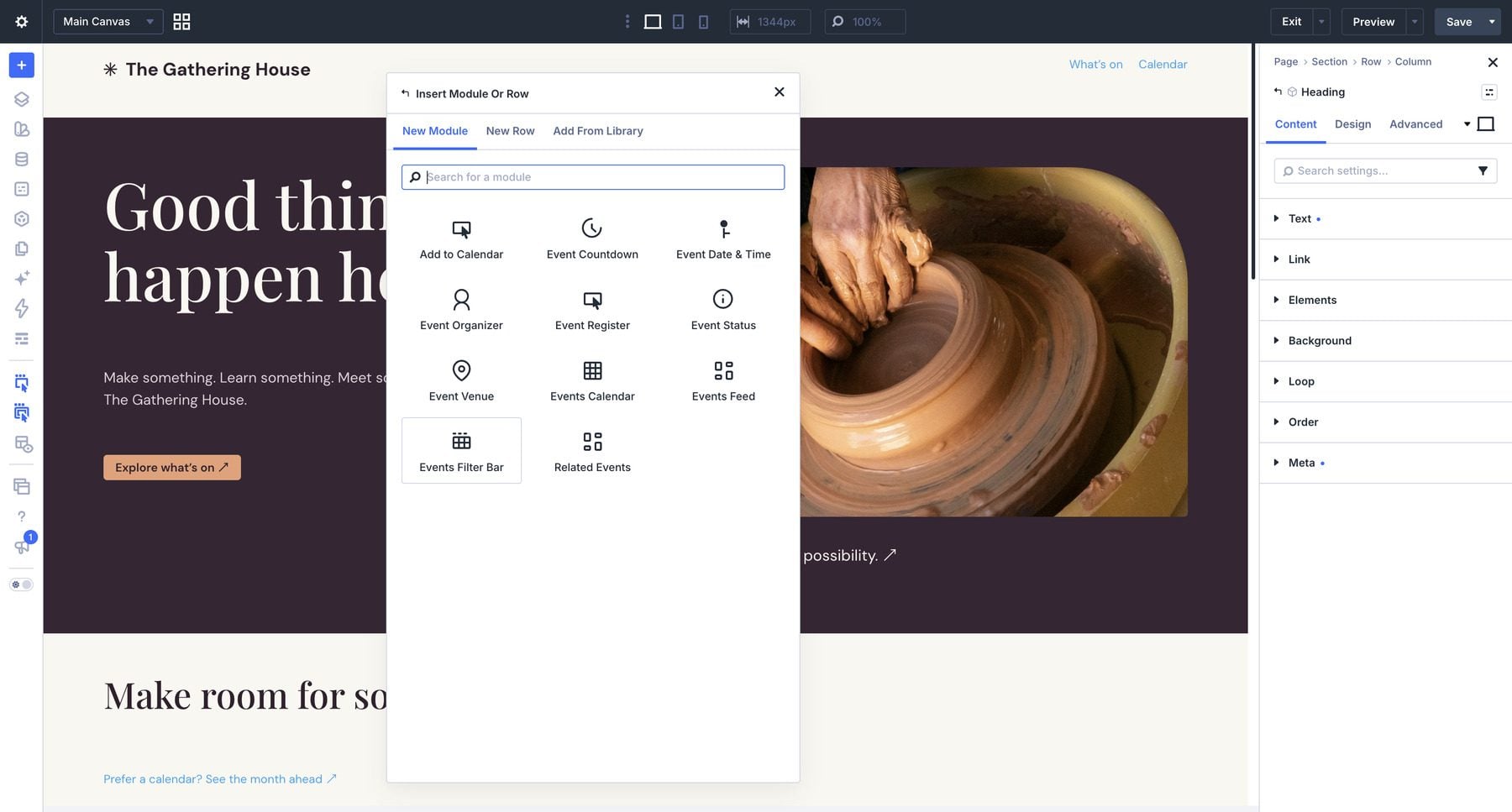
Divi Events Extended brings event listings, calendars, and individual event details into the Divi Builder. Created by Divi Extended, it works with its own event system or reads events already managed in The Events Calendar. You can build the presentation around your content using dedicated Divi modules.
In this product highlight, we’ll explore its eleven modules and supporting tools, then show how they fit together in The Gathering House, a fictional community arts venue. We’ll cover two setup paths: creating events with the built-in system and displaying an existing collection from The Events Calendar.
Overview Of Divi Events Extended
Divi Events Extended connects the information behind an event to the layout visitors see. An event’s date, featured image, venue, organizer, and description become content you can display throughout your Divi website.
You do not need an additional events plugin to use Divi Events Extended. It supports two event sources. DE Events is its built-in system for creating and managing events. The The Events Calendar integration reads existing event records while you continue editing them in that plugin’s interface. Feed and calendar modules let you choose their source, while detail modules can read the event being viewed in a template.
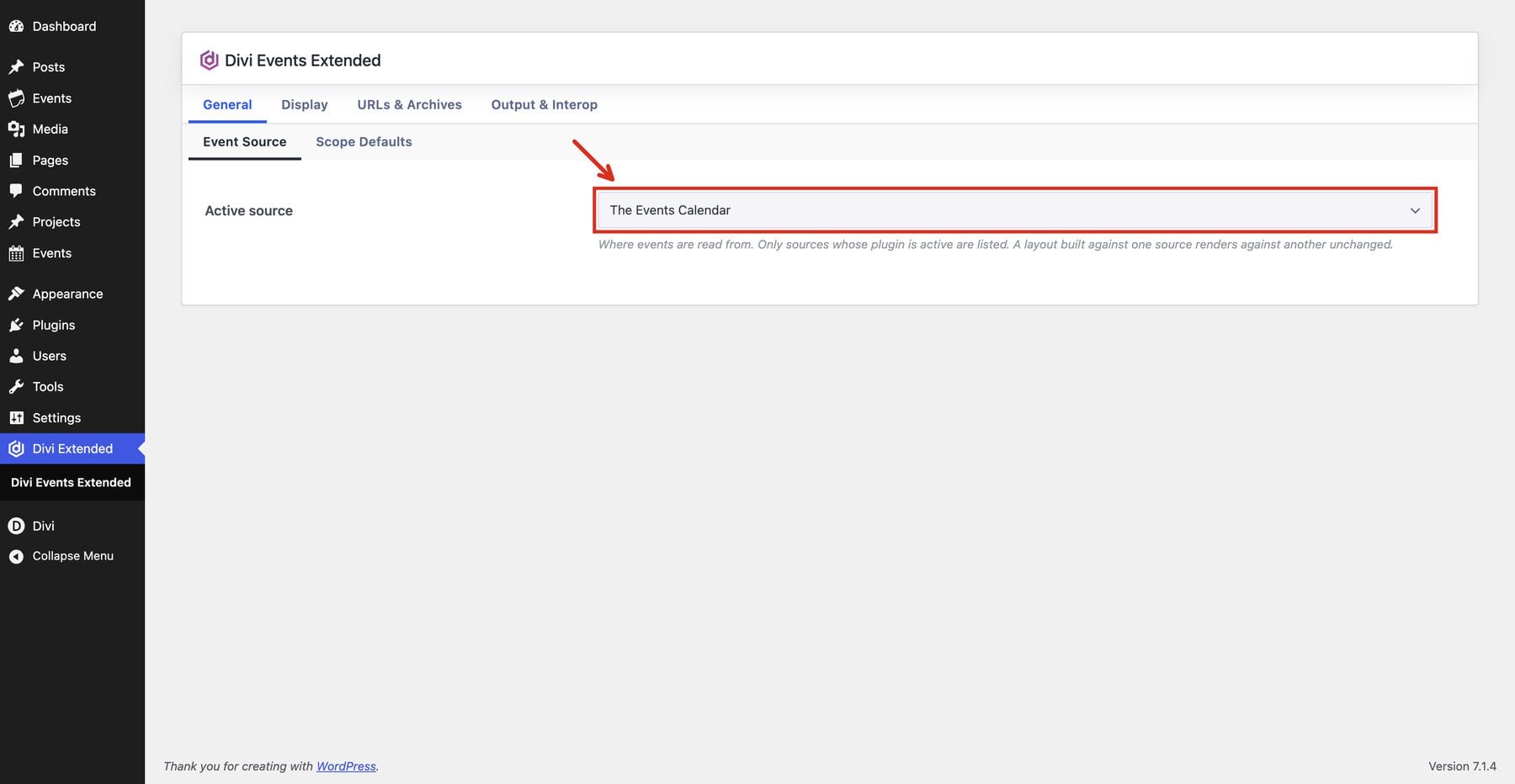
With DE Events, the extension supplies the Events custom post type and its venue and organizer records. You need the Divi 5 theme and Divi Events Extended for this path. Sites already using The Events Calendar can keep managing their records there and use the same Divi modules to design their presentation.
The Marketplace listing prices the plugin at $49 for unlimited website usage, with one year of support and updates and a 30-day money-back guarantee. Divi Extended provides product support.
Key Features And Settings
Start with the feed and calendar to help visitors find an event. Detail modules explain it, while calendar links and registration buttons give interested visitors a next step. The plugin also includes tools for managing and moving event data.
Flexible Event Sources And Event Management
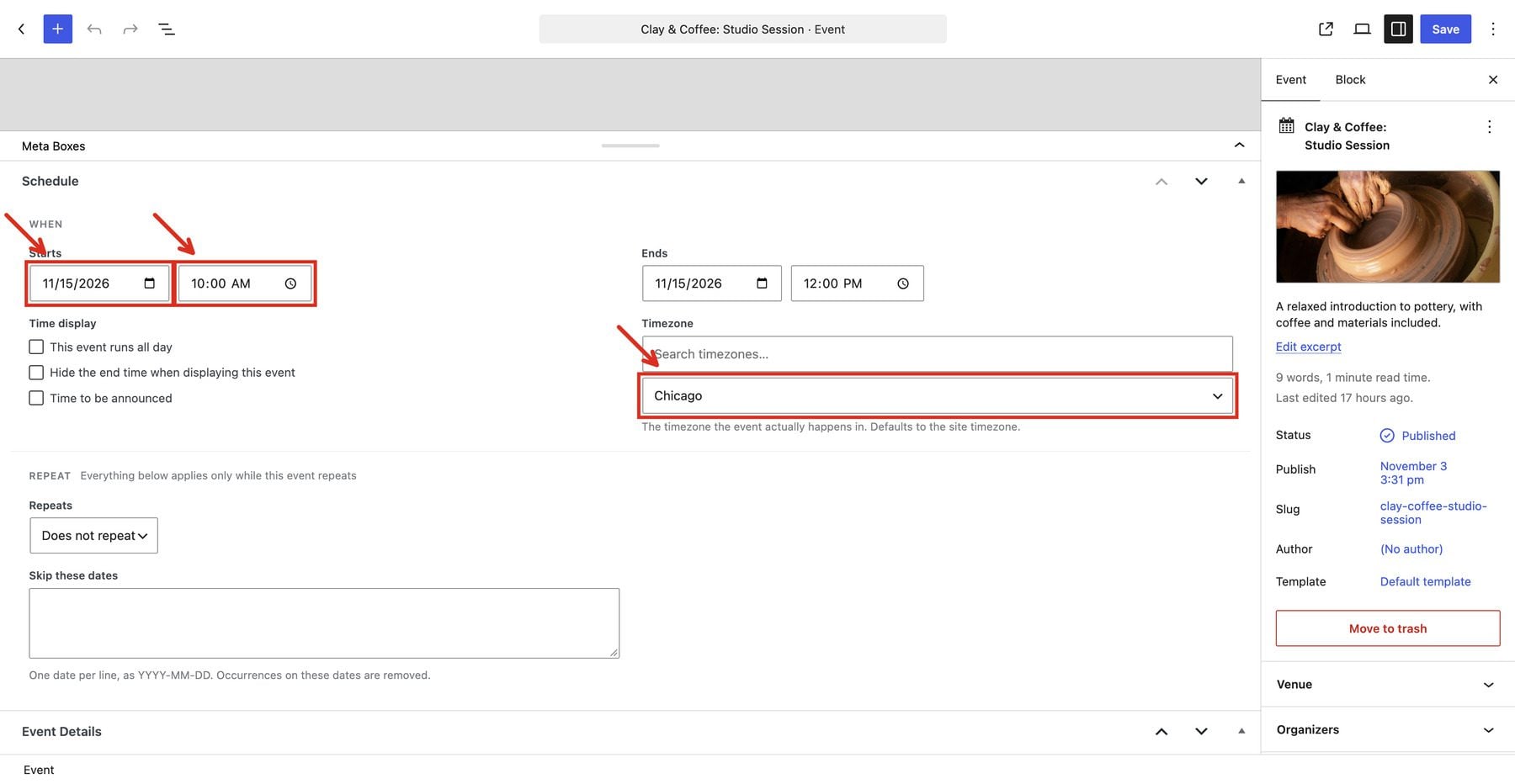
DE Events includes events, venues, and organizers, along with categories, tags, and event types. These records let you organize a calendar around topics, locations, and the people running each gathering. Each event also has fields for its attendance mode, cost, and status. Enter the timezone where the event takes place so the date and time modules can show its local schedule.
Built-in recurrence supports daily, weekly, monthly, and yearly schedules with excluded dates. A weekly class can follow its regular schedule while skipping a holiday, and the calendar’s date-specific links open the session a visitor selected. In our 1.0.1 test, recurring Feed cards opened the event’s default date instead; use the calendar when visitors need to choose a particular session. Default event pages also provide previous and next event navigation.
For sites already using The Events Calendar, Divi Events Extended brings your existing event collection into the Divi Builder. Keep your familiar event management workflow and use the plugin’s modules to design listings, calendars, and event pages that match your website.
Events Feed Layouts And Display Options
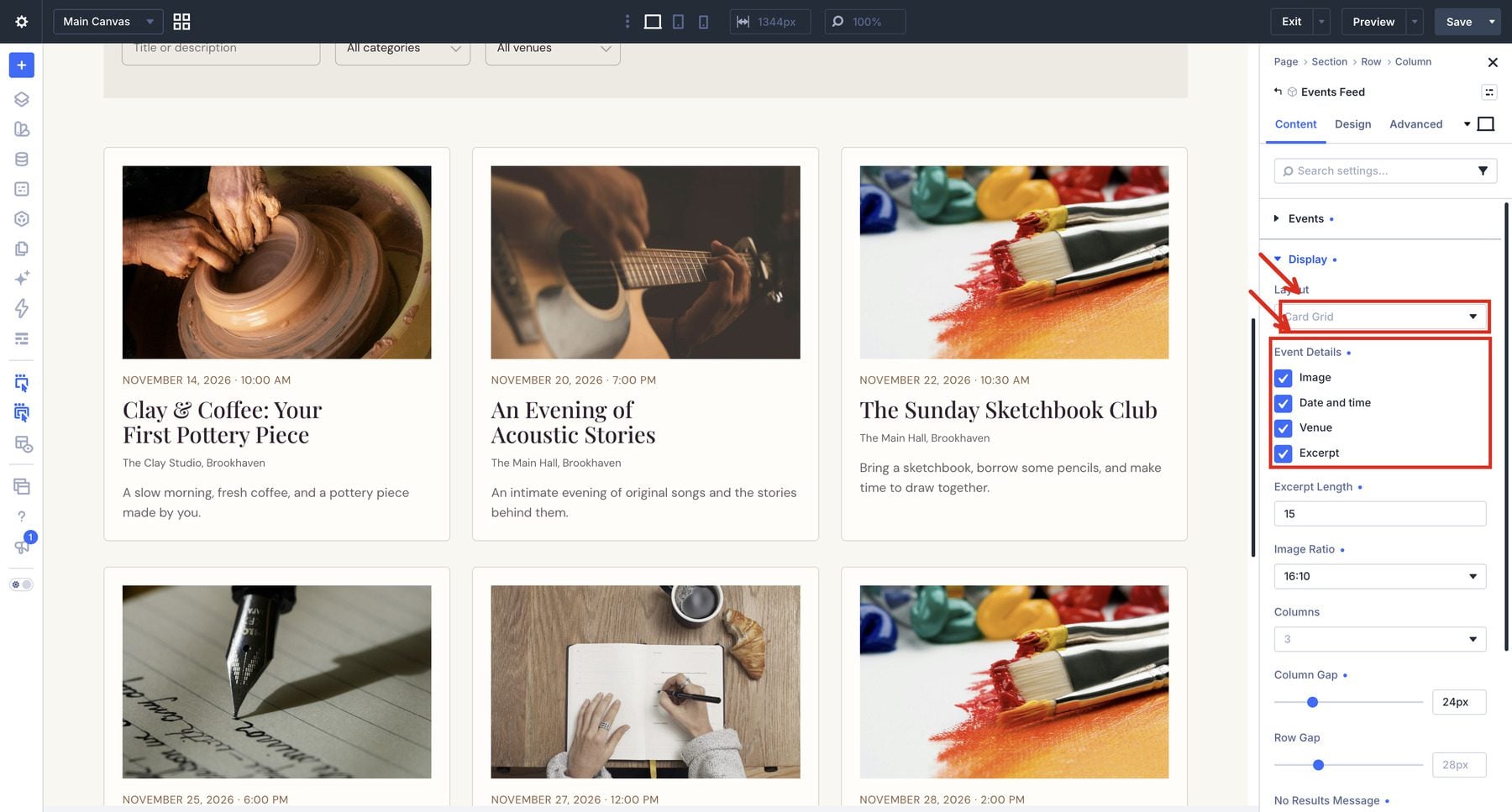
The Events Feed module displays multiple events as a grid, list, or compact rows. A grid gives featured images room to introduce each event. List and compact layouts suit schedules where visitors need to scan more information in less space.
Choose upcoming, ongoing, past, or all events and order them by date or title. For recurring classes, Show Each Event Once keeps a series from filling the directory with every upcoming session. The feed’s content settings also control the source and event count. You can include images, dates, venue details, and excerpts, then adjust the presentation to suit the page.
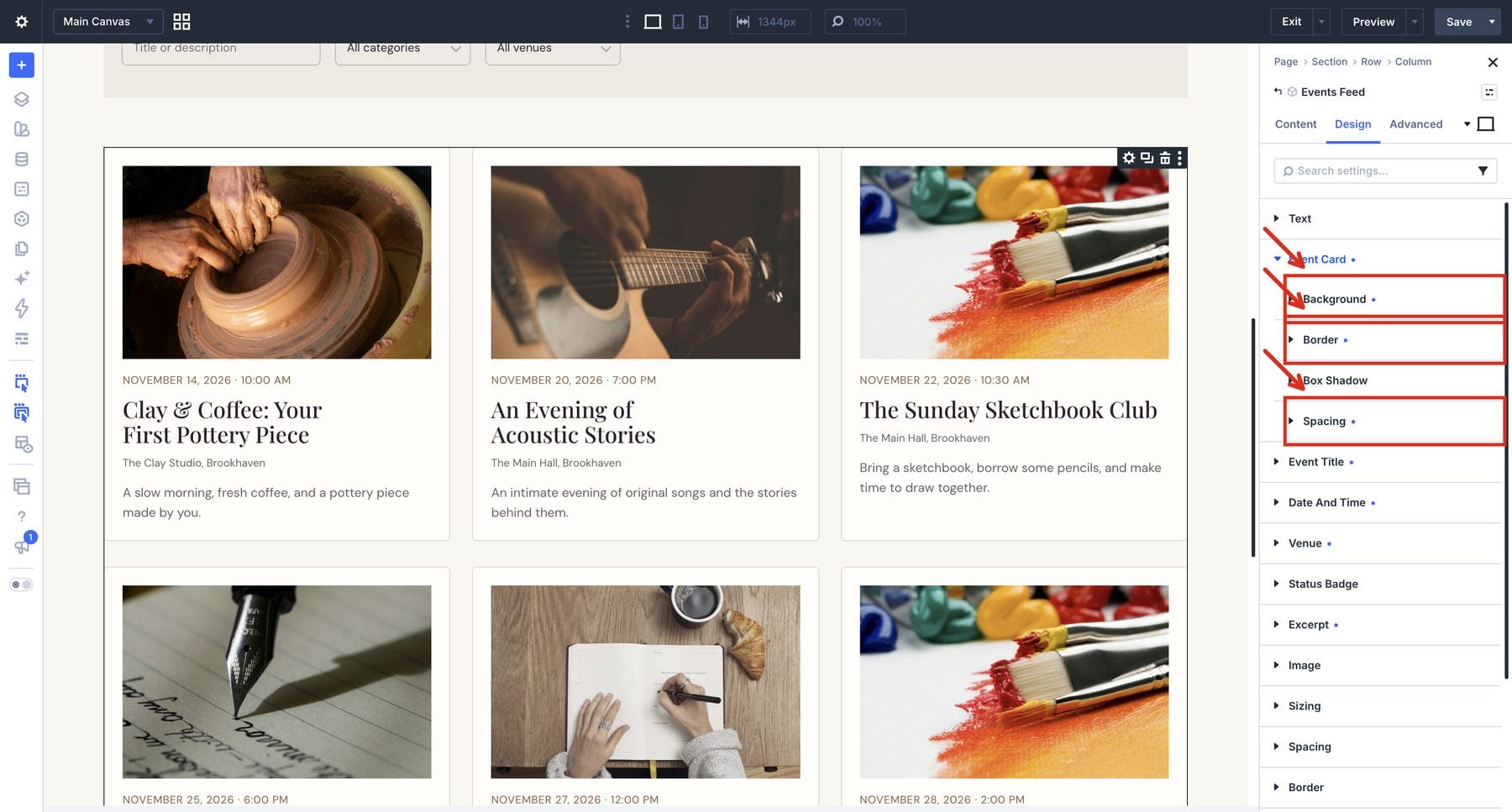
Native card styling includes backgrounds, borders, shadows, and padding. List and compact layouts also provide divider styling. These controls help an event feed match a site’s typography and visual identity.
The module offers pagination settings for numbered pages, Load More, and infinite scrolling. Our version 1.0.1 example displays all eight events with pagination disabled: Load More repeated the initial records during our The Events Calendar integration check. Check pagination with your own source before using it on a live directory.
Four Calendar Views
The Events Calendar module presents events in month, week, day, and agenda views. A monthly calendar helps visitors plan ahead, while an agenda gives them a chronological list of gatherings within the displayed date range.
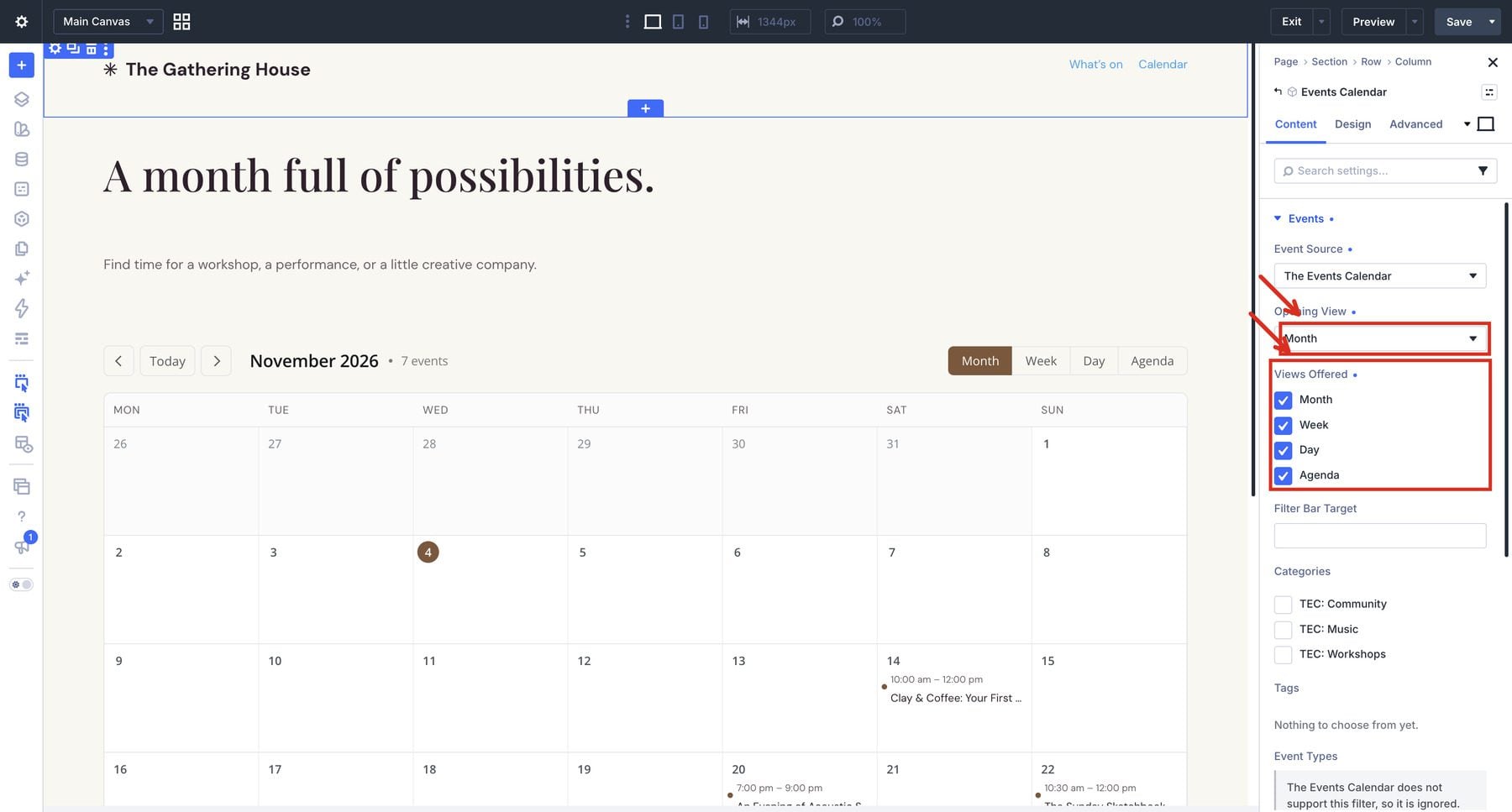
Choose the available views and a default, then configure settings such as the first day of the week and accent color. Visitors can navigate between dates and follow an event link to its detail page. Our demo shows the same event records in both a feed and calendar. The calendar preserves the selected view and date in its URL, letting visitors bookmark or share a particular schedule view. Entry styles, daily event limits, and an optional legend provide more control over a busy calendar.
Search And Filtering
The Events Filter Bar helps visitors narrow a feed or calendar. Its available controls include search, categories, tags, event types, venues, organizers, attendance mode, date ranges, and price. Unsupported or empty options are omitted according to the selected source.
The Gathering House uses search, category, and venue controls with The Events Calendar. A visitor can choose Music to find the acoustic performance or select a venue to explore gatherings at that location. Applied-filter chips show active selections and provide a way to remove them.
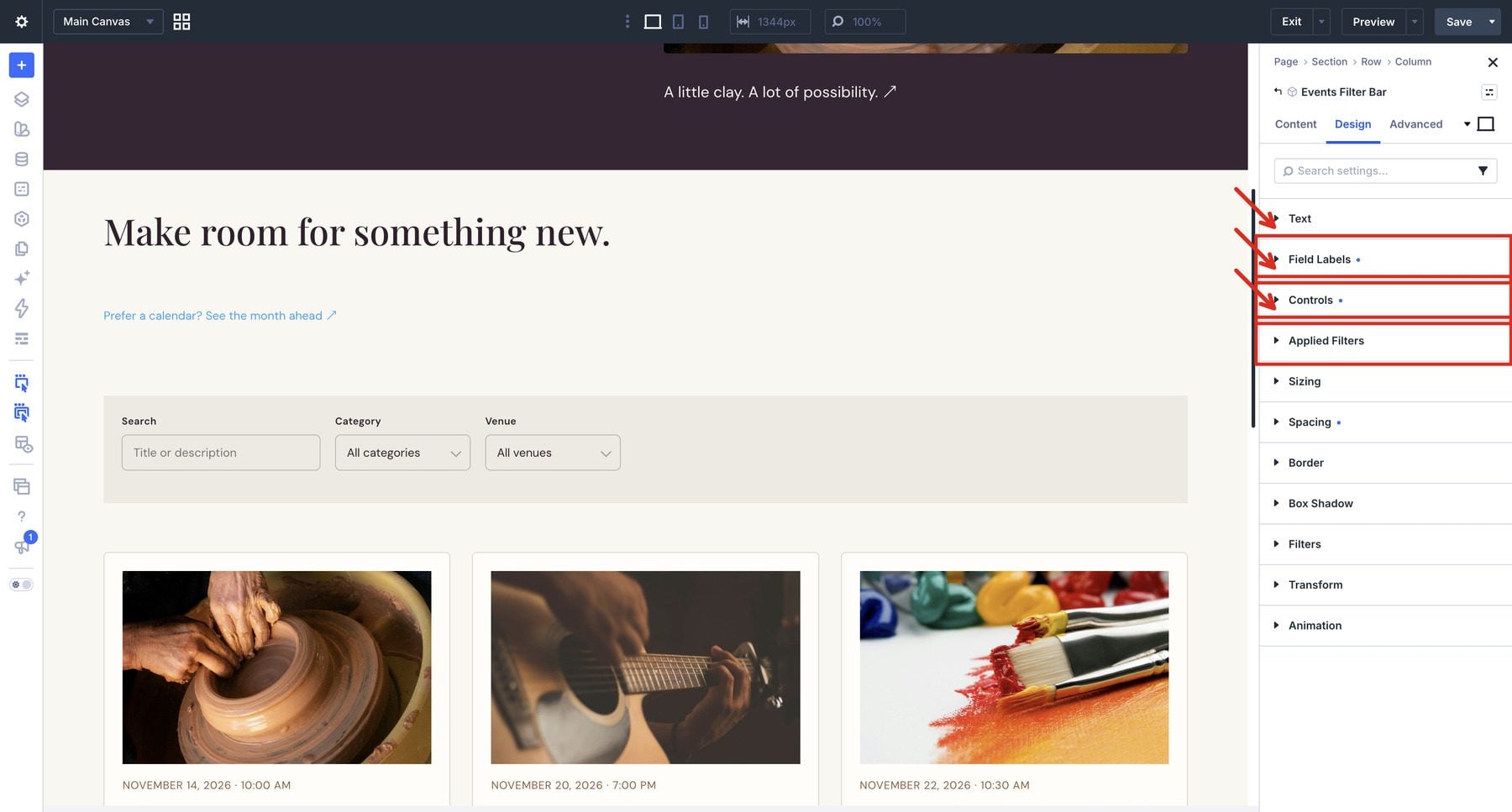
These areas have dedicated native design controls. Field Labels controls label typography. Controls provides text, background, border, corner, and spacing settings for the inputs. Applied Filters styles the chip text, backgrounds, and borders. The overall module also has Divi’s background and spacing controls.
Single-Event Details And Styling
Four dedicated modules supply the information visitors need on an event page: Event Date & Time, Event Venue, Event Organizer, and Event Status. Use them together in a sidebar or place each detail within the page’s content.
The venue module offers separate typography for the name, address, phone, website, and venue link. Optional contact details can be hidden when they add little to the page. The status module supports scheduled, canceled, postponed, moved-online, and rescheduled events. It reads that information from the event source.
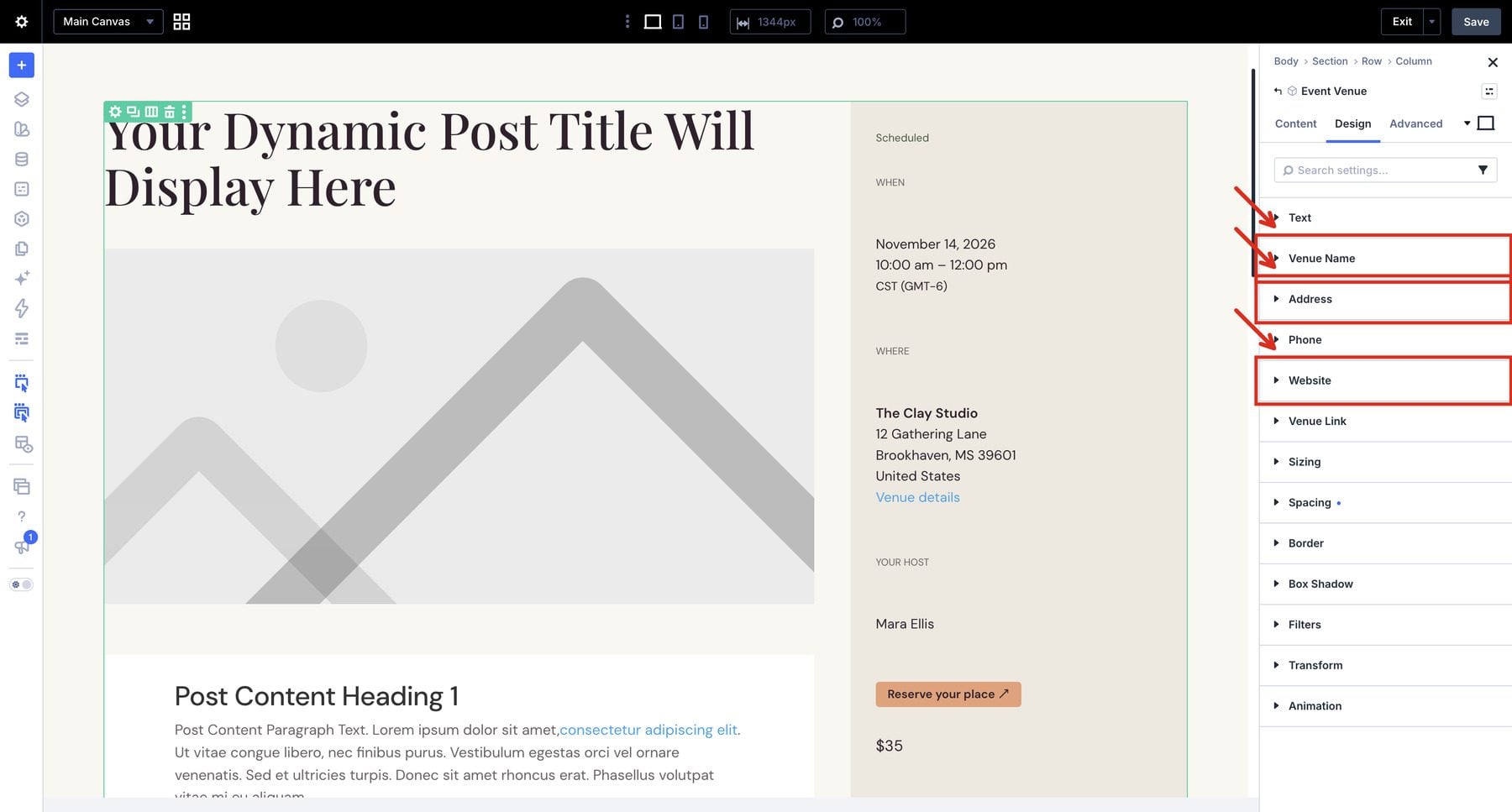
In a Divi Theme Builder template, these modules can read the event being viewed. Choose This event in their event settings so one template supplies a consistent layout across the collection, with each page showing its own information.
Visitor Actions And Related Events
The Event Countdown module can count toward an event’s start or end. Select the current event, next event, or a specific event, then choose the units to display. After the target time, it can hide, show a message, or remain at zero. For a workshop, a short countdown can sit beside the date and venue details without taking over the page.
In a single-event template, explicitly choose This event. The module initially selects Next upcoming event, which can make every event page count down to the same gathering.
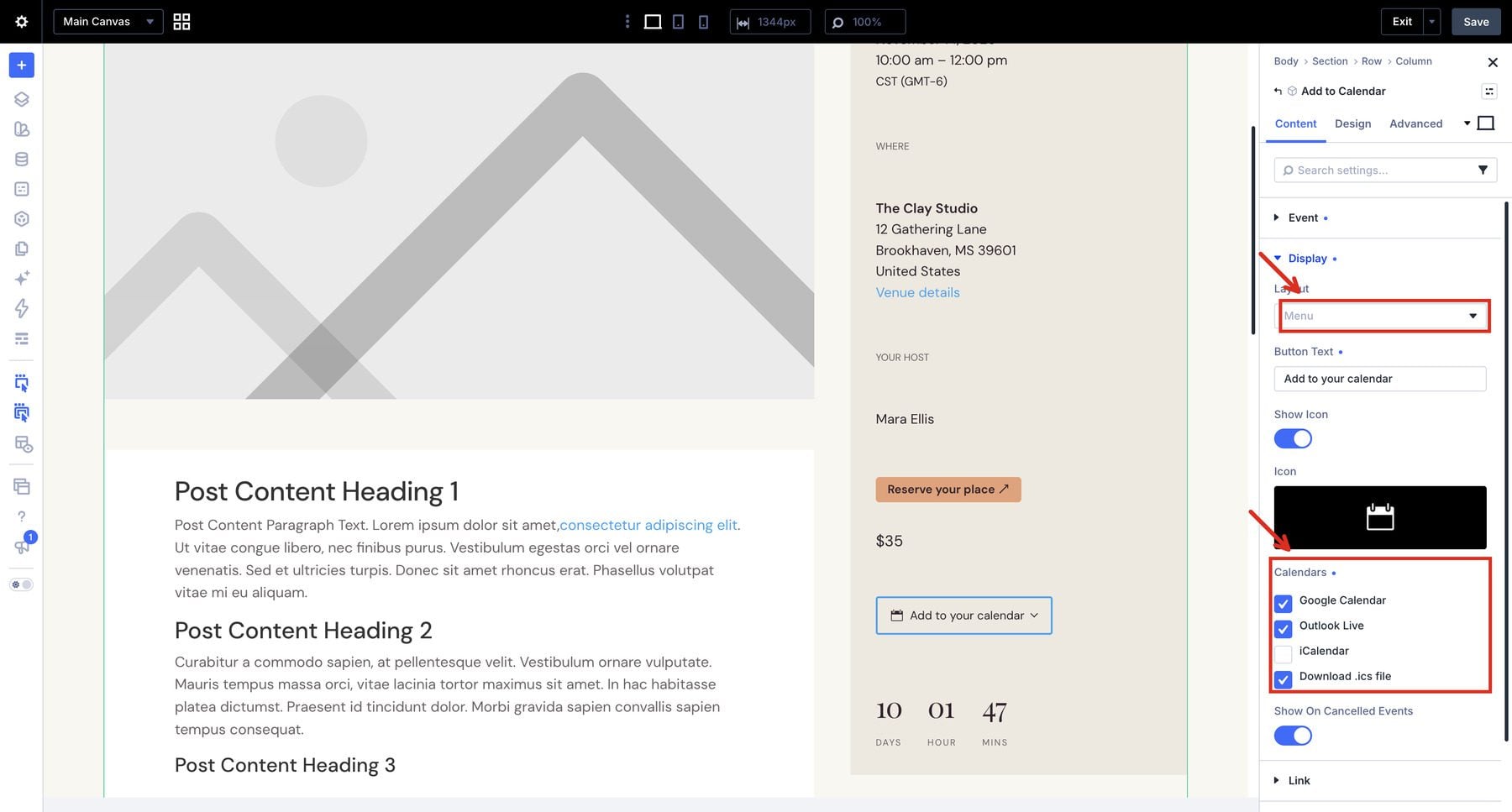
Add To Calendar gives visitors Google Calendar and Outlook links plus a downloadable ICS file. This is an individual event action, useful for someone who wants a reminder after choosing a gathering.
Event Register displays an event’s registration or ticket link as a button. The module is a link to the destination you supply; it does not establish a payment checkout or booking system. The DE Events example demonstrates its button and event price. Capacity can also appear beside or below the button, but entering a capacity does not create a live remaining-seat counter or attendee list. In the tested 1.0.1 integration, The Events Calendar did not supply the registration information this module needs.
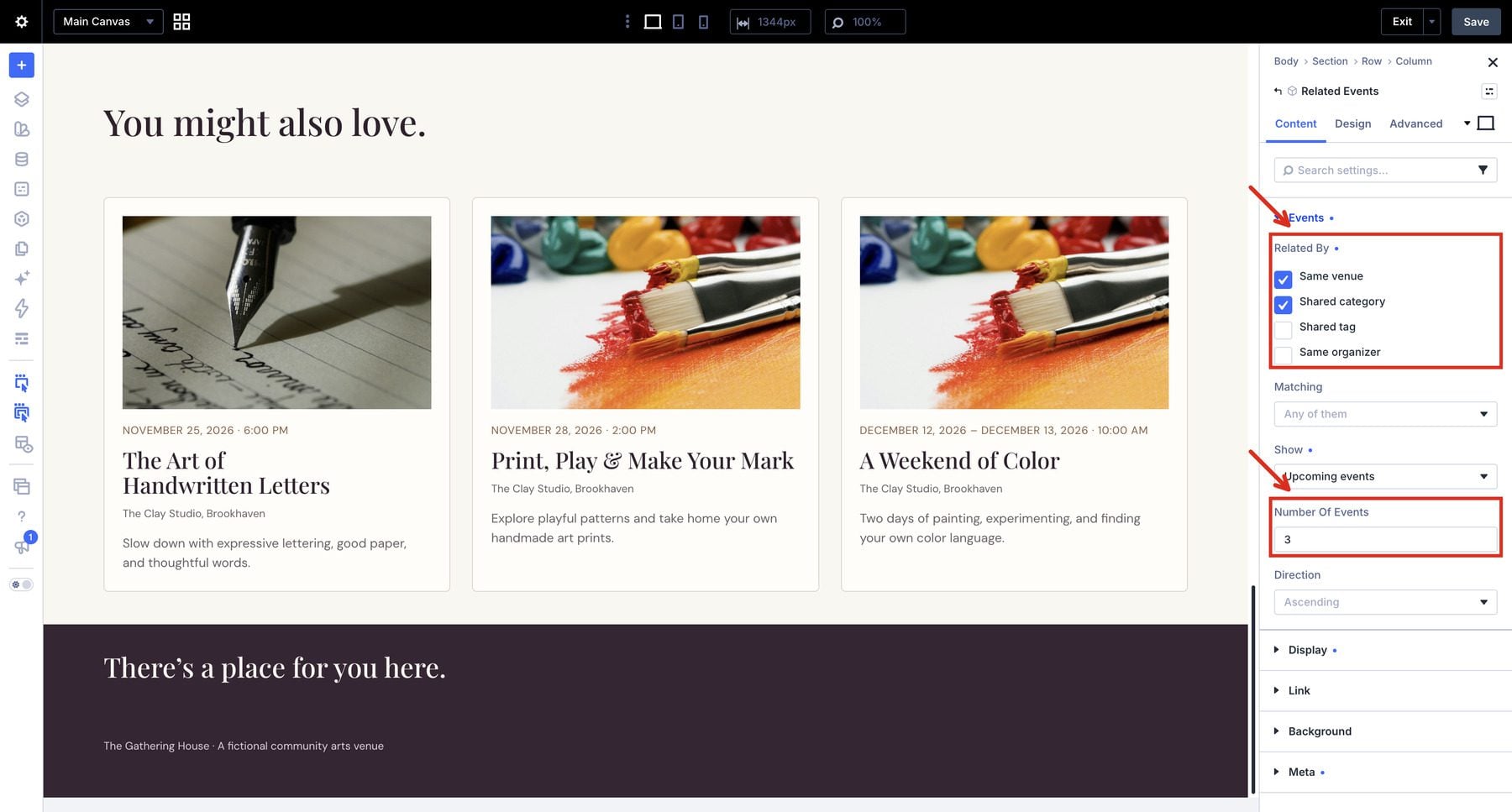
Finally, Related Events helps visitors discover another gathering through shared categories, tags, venues, or organizers. It includes card design controls similar to the feed. On a pottery workshop page, matching by category or venue can introduce another creative session.
Templates, Dynamic Content, And Data Tools
The built-in event system includes nine default templates covering individual events, venues, organizers, their archives, and category, tag, and type archives. They render when the plugin is activated, so a published event has a usable detail page before you design a custom template. A matching Theme Builder assignment then takes over its presentation.
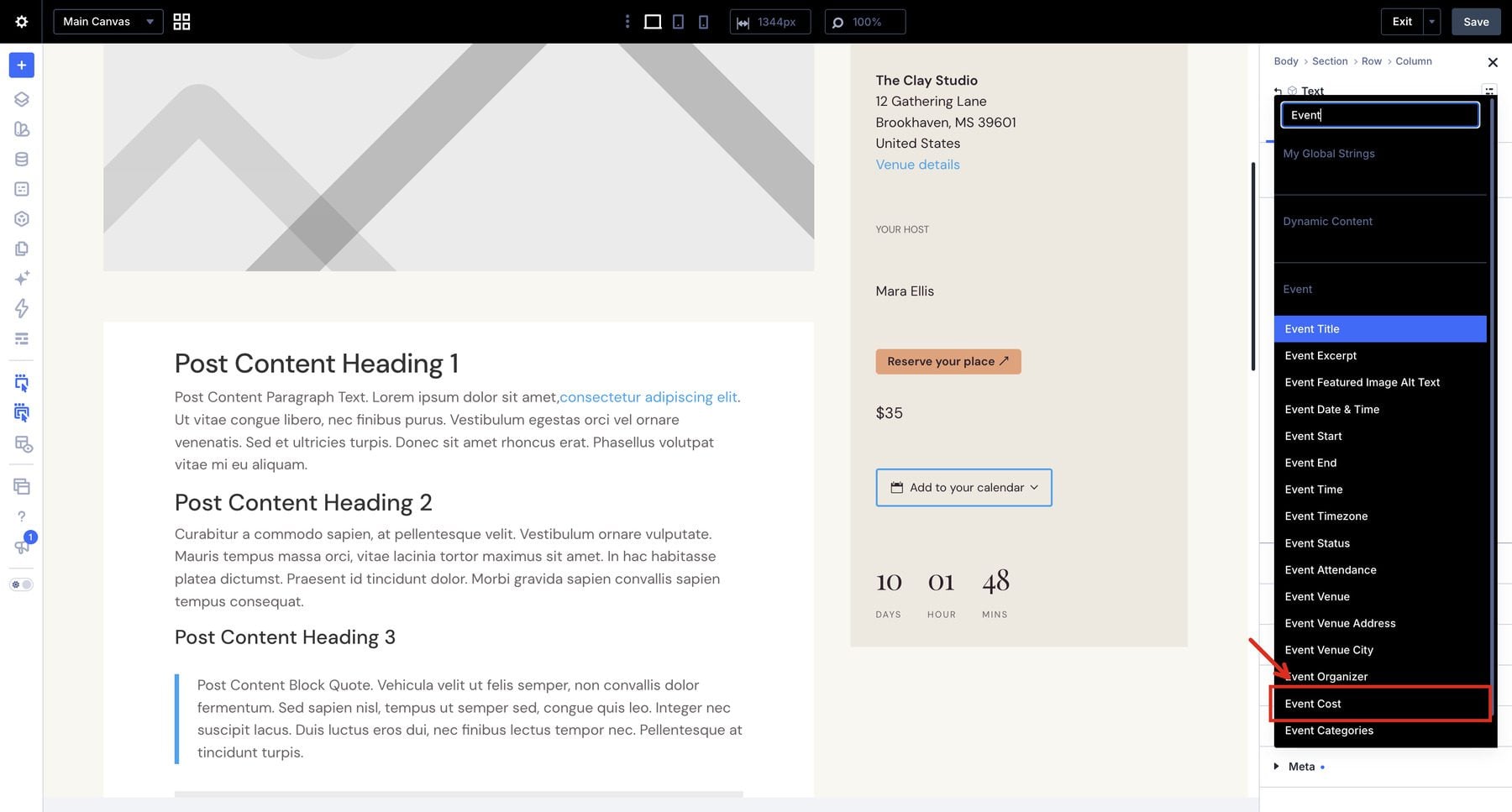
Event fields are also available through Divi’s dynamic content options, including use within Theme Builder templates. For example, our event template uses an Event Cost dynamic value in a standard Text module. Available values depend on the event source supplying that information.
Calendar subscriptions provide ongoing schedule updates. The plugin includes ICS feeds for the whole calendar and filtered event collections. Our native calendar, venue, and organizer feed checks returned the six scheduled occurrences from the sample data. The plugin also includes Event structured data settings, with controls intended to avoid duplicate Event markup from the source plugin.
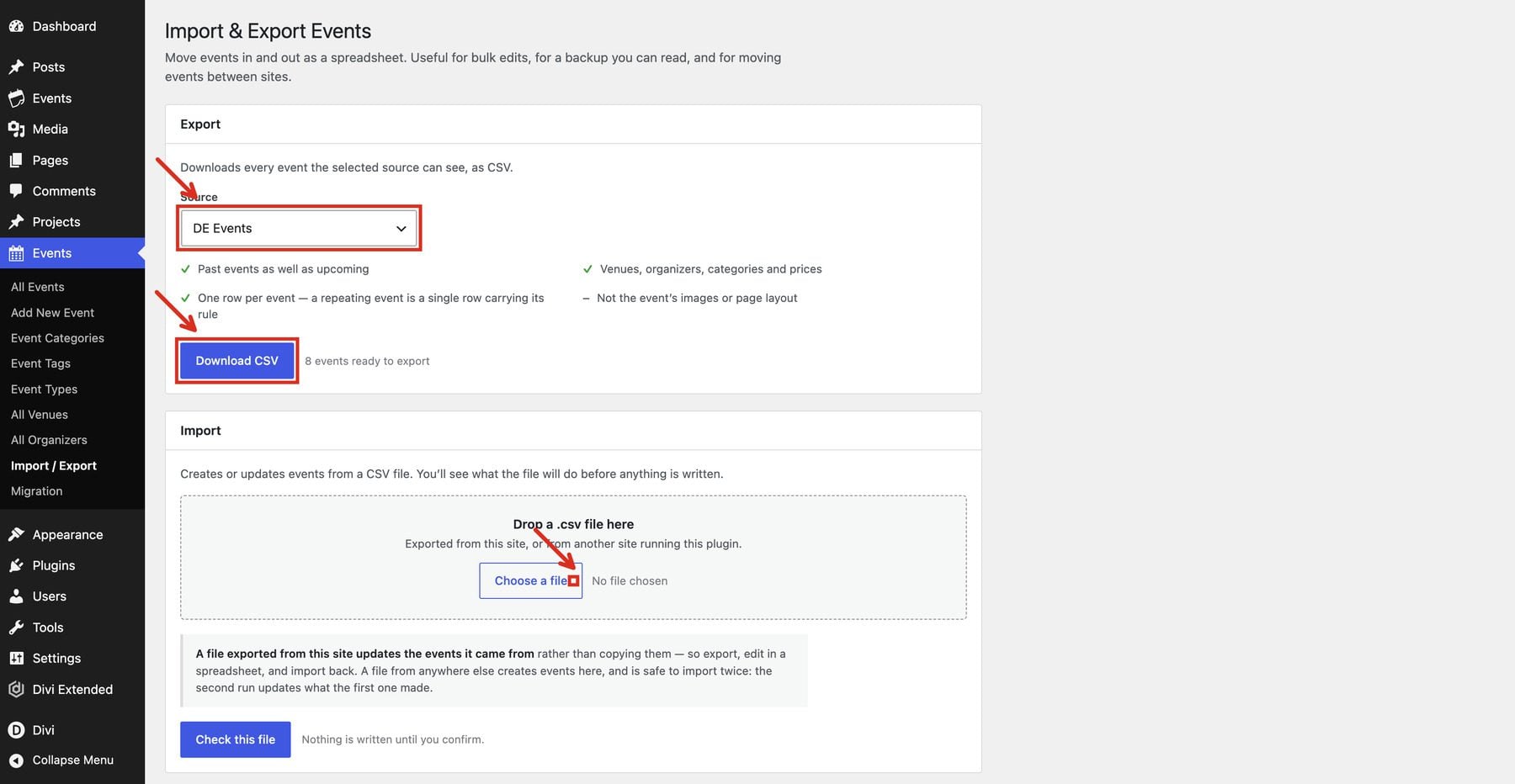
For built-in event data, CSV import and export provide tools for moving records between systems. Our workshop export retained its event data, and the import preview identified it as an update to the existing workshop. A separate one-way migration tool can move events from The Events Calendar into DE Events. These tools serve a different purpose from exporting a Divi layout: event records and page design are separate dependencies.
How To Use Divi Events Extended
The Gathering House example combines a photographic event directory, a calendar page, and a reusable event detail template. Its eight fictional gatherings include paid workshops, free community sessions, an acoustic performance, an all-day open house, and a workshop spanning two days.
The design uses an ivory background, deep plum sections, peach buttons, and serif headings. The events themselves remain editable records, so the feed and calendar can reflect changes to the schedule.
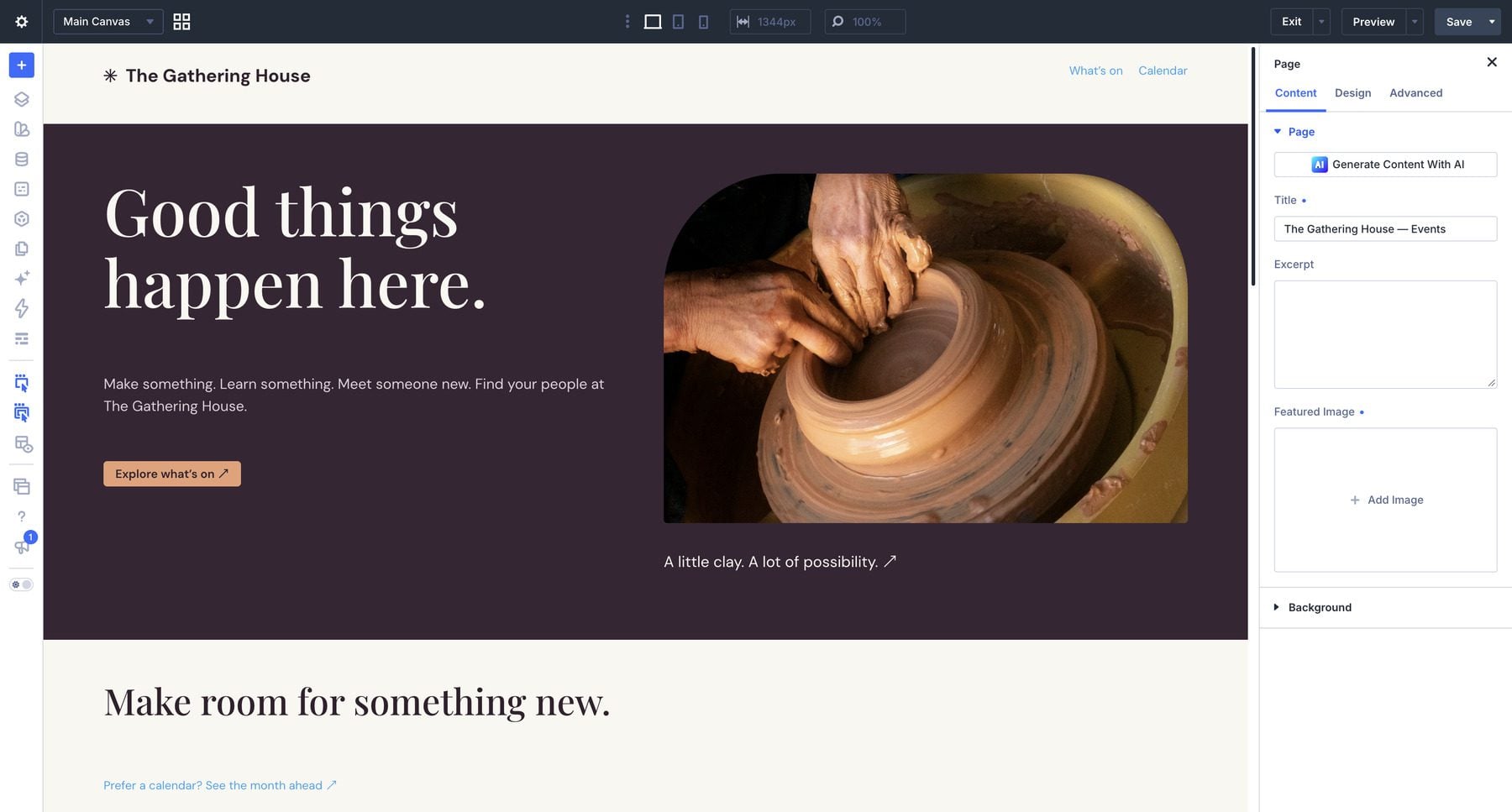
Choose the path that matches where you want to manage event records. Both use the plugin’s Divi modules; the difference is where their content comes from.
Scenario 1: Use The Built-In DE Events System
Start here for a new event website. Divi Events Extended includes event management and recurrence. Our native example uses three events, including a weekly pottery class. This path works without The Events Calendar.
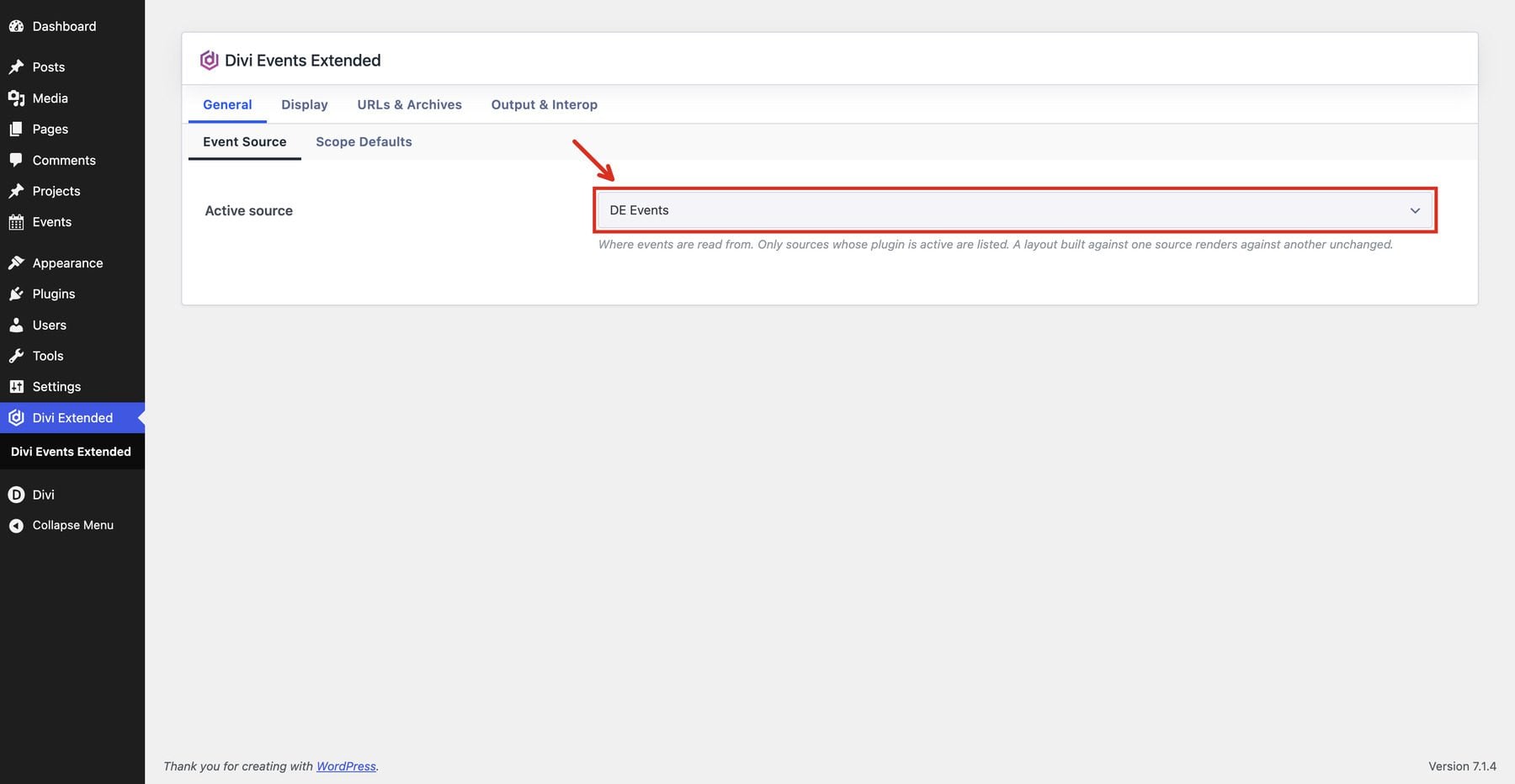
1. Activate The Plugin And Select DE Events
With the Divi 5 theme active, upload the extension through Plugins > Add Plugin > Upload Plugin and activate it. Open Divi Extended > Divi Events Extended and choose DE Events as the active source. This supplies the default source for modules set to Site Default; individual feed and calendar modules can override that selection.
For this venue-based example, open Settings > General, set Timezone to America/Chicago, and save the changes. Use the timezone that matches your own venue when adapting the example. We also assign Chicago to the event itself. With the site left on UTC, our evening event appeared under the following date in the agenda grouping; matching the site timezone corrected it.
2. Create A Venue, Organizer, And Event
Use the extension’s Events menu to create the supporting records:
- Open All Venues, click Add New Venue, and create The Clay Studio. Complete any venue details you want to display, then publish it.
- Open All Organizers, add Mara Ellis, and publish the organizer.
- Return to Events > Add New Event and create Clay & Coffee: Studio Session.
If both event systems are installed, use the built-in Events menu containing All Venues and All Organizers to distinguish its records from The Events Calendar’s records.
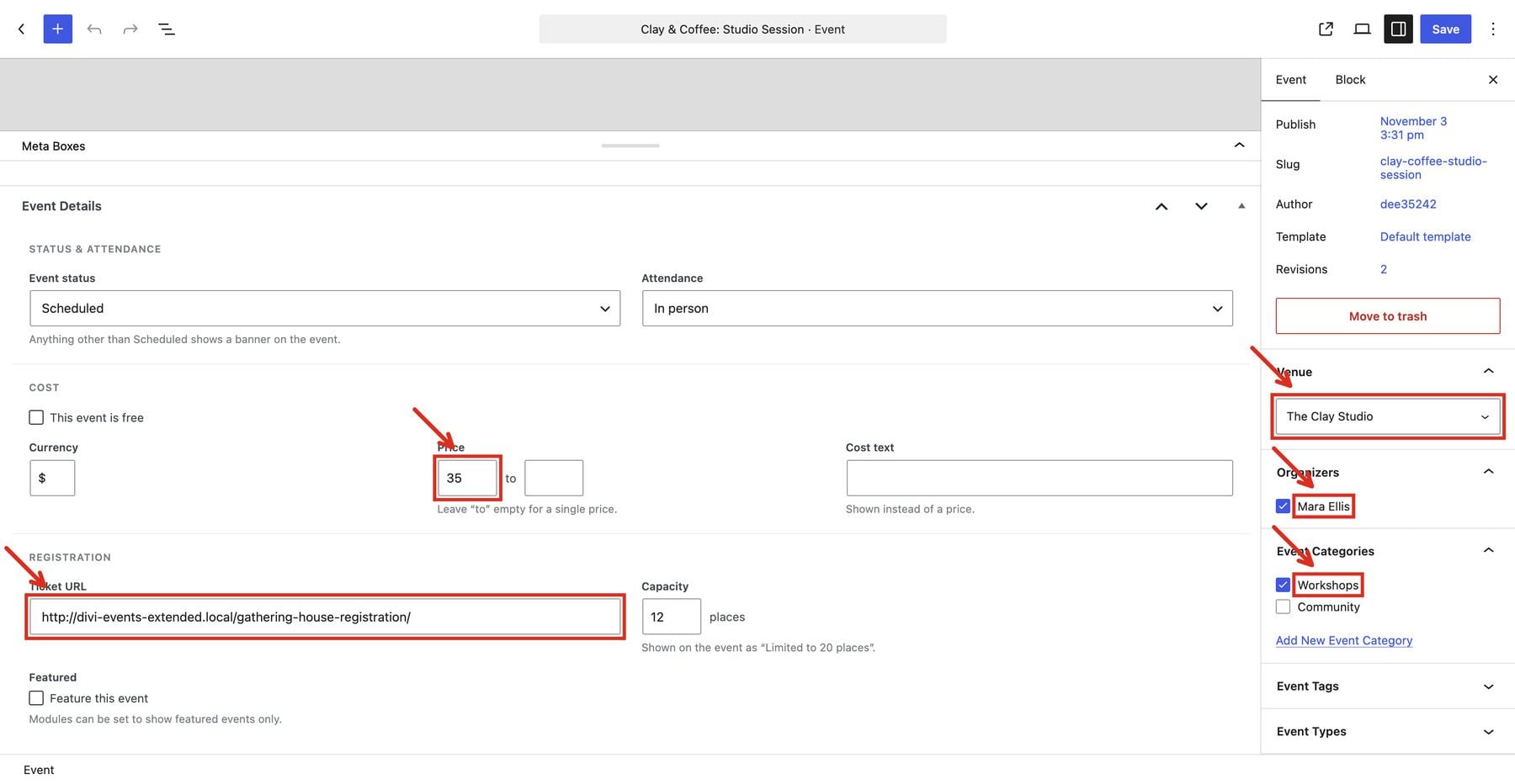
Add the event’s description, featured image, excerpt, and category. In the block editor, expand the Meta Boxes pane beneath the content area to reveal Schedule and Event Details. If only the pane’s title is visible, expand or resize it upward.
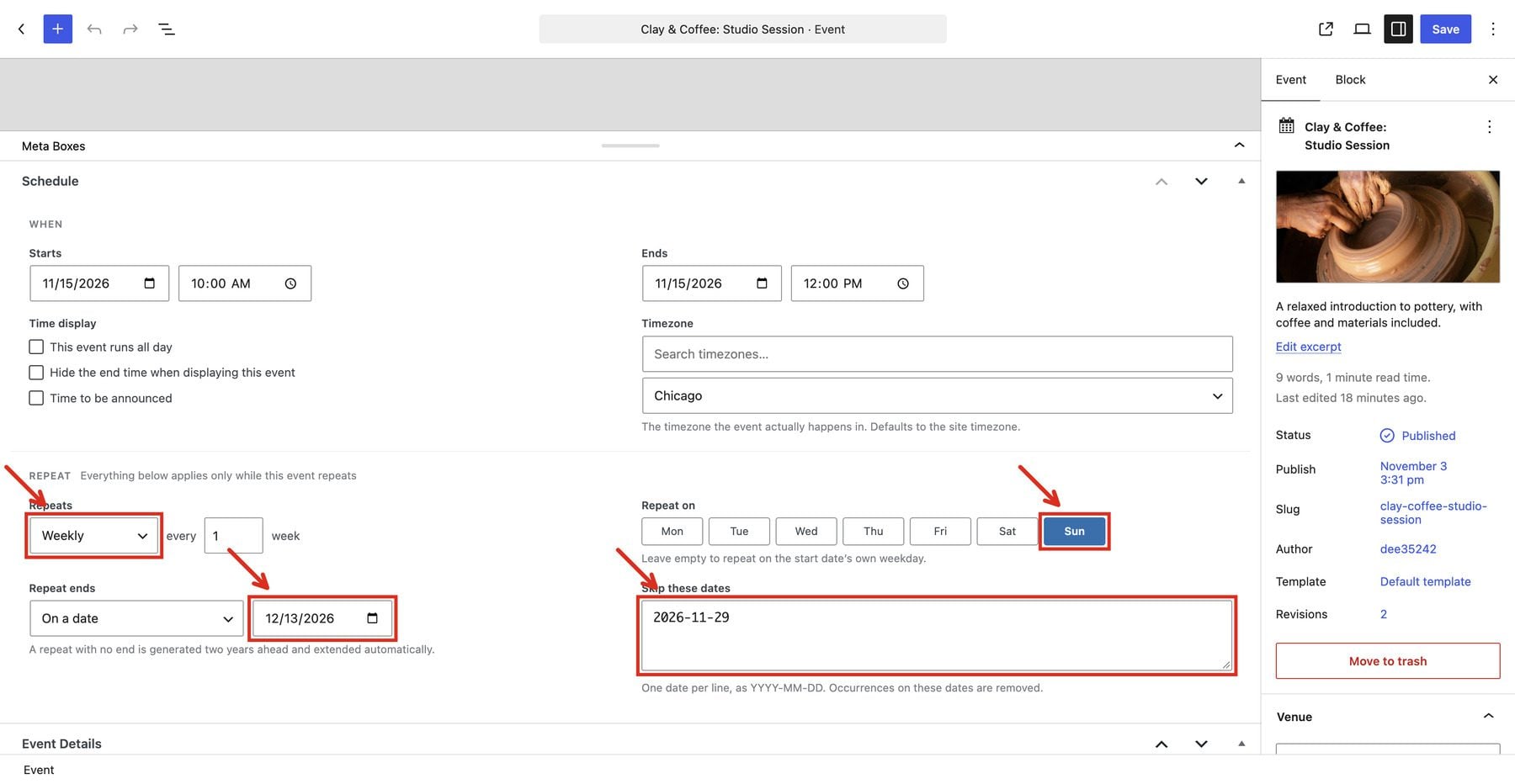
In Schedule, set both the start and end date to November 15, 2026, with a start time of 10 a.m. and an end time of noon. Set the event timezone to America/Chicago.
Assign The Clay Studio and Mara Ellis in the event settings sidebar. In Event Details, keep the status scheduled and attendance in person. Enter $ in Currency and 35 in Price to display $35. Add a Ticket URL if visitors should follow a registration link. Publish and view the event to see its default page.
3. Set Up A Recurring Class
With the workshop’s initial date set to November 15, 2026, configure the Repeat controls in the Schedule panel:
- Set Repeats to Weekly.
- Keep the interval at 1 and select Sunday.
- Set Repeat Ends to On A Date and enter December 13, 2026.
- Enter 2026-11-29 in Skip These Dates to omit the holiday-weekend session.
- Save the event.
This recurrence belongs to DE Events. It does not require The Events Calendar or its paid recurrence add-on. The calendar shows November 15 and 22, then December 6 and 13, with November 29 omitted. Opening the November 22 calendar entry shows that date on the event page.
The screenshots use these sample dates. If you follow along after they have passed, choose future dates so the class appears in an upcoming-events feed.
4. Display Native Events In A Feed And Calendar
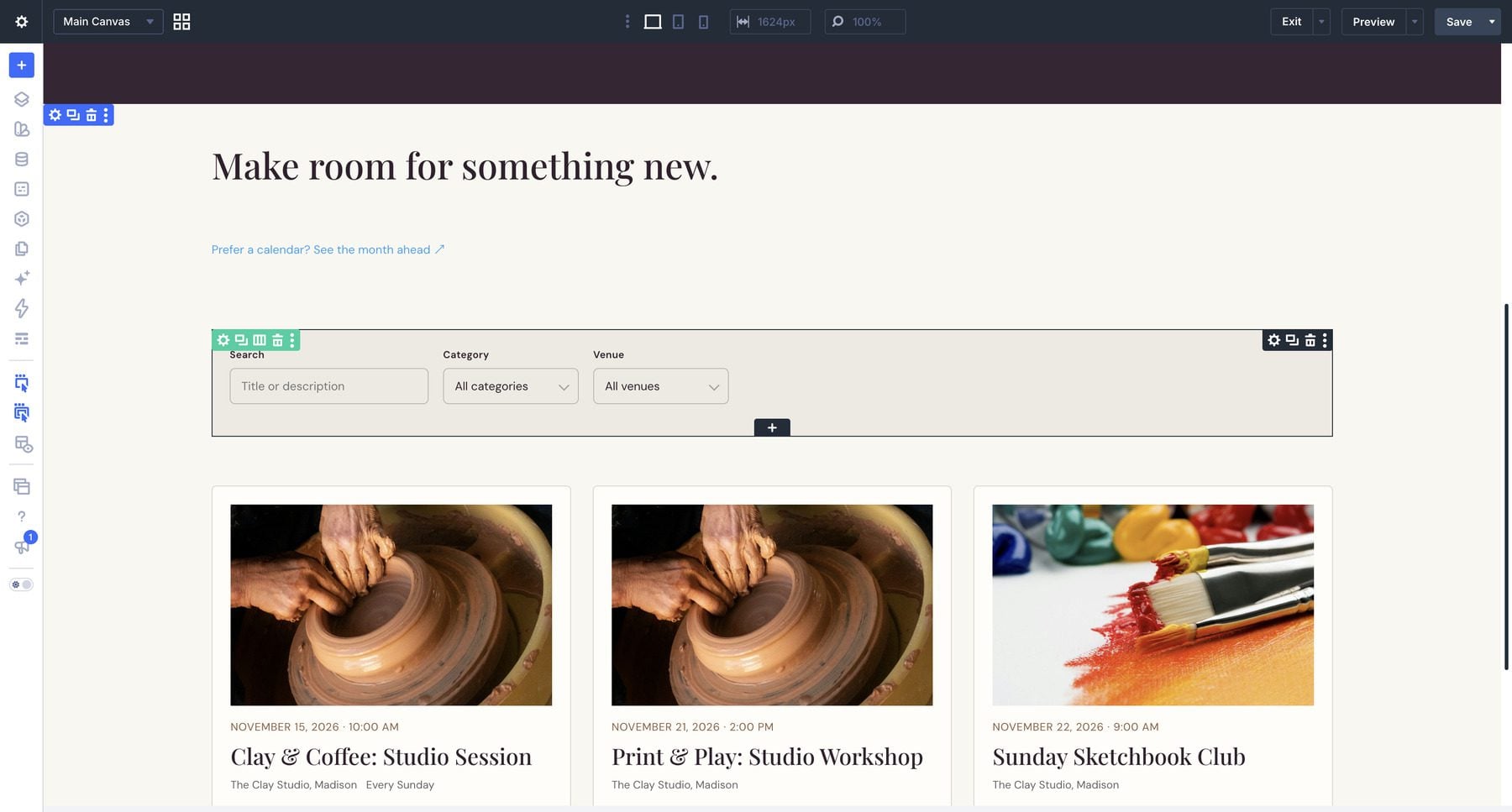
Create a page in Divi and insert an Events Feed. Under Content > Events, choose DE Events as its source and Upcoming events under Show. Set Repeating Events to Show each event once if you want one card per recurring class instead of every scheduled date.
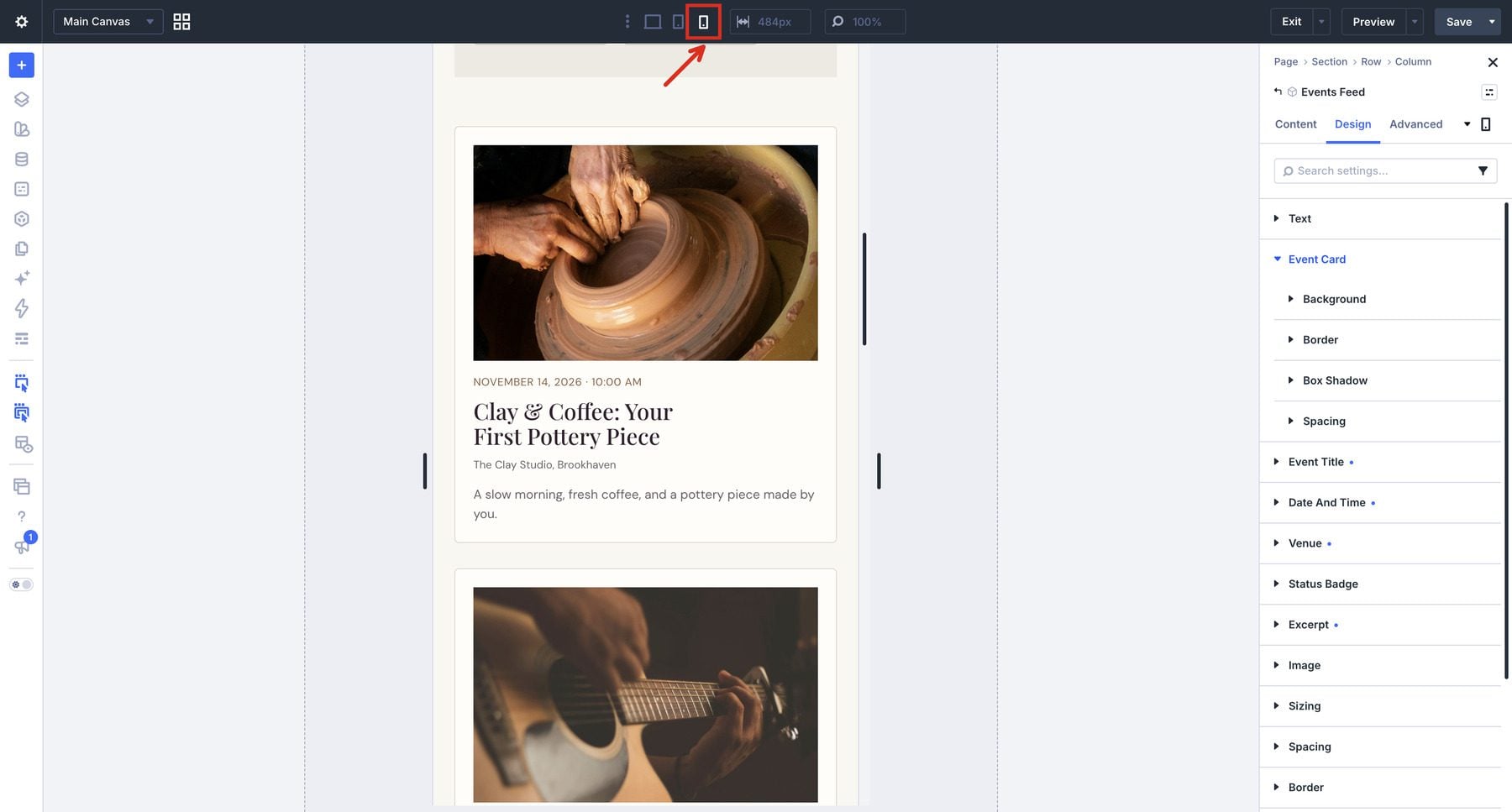
Open Content > Display, choose Card Grid, and include Image, Date and time, Venue, and Excerpt. Set Columns to 3 on Desktop. Use the settings panel’s device selector to switch to Tablet and set Columns to 2, then switch to Phone and set it to 1. Return to Desktop before changing settings that do not support responsive values.
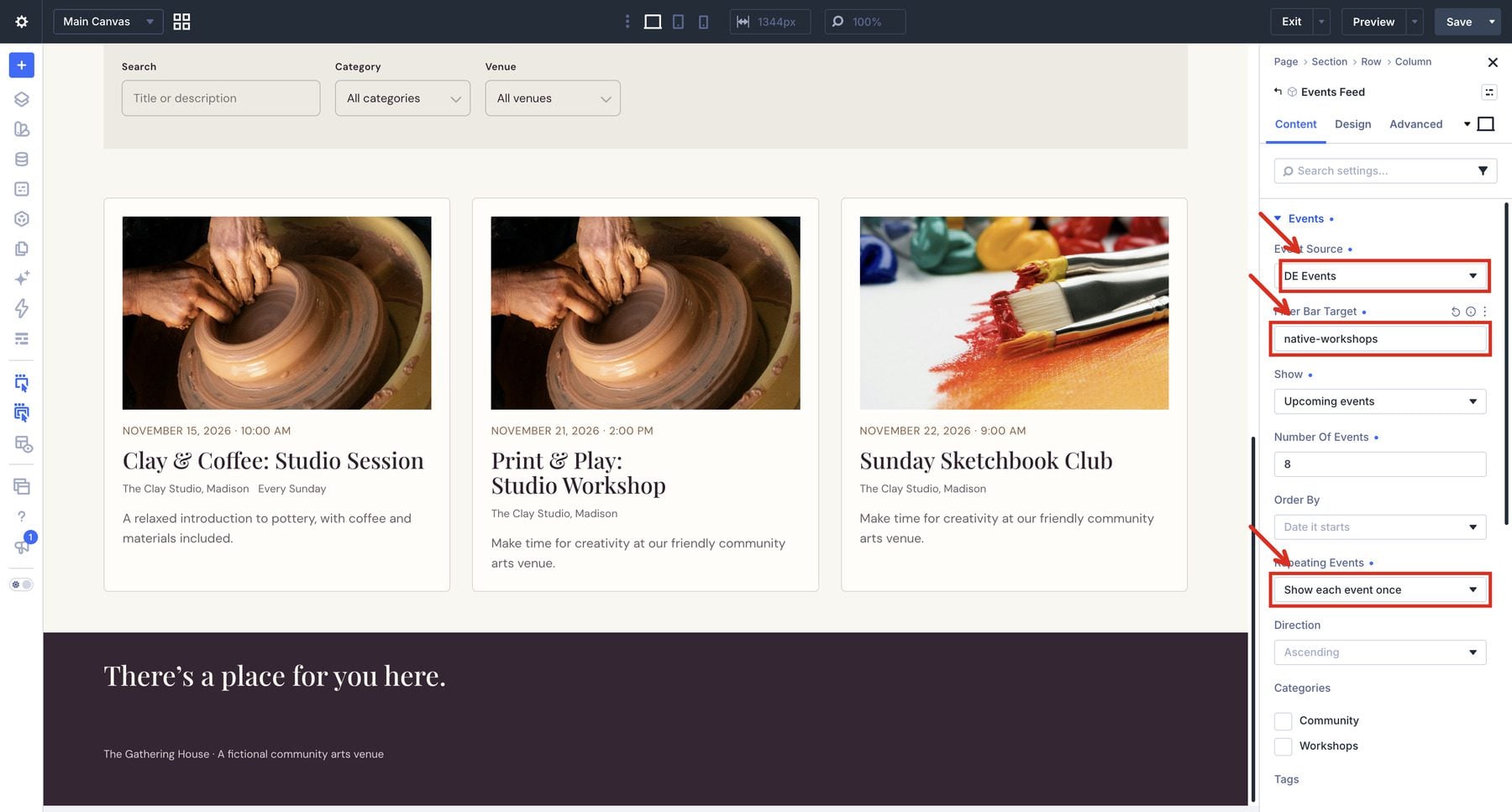
Add an Events Filter Bar above the feed using the same source. Enter native-workshops in the bar’s Target and the feed’s Filter Bar Target. Enable Search, Category, and Venue, and disable Date range and any other controls you do not want to show. Use the inline layout and enable applied filters.
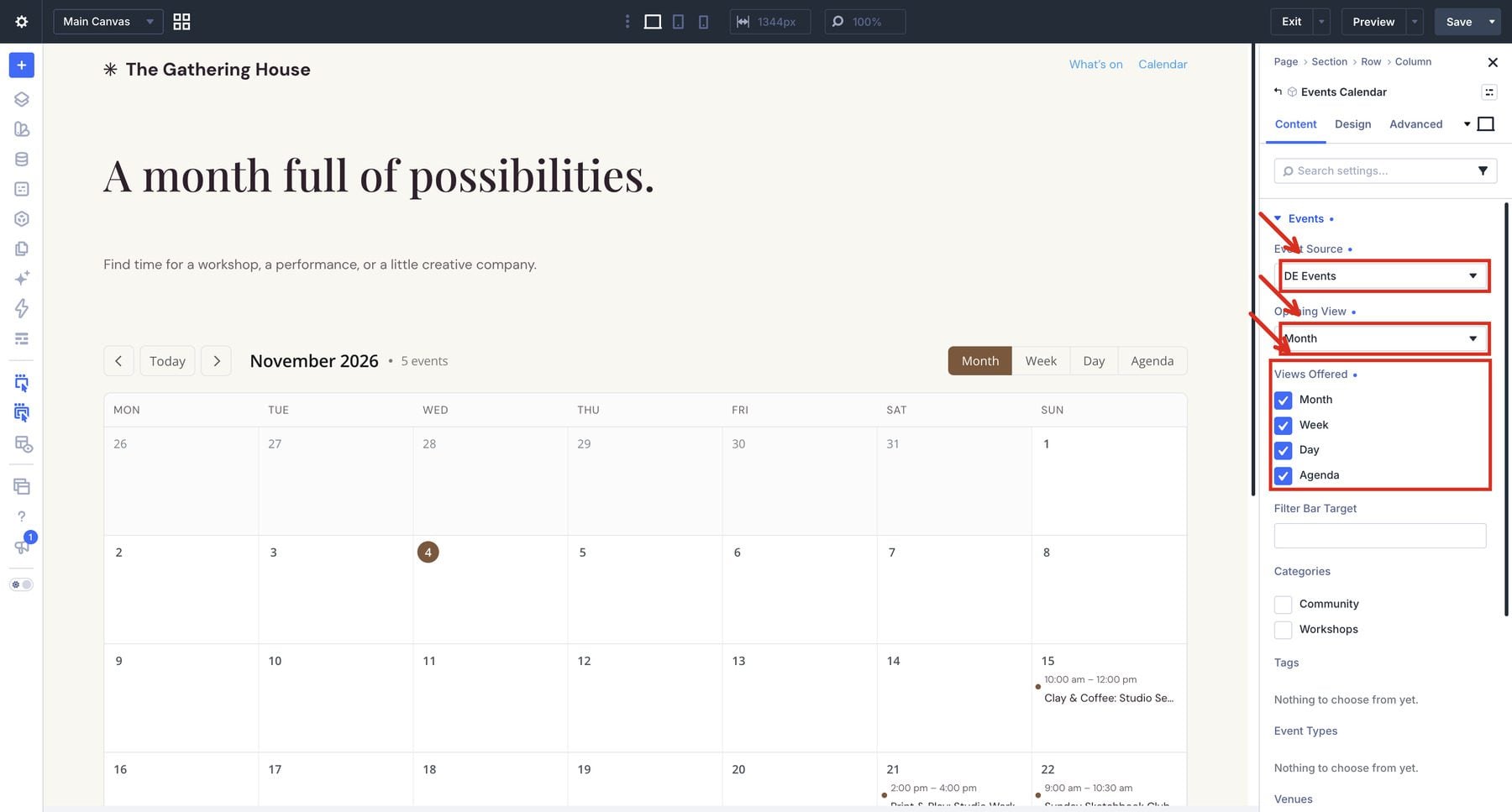
Add an Events Calendar on a second page, select DE Events, and enable Month, Week, Day, and Agenda under Views Offered. Set Opening View to Month and link the two pages together.
5. Add Registration And Customize The Event Page
The default event page provides a starting layout. For your own design, open Divi > Theme Builder and assign a template to the built-in event posts. Combine Post Title and Post Content with Event Date & Time, Event Venue, Event Organizer, and Event Status.
In each detail module’s Content > Event settings, choose This event. The module then reads the event being viewed; a separate source selector is not shown in this mode.
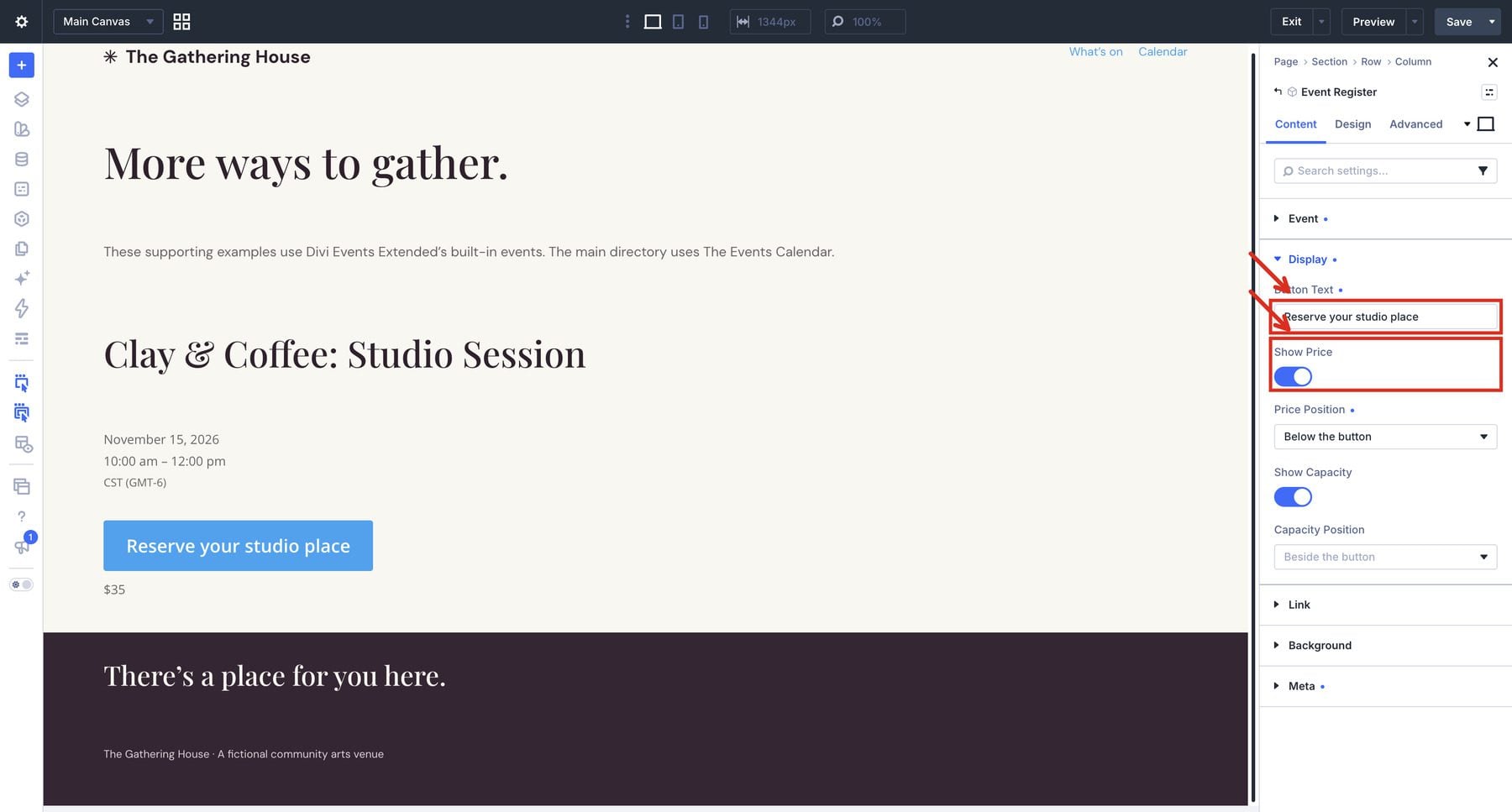
Add Event Register and use This event in the event template. It reads the native event’s Ticket URL. Open Content > Display to customize the button text and enable Show Price. If you entered a capacity, enable Show Capacity and choose where to display it.
On an ordinary Divi page, choose A specific event, set Event Source to DE Events, and select the workshop under Choose Event. The supporting Gathering House page demonstrates this button and its $35 price; its destination explains the fictional event and collects no bookings or payments.
Finish with Add To Calendar, Event Countdown, and Related Events where useful. In the template’s Countdown module, explicitly select This event so it follows the page being viewed. Use the native card and filter design controls described below to apply the Gathering House palette, then test the saved frontend and phone layout.
Scenario 2: Connect The Events Calendar
Use this path when your site already manages events in The Events Calendar or you prefer its content workflow. The directory, calendar, and detail template in our eight-event demo use this source. Records stay in The Events Calendar; displaying them does not migrate them into DE Events.
1. Prepare The Plugins And Choose The Event Source
Install and activate the Divi theme, The Events Calendar, and Divi Events Extended. Upload the extension’s ZIP through Plugins > Add Plugin > Upload Plugin, then activate it. Already have the plugins? Start with the source settings.
Open Divi Extended > Divi Events Extended and select The Events Calendar as the active source. Events for the main example will be created and maintained in that plugin.
Check the URL settings if both event systems are installed. Open URLs & Archives > URL Slugs and give DE Events a separate de-events event slug. If the settings show the archive conflict warning, the Use de-events instead button applies this alternative. This keeps the two systems from competing for the same archive address.
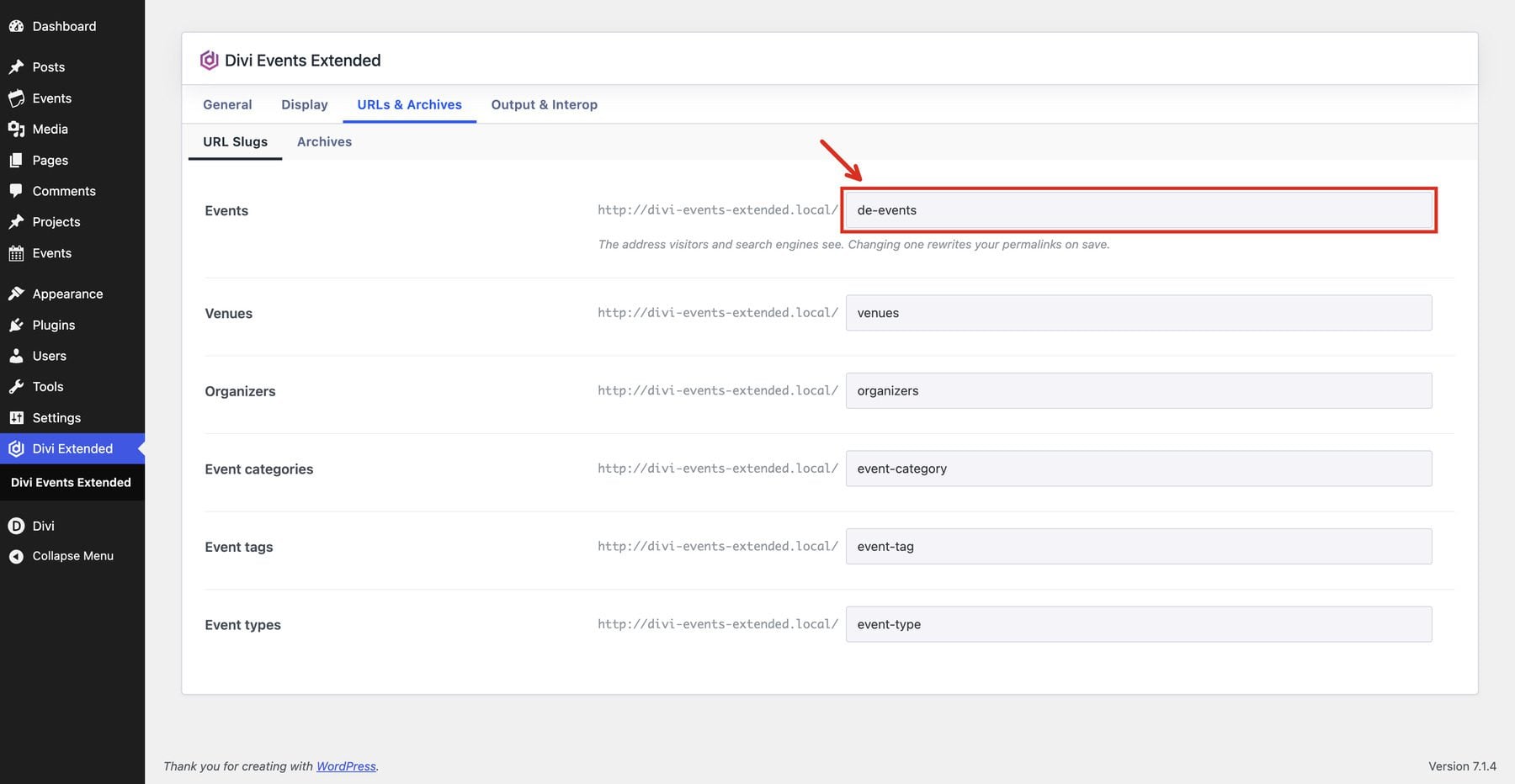
Check Settings > General > Timezone as well. Our venue uses America/Chicago. Match the site timezone to the venue for this example, then use that timezone when entering its event schedules.
2. Create The Sample Events, Venues, And Organizers
Create the venues and organizers in The Events Calendar, then assign them as you add events. These are separate records from any venues and organizers created in DE Events. The sample pottery workshop, Clay & Coffee, takes place at The Clay Studio and is hosted by Mara Ellis.
For each event, enter its title, description, start and end dates, times, timezone, featured image, category, and cost. Use an excerpt for a short card description. The pottery workshop costs $35 and runs from 10 a.m. to noon; the sketchbook club is free. After publishing, reopen the event or view its detail page to confirm that the saved dates and times match your entries.
Include varied records so the controls have meaningful results. Workshops, Music, and Community provide distinct categories. The Clay Studio, Main Hall, and Online Studio supply different venue choices. An online venue label identifies the location here; it does not demonstrate a virtual-event integration.
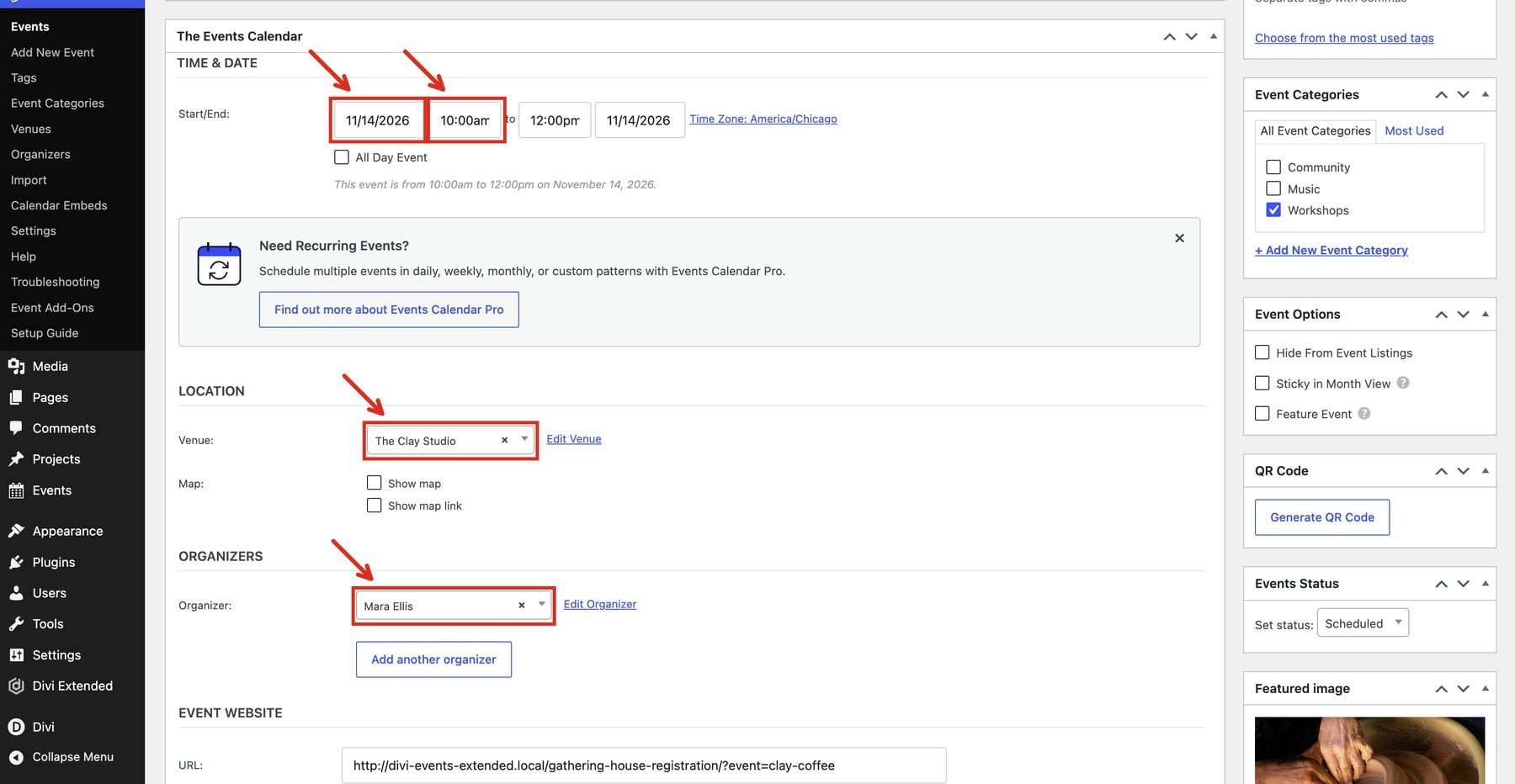
3. Add And Configure The Events Feed
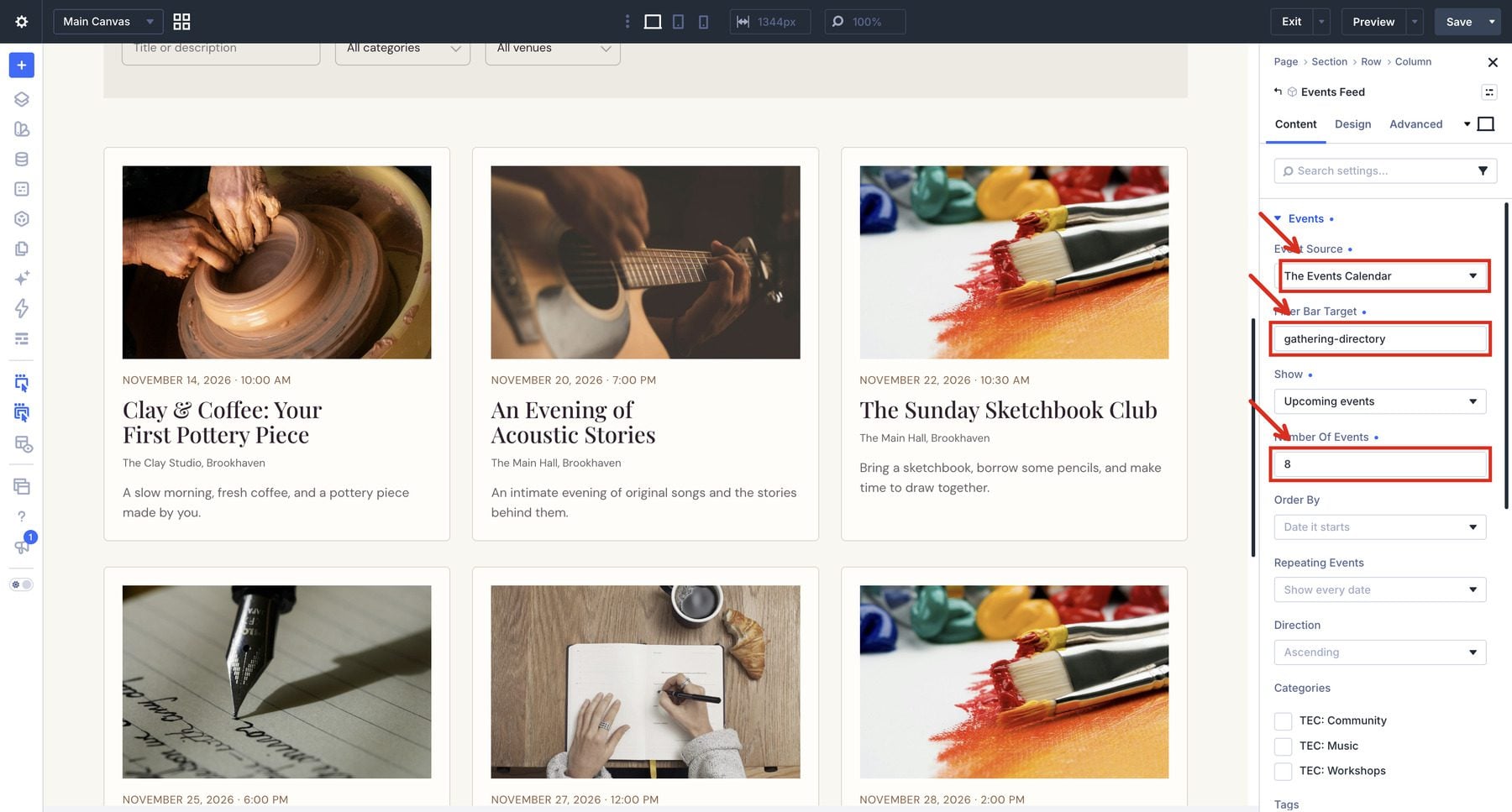
Create the directory page and open it in Divi. Add an Events Feed module beneath the introduction. Under Content > Events, set Event Source to The Events Calendar, choose Upcoming events, and set Number Of Events to 8.
Open Content > Display and select Card Grid. Include Image, Date and time, Venue, and Excerpt to explain each event before visitors open it.
Set Columns to 3 on Desktop. Switch the settings panel’s device selector to Tablet and set Columns to 2, then switch to Phone and set it to 1. Return to Desktop when finished. These values need to be set explicitly; the desktop column count does not automatically become the intended tablet and phone counts.
Under Content > Pagination, leave Pagination set to None for this eight-event example.
Set Filter Bar Target to gathering-directory. The Filter Bar will use the same name in the next step, connecting its controls to this feed.
4. Style The Event Cards And Connect The Filter Bar
Style the cards through the feed’s native design settings. The example uses a warm white card background, a subtle border, comfortable padding, and serif event titles. Keep supporting text smaller while leaving dates and venue information easy to scan.
Add an Events Filter Bar above the feed. Under Content > Filters, choose The Events Calendar, enter gathering-directory in Target, and enable Search, Category, and Venue. Disable Date range, which is enabled initially, along with any other controls you do not want in this example.
Under Content > Display, choose Inline and enable Show Applied Filters.
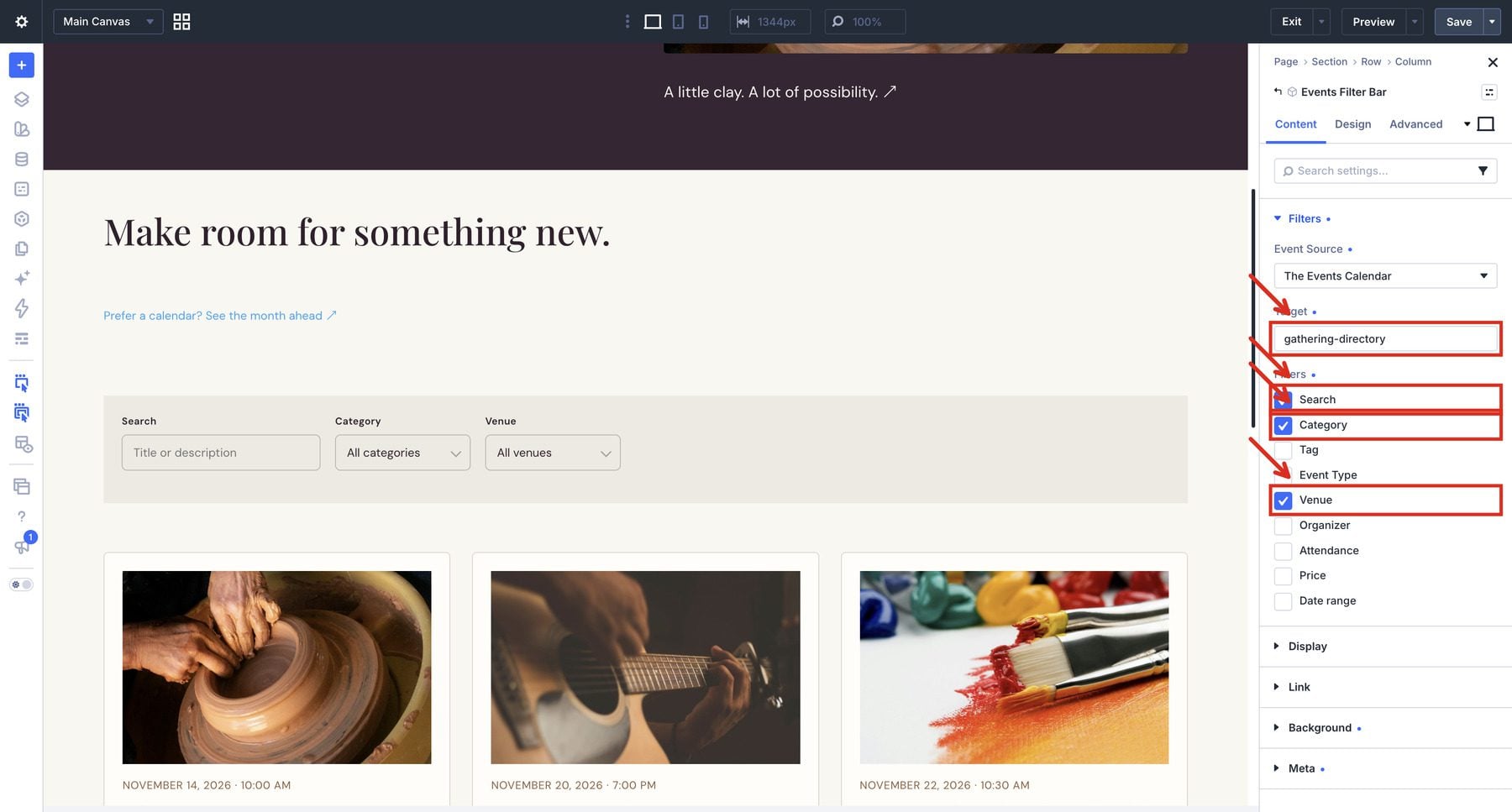
Use the Filter Bar’s Field Labels, Controls, and Applied Filters design settings to match the directory. Input backgrounds, borders, corners, and padding can be styled natively, along with chip typography and colors. Adjust the surrounding section, row, and module spacing to keep the heading and filters close together. The calendar navigation link uses the Text module’s link styling.
Save the page and test its frontend. Select Music to show the acoustic performance on its own. Combining Music with The Clay Studio produces an empty state because no sample event matches both. Use Clear all to restore the directory.
5. Add The Events Calendar
Create a separate calendar page and add an Events Calendar module. Under Content > Events, select The Events Calendar as the source. Enable Month, Week, Day, and Agenda under Views Offered, and set Opening View to Month. Set Monday as the first day of the week in the calendar’s display settings.
Apply an accent color from the site palette. Link the directory to this calendar page so visitors can choose how they explore the schedule. The demo uses separate pages linked through the navigation.
Switch between month and agenda to see the same dataset in different forms. Follow an event link to check that it opens the correct event page.
6. Create The Single-Event Template
Open Divi > Theme Builder and create a template assigned to The Events Calendar’s event posts. If both systems are active, the assignment dialog contains two groups named Events. The built-in group includes Event Types among its assignment choices; The Events Calendar group includes Tags and Event Categories. Choose All Events in The Events Calendar group for this scenario.
Build a custom body with a wide content column and a narrower information column. Use Divi’s Post Title module for the event title and featured image, followed by Post Content for its description. Disable the Post Title module’s author and publish-date metadata if you do not want those blog details on the event page.
In the sidebar, add Event Date & Time, Event Venue, Event Organizer, and Event Status. In each module’s Content > Event settings, select This event so each page supplies its own details. A separate source selector is not shown for this current-event mode.
The Gathering House body includes its own navigation and footer. If your template uses shared Theme Builder headers and footers, keep those regions outside the custom body to avoid displaying them twice.
7. Add Event Actions And Related Events
Place Add To Calendar below the event information and select This event in its event settings. Under Content > Display, use the Menu layout and enable Google Calendar, Outlook Live, and Download .ics file. You can also enable iCalendar for a subscription-style calendar link.
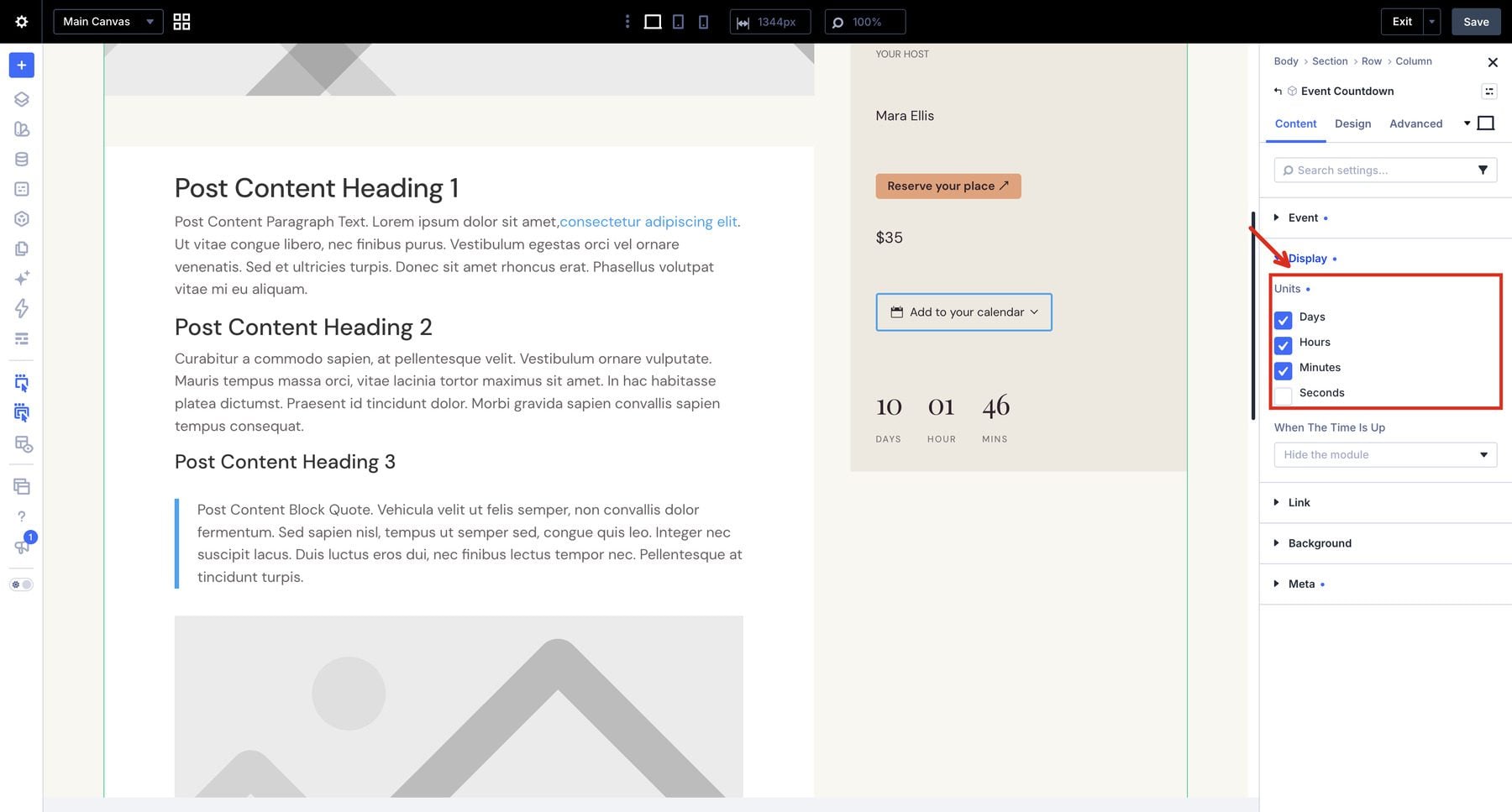
Add Event Countdown beneath it. Under Content > Event, change Event from Next upcoming event to This event, then keep Count Down To set to Event start. This makes the countdown follow the event page being viewed.
Under Content > Display, enable Days, Hours, and Minutes, and disable Seconds. Choose what should happen when the time is up; the example can hide the module after the target time.
For the main The Events Calendar example, use a standard Divi Button linked to your registration destination. Add a Text module, open the dynamic content selector for its Body field, and select Event Cost to display the source price. This avoids presenting the source’s general website field as a working Event Register integration.
Finish the detail page with Related Events. Matching by category or venue gives the pottery workshop a useful connection to other creative sessions. Limit the example to three related cards and carry over the directory’s card styling.
8. Check The Responsive Layout And Show The Result
Save the pages and template, including the template assignments in Theme Builder, then check the frontend at desktop, tablet, and phone widths. Confirm that the grid changes columns, event titles wrap cleanly, filter controls remain usable, and the event information follows the description on smaller screens.
Open at least two different events to confirm that the title, date, venue, price, and countdown change with the page. This catches a countdown left on Next upcoming event or a module assigned to a specific event.
Test links and interactions against the real records. Search for an event, combine filters, reset them, navigate the calendar, and open the calendar-action menu. Download the ICS file and confirm its event details. Follow the registration button to its intended destination without submitting a real booking during a demonstration.
The finished example gives visitors a directory for discovery, a calendar for planning, and an event page for the details. Updating the underlying event records supplies those views with the same schedule information.
Who Is Divi Events Extended For?
Divi Events Extended fits websites where events are a regular part of the content. Studios can group classes by topic and venue. Community organizations can publish free gatherings alongside paid workshops. Performance venues can combine a visual directory with a calendar and individual event pages.
It also gives agencies a way to create reusable event layouts for Divi clients. Sites already using The Events Calendar can keep that event management workflow, while sites starting from scratch can use DE Events.
A studio running weekly classes will need to check recurrence support in its chosen source. A venue selling tickets should check how its booking page connects to the event layout. If you need ticket sales or attendee records, check that your booking service handles them and provides a suitable destination for your buttons.
Build Event Websites With Divi Events Extended
Divi Events Extended brings event discovery and page design into the same builder used for the rest of your website. Its feed, calendar, detail modules, and visitor actions can work together around one event collection.
The Gathering House shows how those pieces connect: visitors browse workshops and performances, narrow the schedule, and open a consistent event page with the information needed to plan a visit. Native design controls let you carry your colors, typography, and spacing through the experience.
Start with DE Events if you need a place to manage your events, or connect The Events Calendar to work with an existing collection. The $49 Marketplace package includes unlimited website usage and one year of support and updates. Explore the product and its live demo to see how its modules could fit your next Divi 5 event website.
The post Divi Product Highlight: Divi Events Extended appeared first on Elegant Themes Blog.
The Tech Zone


Comments
Post a Comment