9 Creative Team Sections For Divi 5 (Free Download!)
Divi 5 makes it easy to introduce the people behind your brand with team sections that feel intentional, polished, and visually distinctive. In this free pack, you’ll get 9 Creative Team Sections for Divi 5 that are perfect for agencies, startups, creative studios, company websites, about pages, leadership teams, departments, and more.
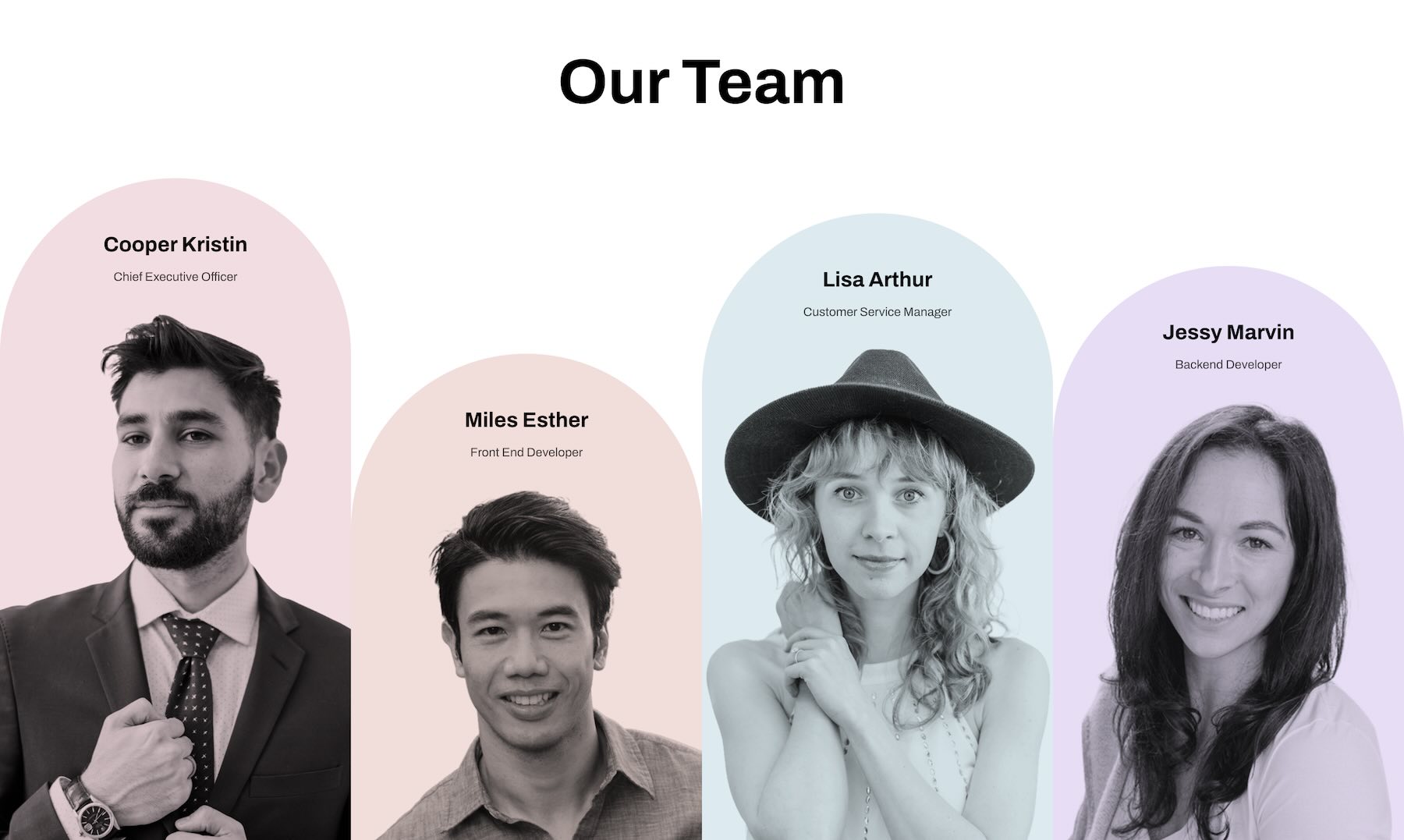
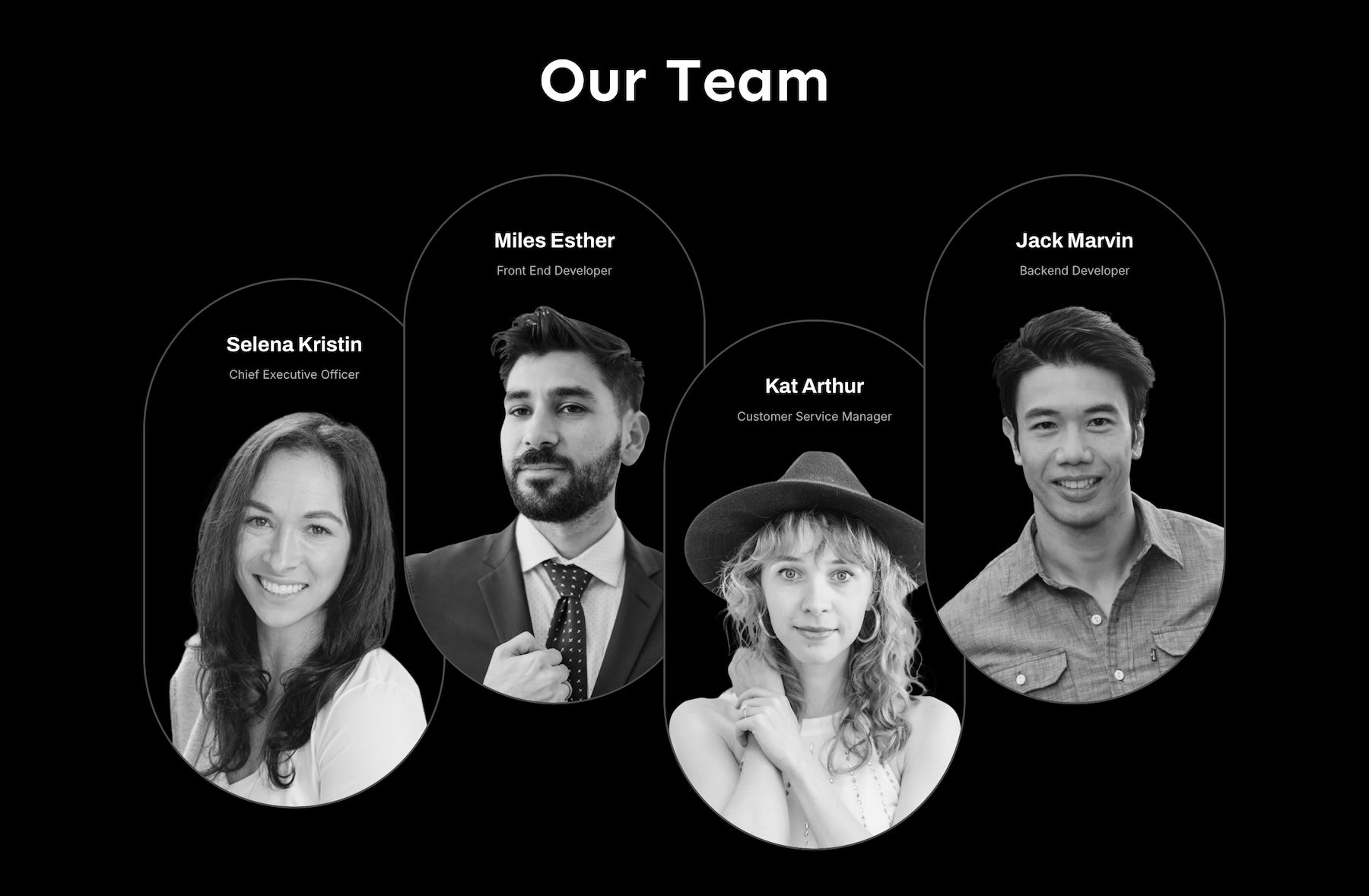
Each design combines team photography, names, roles, typography, color, and structured layouts in a different way, giving you plenty of options for presenting everything from a small creative team to a larger organization. Import a section, replace the team details and photos, customize the styling, and you’re ready to go.
Preview
Here’s a quick look at the 9 Creative Team Sections included in the pack. The download is further down the post.
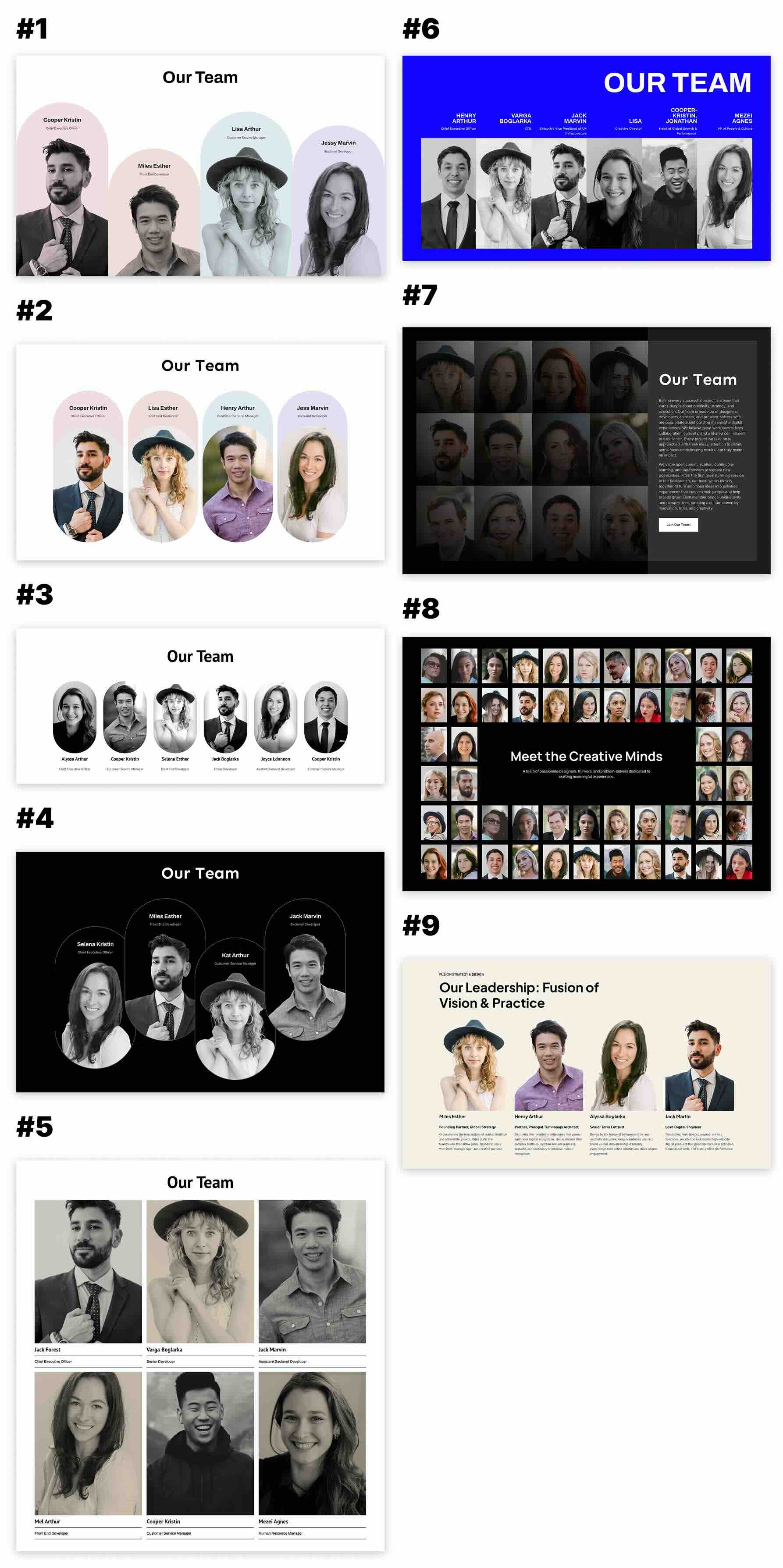
Download 9 Creative Team Sections For Divi 5
Get all 9 sections for free. Import them into your Divi Library and add them to any page in the Visual Builder.

What’s Included (10 Exports)
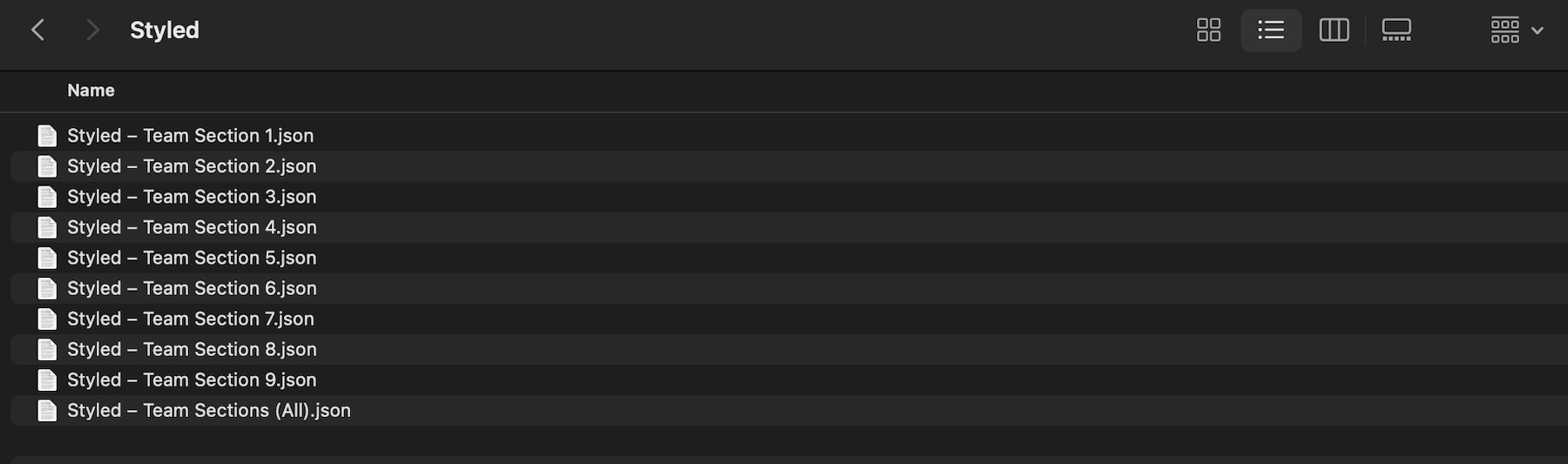
After you download and unzip the file, you’ll find 9 styled Creative Team Section exports, plus 1 file containing all layouts.
Styled – Team Section 1 to 9 (9) → Nine fully styled team layouts featuring different combinations of portraits, names, job titles, group compositions, color treatments, image arrangements, and typography that you can use as-is or customize.
Styled – Team Sections (All) → Imports all 9 designs into your Divi Library at once.
How To Use The Creative Team Sections
Keep your download folder handy. We’ll import the files, add a team section to a page, and then replace the placeholder content with your own team members.
1. Import Sections Into The Divi Library
Go to Divi → Divi Library. Click Import & Export at the top of the screen.
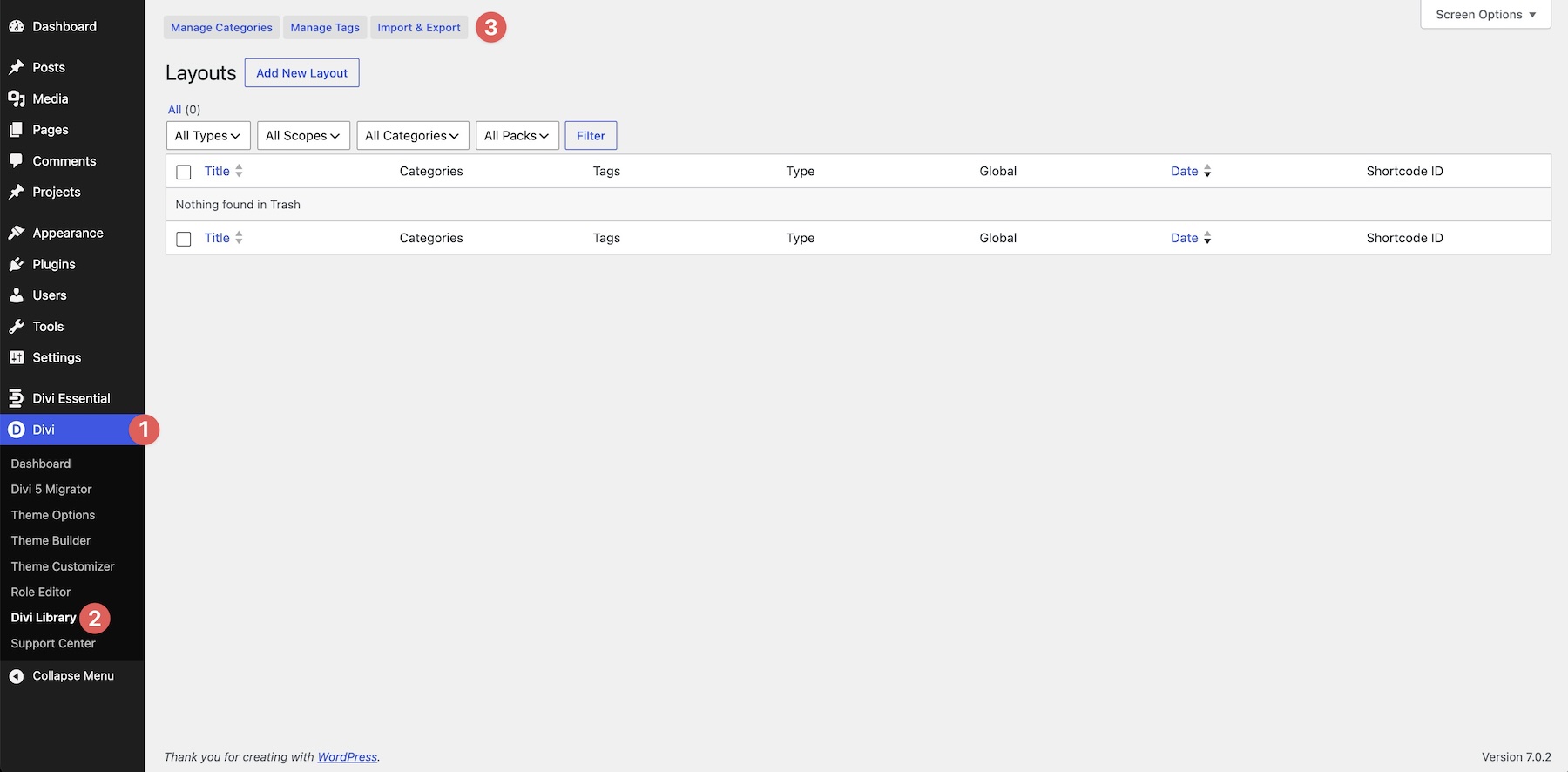
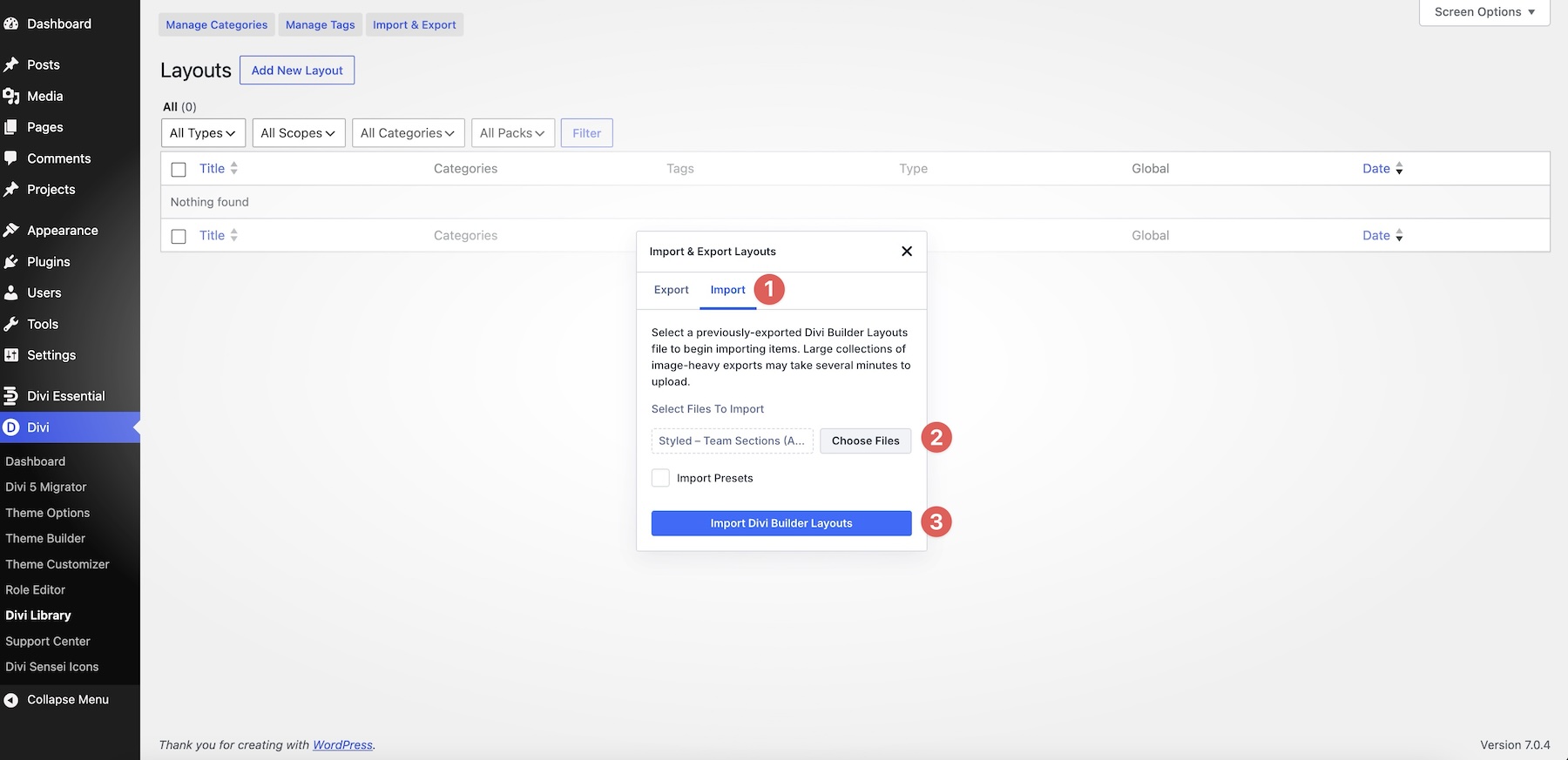
In the Import & Export Layouts modal, switch to the Import tab, then click Choose File. Select any of the individual Styled – Team Section JSON files if you only want to import a specific design. To import every design at once, choose Styled – Team Sections (All).json instead.
Click Import Divi Builder Layouts and wait for the import to complete.
2. Add A Creative Team Section To Any Page
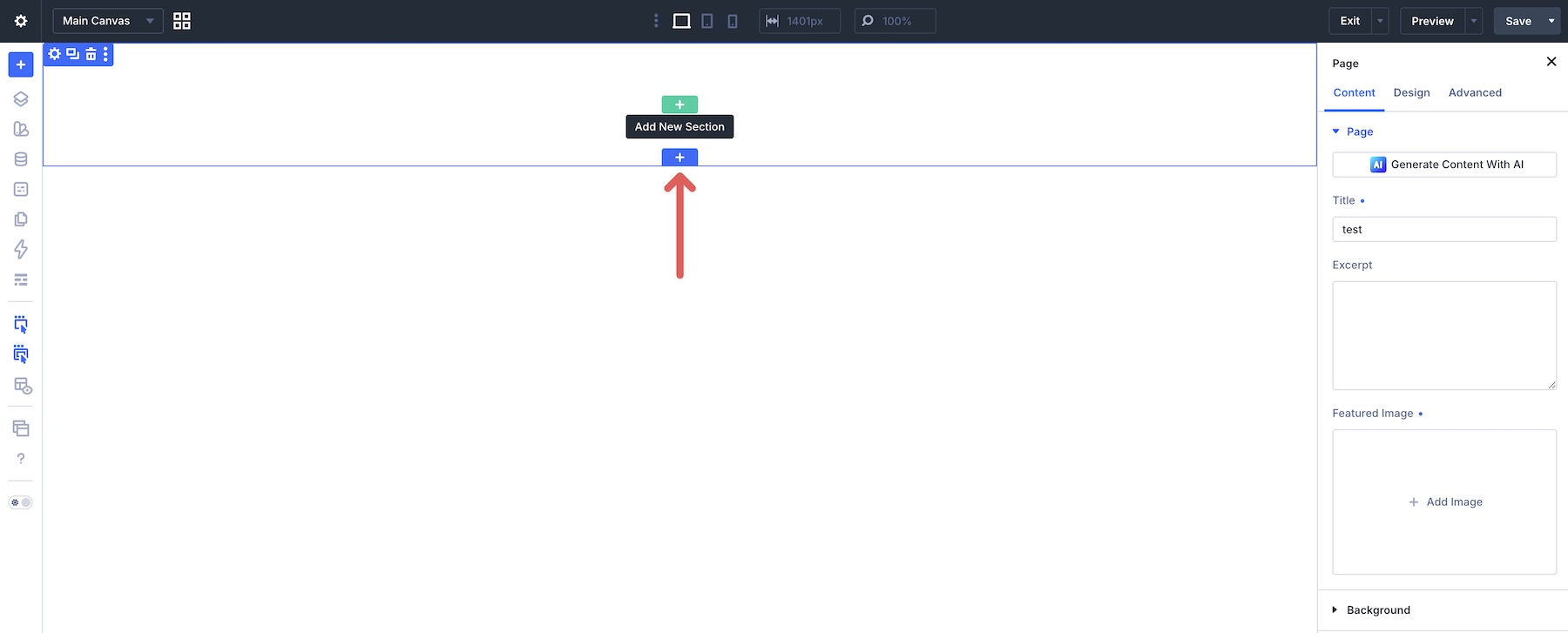
Open a page in the Visual Builder and add a new Section where you want your team profiles to appear.
Click Add From Library and select one of the Creative Team sections you imported.
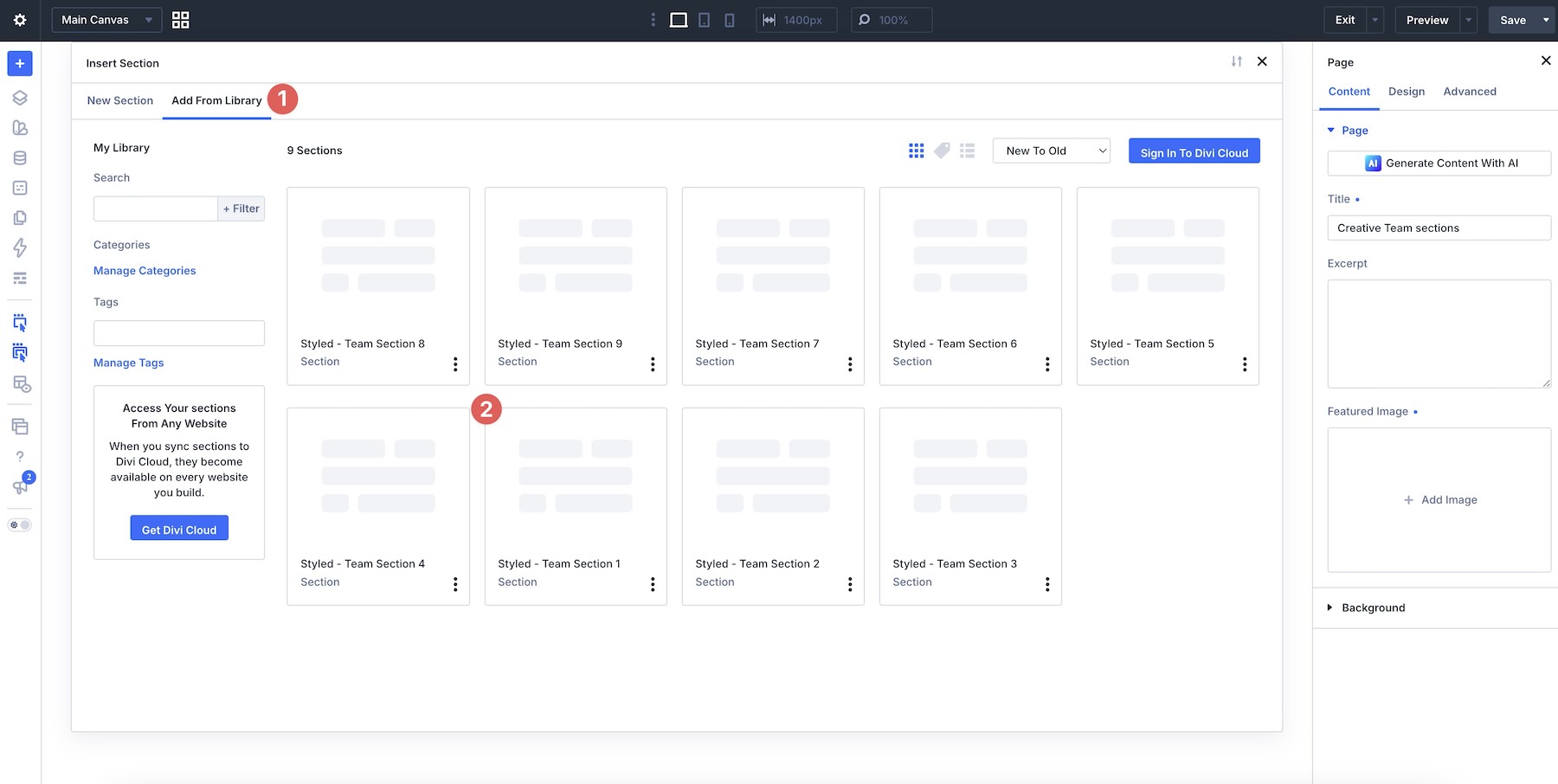
The complete design will be added to your page with the original layout, styling, images, names, and role information intact.
3. Replace The Team Members
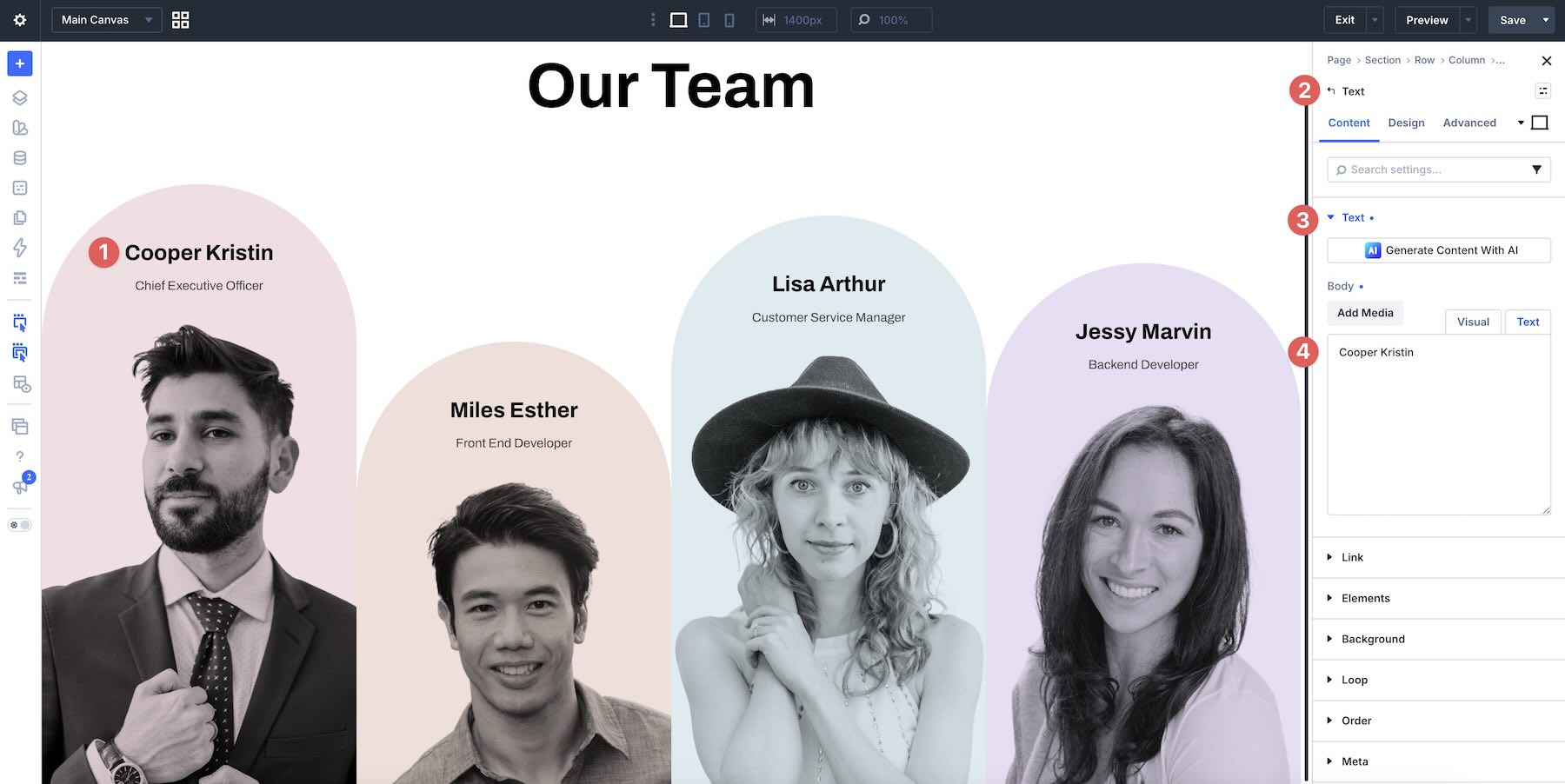
Start by replacing the placeholder names and job titles with your own team information. Depending on the layout, you may also have short bios, departments, labels, or other supporting details to update.
Next, replace the placeholder portraits with photos of your own team members.
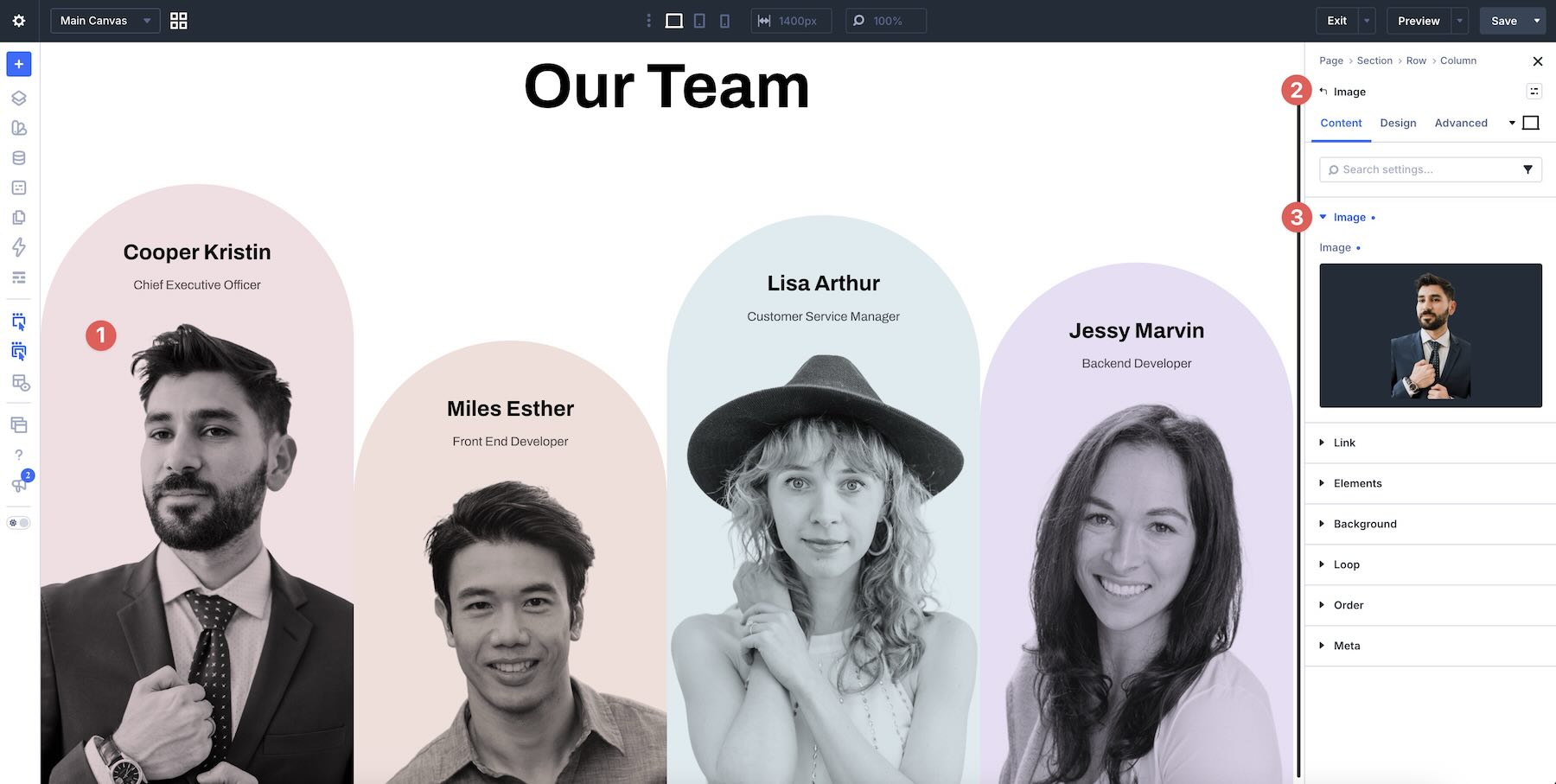
For the cleanest result, try to use portraits with a similar framing and visual style throughout a single section. Consistency in crop, lighting, background treatment, and head position can help a multi-person layout feel much more cohesive.
Some of these designs use larger group compositions or tightly aligned portrait rows. In those layouts, swap the images one at a time and review the composition as you go so that each portrait works well alongside the others.
4. Add Or Remove Team Members
You can also adapt the layouts to match the size of your team. If you need another profile, duplicate an existing team member’s column, group, or module structure and replace its content.
If you have fewer people to display, remove the unnecessary profile elements and adjust the remaining layout so the section still feels balanced.
Whenever you change the number of team members, check alignment, widths, gaps, and distribution across the row. Small adjustments can help the modified layout retain the rhythm of the original design.
5. Customize The Styling
These Creative Team Sections are already styled, but you can customize them further to match your brand. Adjust backgrounds, typography, image treatments, borders, spacing, colors, and other design settings directly in the Visual Builder.
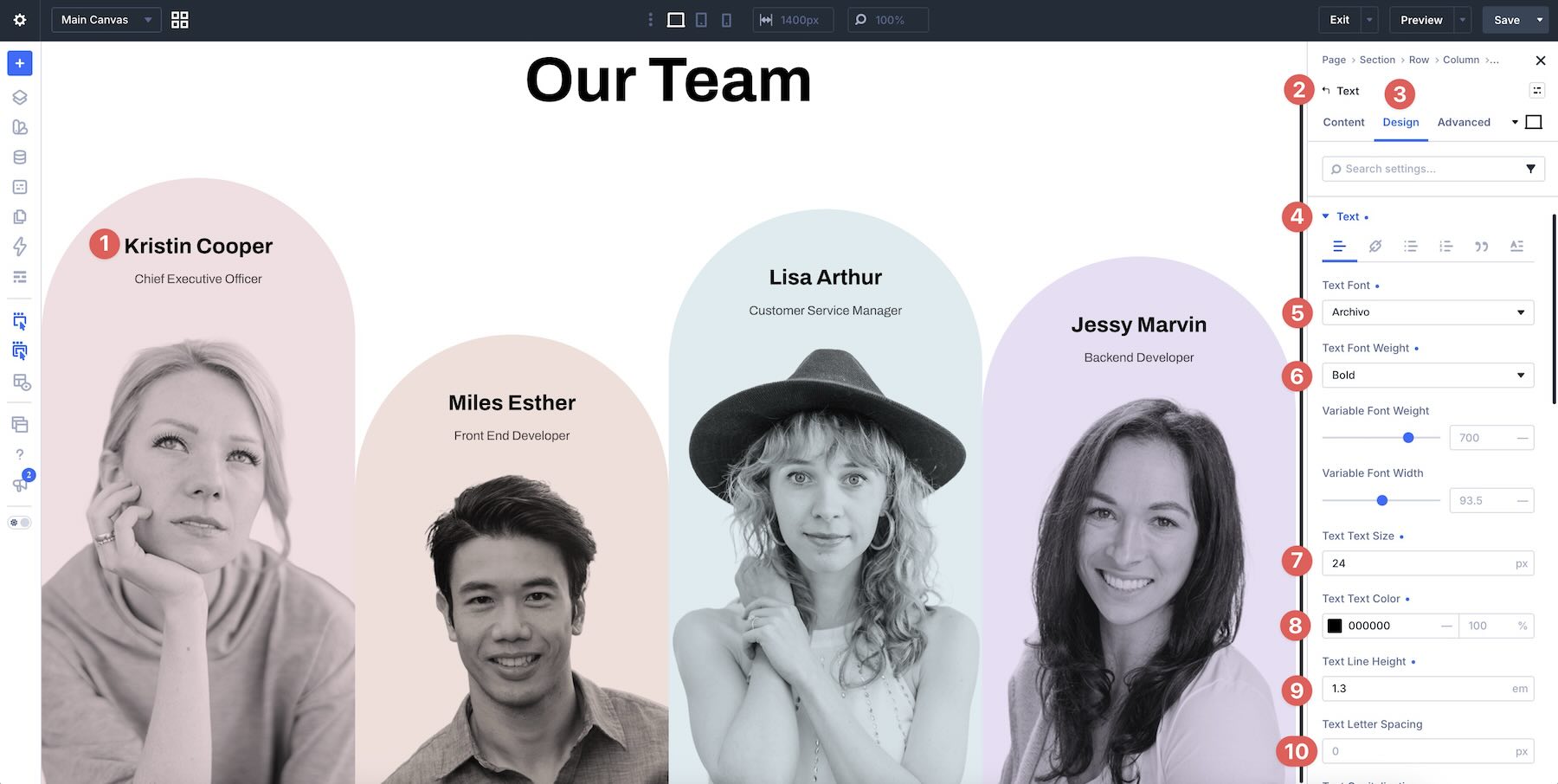
To update names and job titles, open the relevant Text or Heading module and use the Design tab to change Font, Font Weight, Text Size, Text Color, Line Height, Letter Spacing, and alignment.
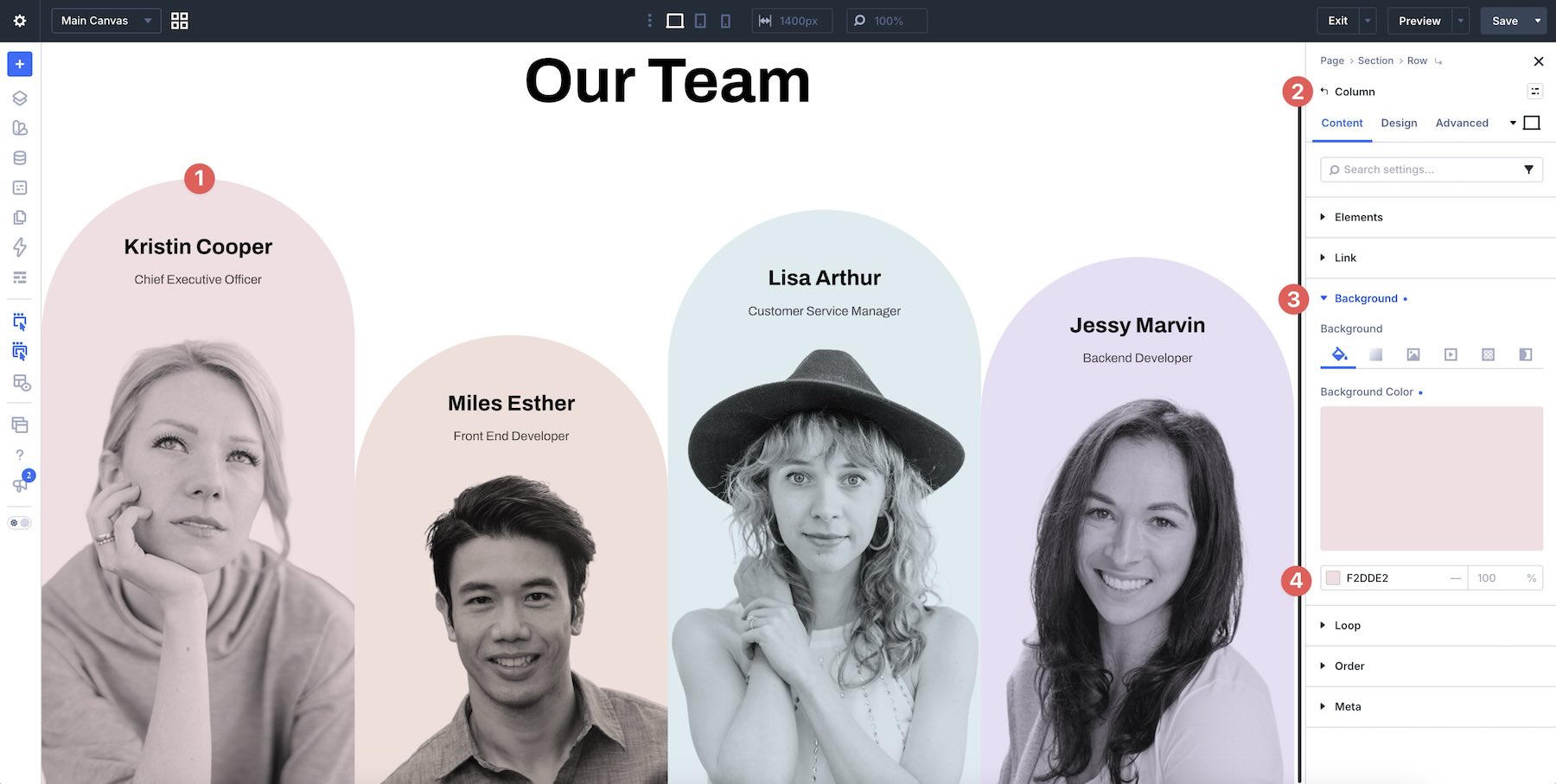
You can also update section, row, column, group, and module backgrounds to introduce your own brand colors or create stronger contrast around the team portraits.
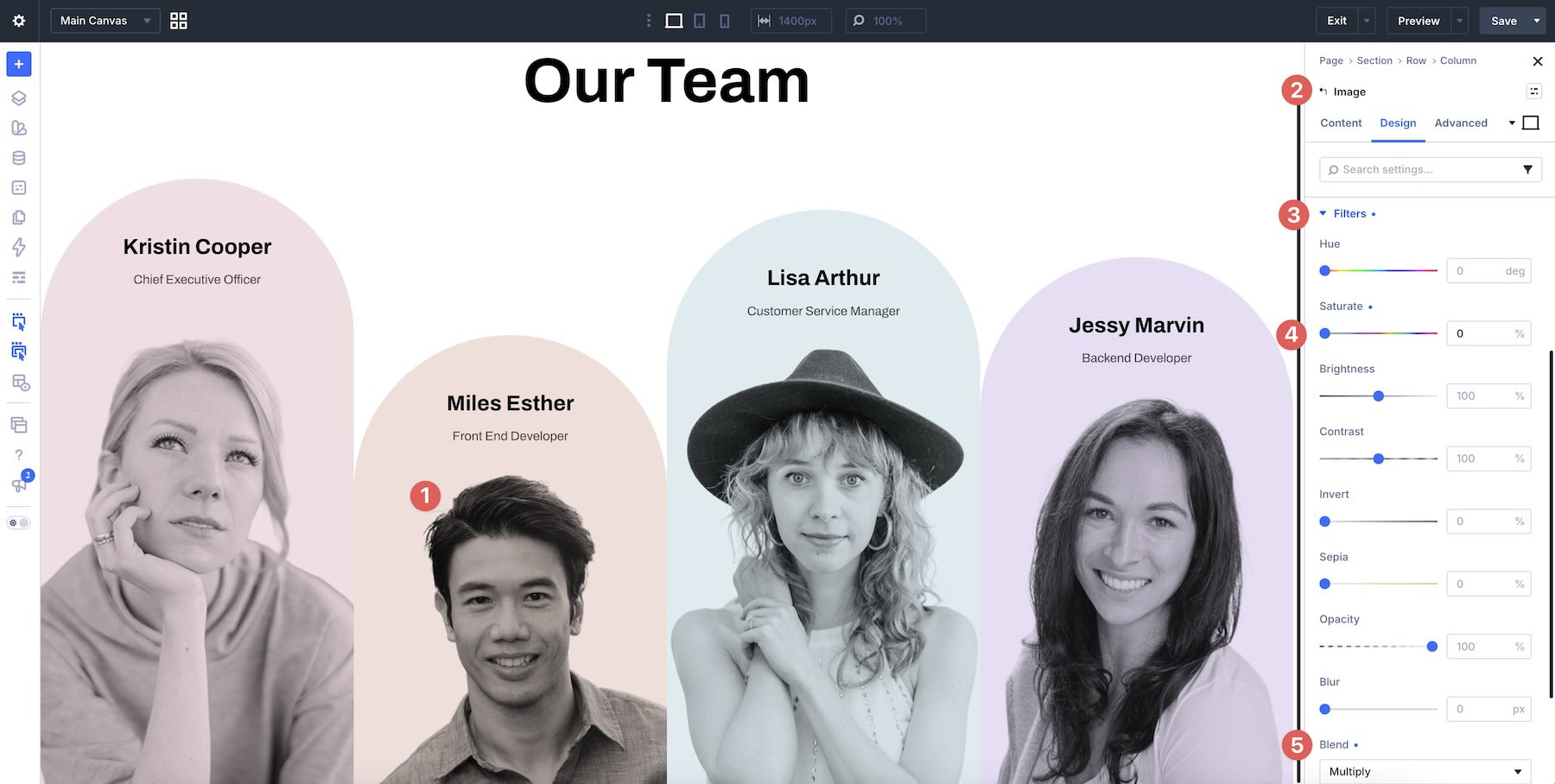
If the design uses monochrome photography, bordered portraits, cropped images, overlapping elements, or distinctive image proportions, keep those relationships in mind as you customize the section.
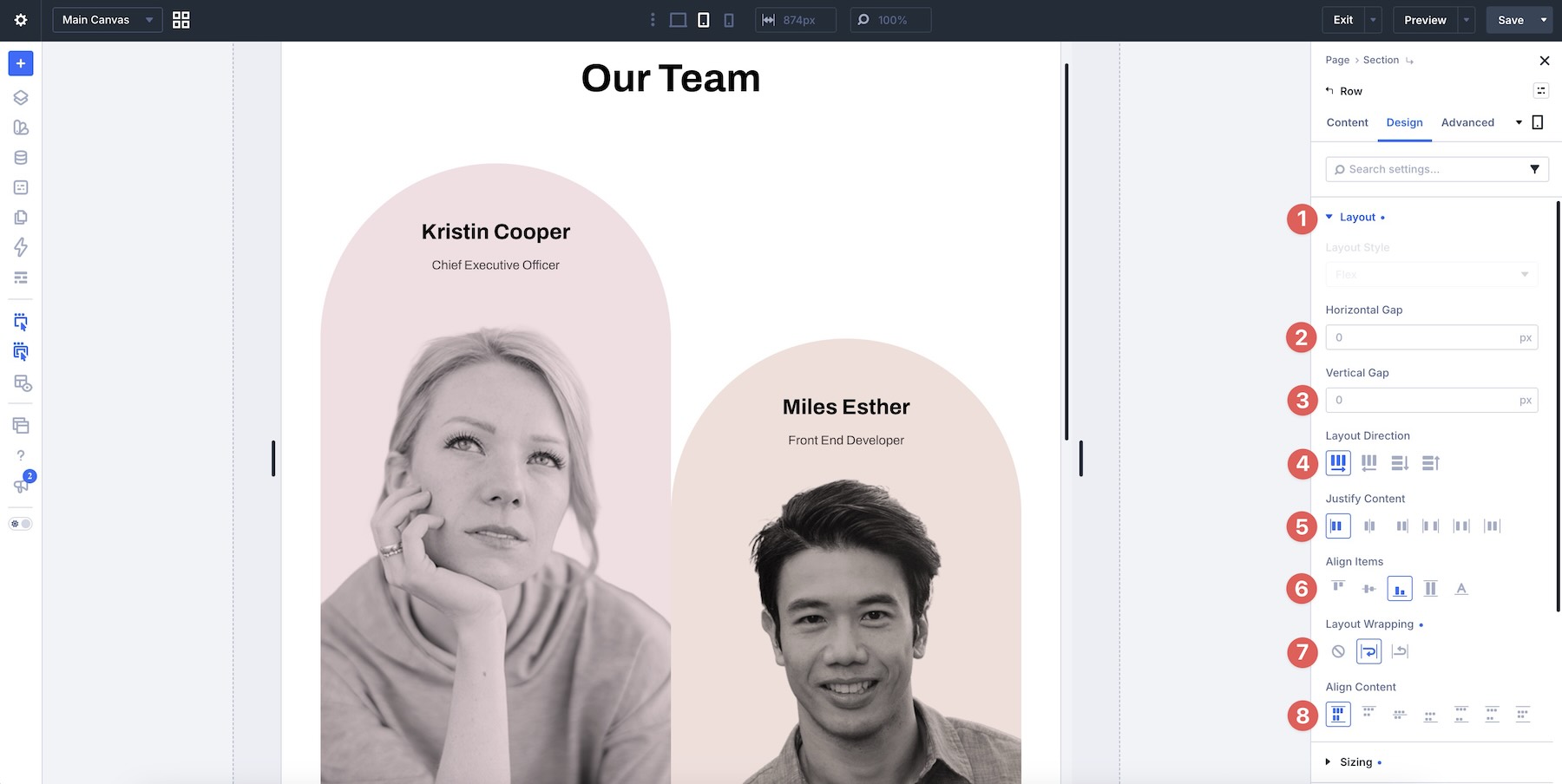
6. Check The Section On Smaller Screens
Team layouts can change significantly when several portraits need to stack on tablet and mobile. Use Divi’s responsive editing tools to review each breakpoint before publishing.
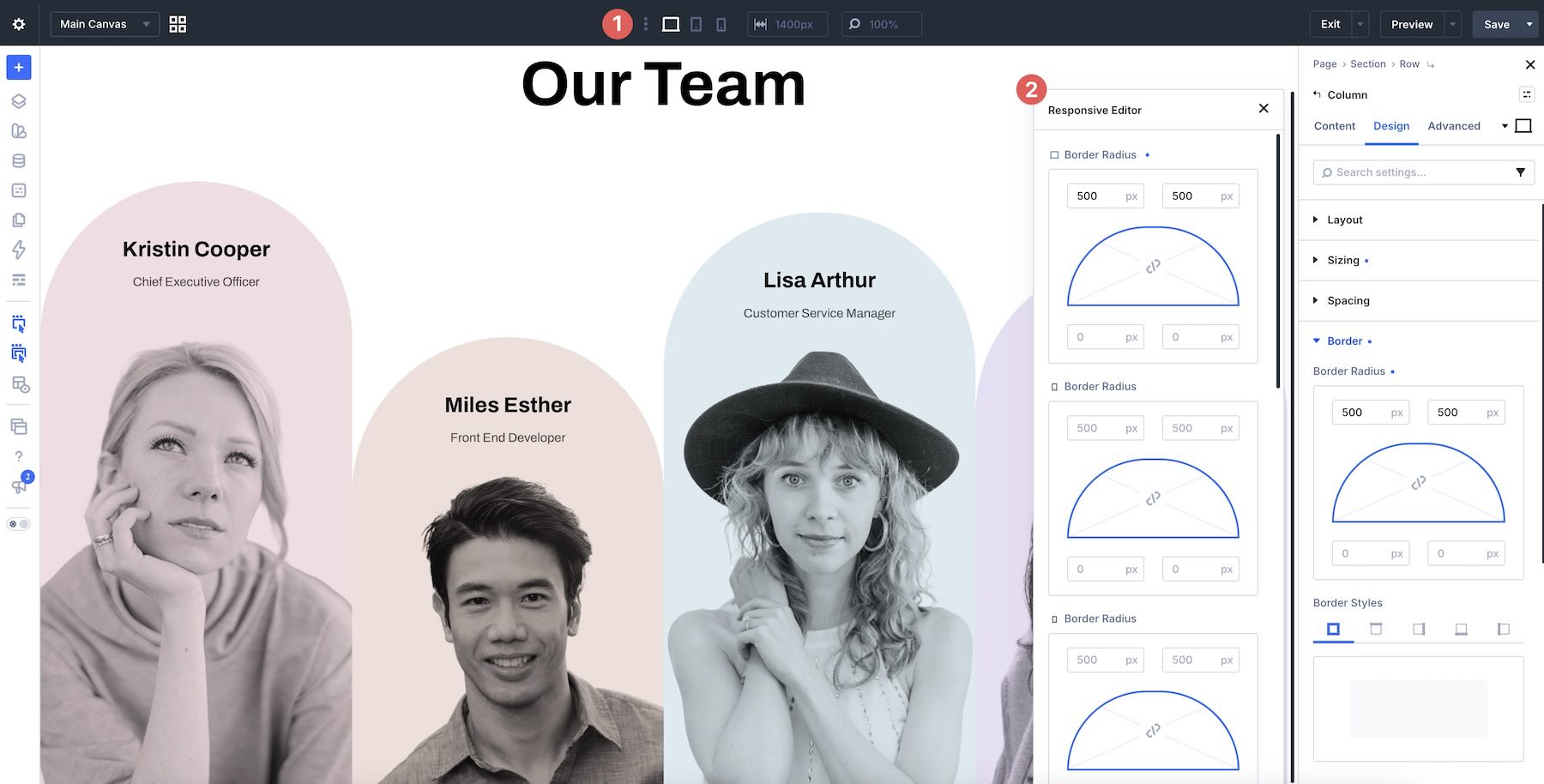
Pay particular attention to portrait size, spacing between profiles, text alignment, stacking order, and the relationship between names and job titles.
If necessary, adjust sizing, gaps, alignment, or spacing specifically for tablet and phone so every team member remains easy to identify.
Tips For Effective Team Sections
A strong team section should make the people behind your business feel approachable while keeping the information easy to scan. Use these tips as you customize the designs.
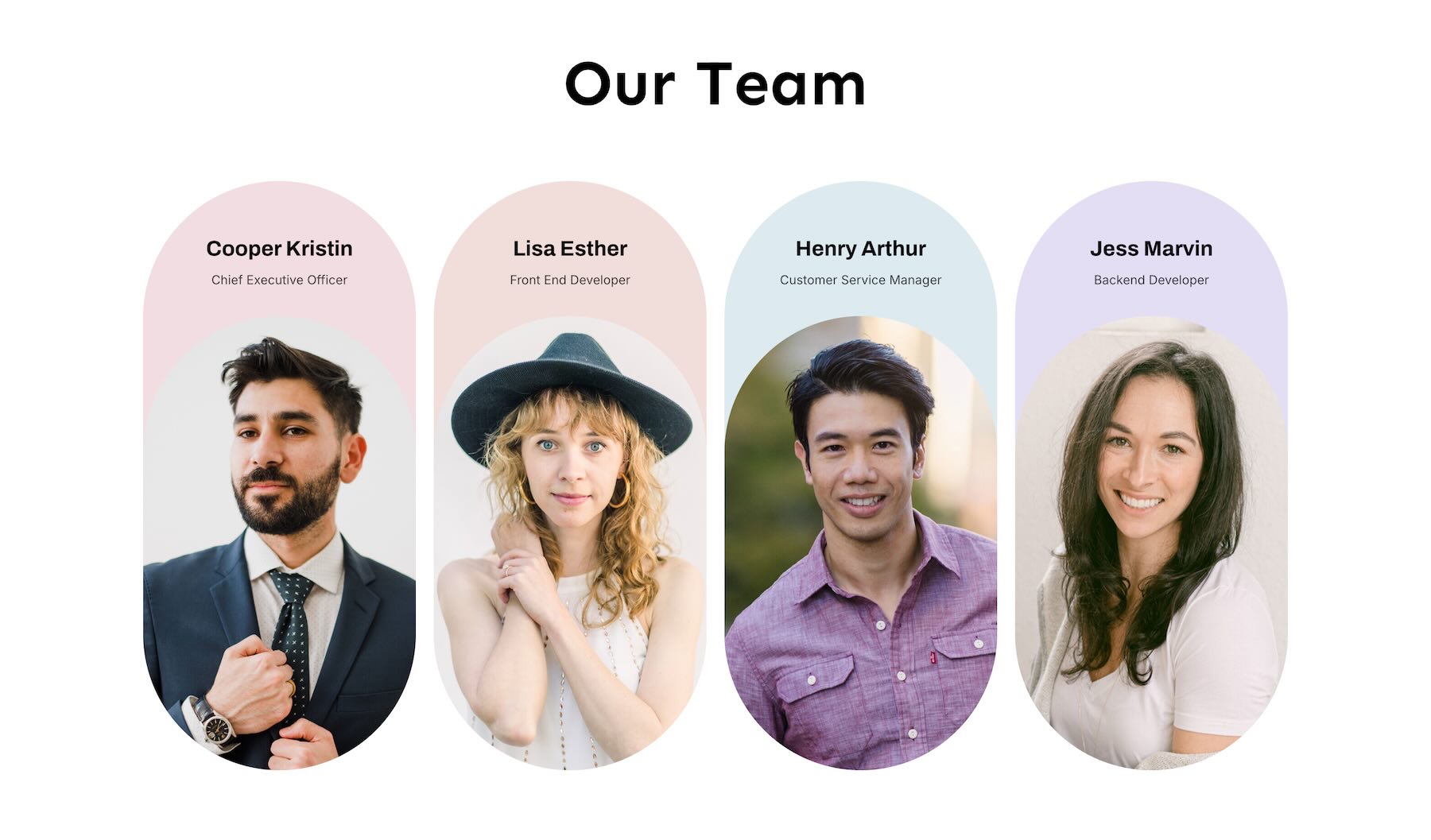
Use A Consistent Photography Style
Team portraits do not need to be identical, but consistency helps. Similar crops, lighting, backgrounds, or editing styles can make individual photos feel like part of one unified section.
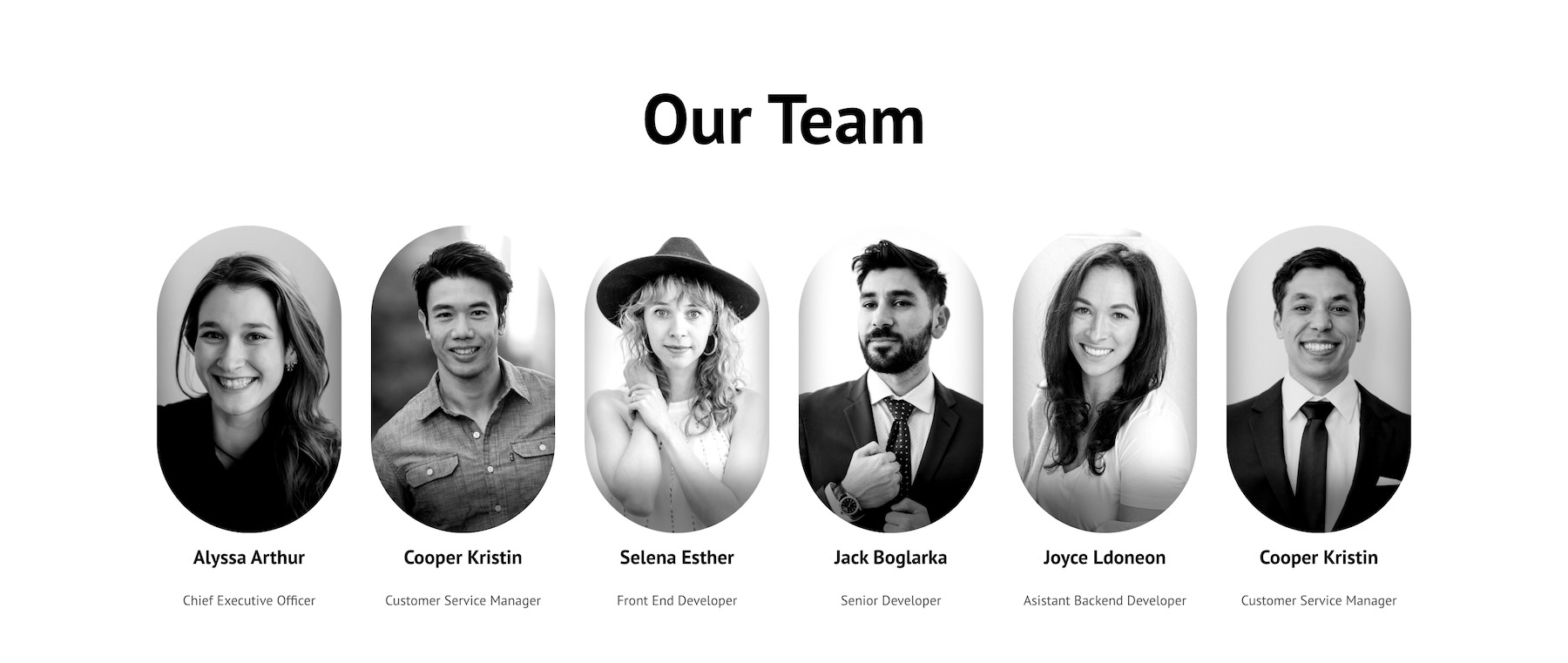
Keep Names And Roles Easy To Scan
Visitors should be able to identify each person quickly. Give names enough visual emphasis, then keep job titles or department information secondary so the hierarchy remains clear.
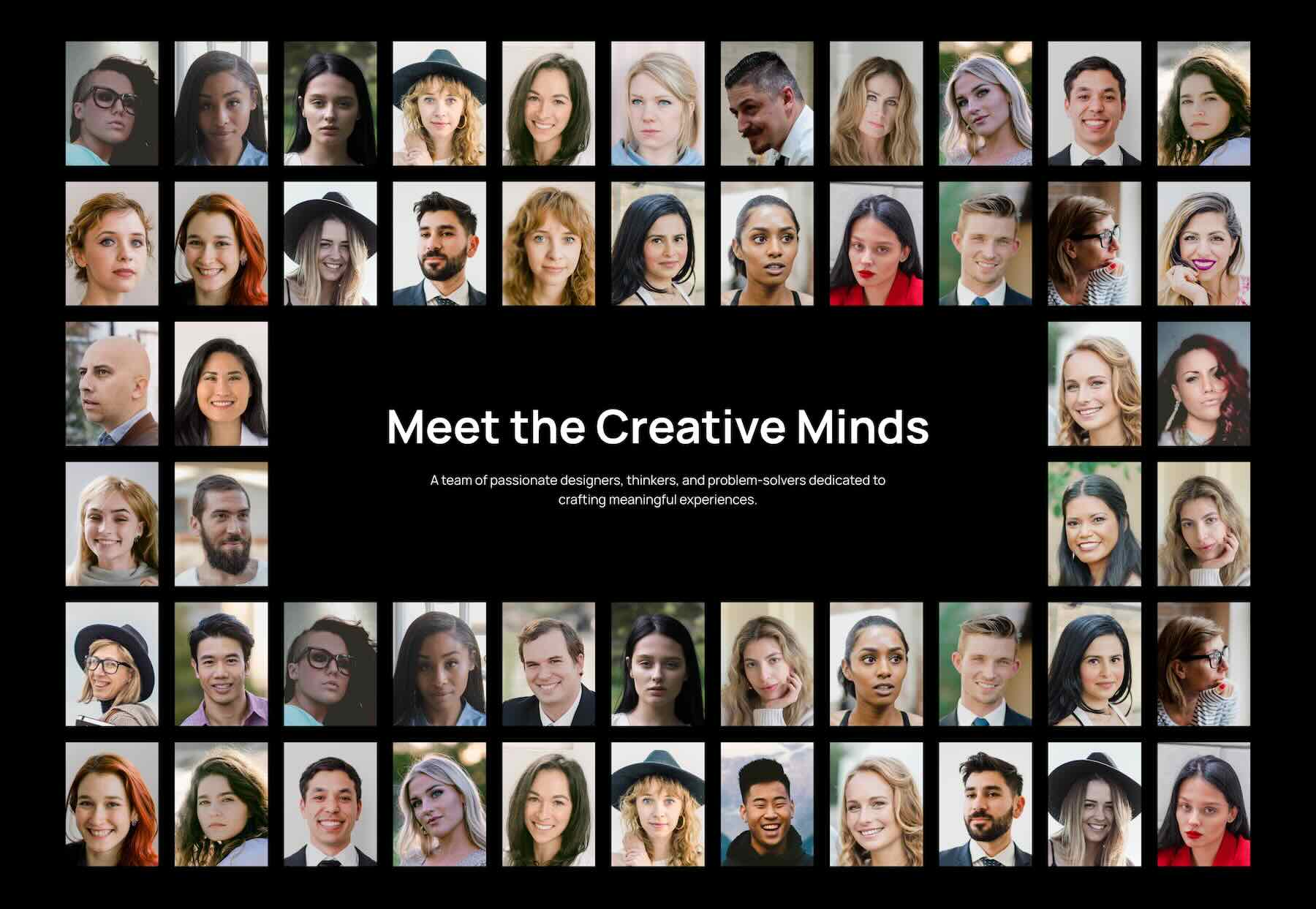
Match The Layout To Your Team Size
A layout that works beautifully for four people may feel crowded with ten. Choose a design that suits the number of people you need to feature, or duplicate and reorganize its existing structure while keeping spacing consistent.
Let Individual Personalities Come Through
Not every team section needs identical corporate headshots. If it fits your brand, variations in expression, pose, or photography can make the section feel more human while the surrounding layout provides visual consistency.

Use Color To Tie Everything Together
When portraits vary, a shared background color, monochrome image treatment, typography system, or accent color can help unify the section.
Keep Supporting Information Concise
Names and roles are usually enough for an overview section. If you include biographies or additional information, keep them concise or link each team member to a dedicated profile so the main section stays easy to browse.
Check Portrait Cropping On Every Device
A portrait that looks perfect on desktop may crop differently when its container changes on mobile. Review focal points and image framing across breakpoints so faces remain positioned correctly.
Start Building In Divi 5 Today!
These 9 Creative Team Sections give you a fast way to introduce the people behind your company with layouts that go beyond a basic portrait grid. Use them for agency teams, leadership pages, startup websites, creative studios, departments, About pages, and more. Import your favorite design, swap in your team members, customize the styling, and build a polished team section with Divi 5’s Visual Builder.
The post 9 Creative Team Sections For Divi 5 (Free Download!) appeared first on Elegant Themes Blog.
The Tech Zone


Comments
Post a Comment