4 Tabs + Nested Elements For Divi 5 (Free Download!)
Divi 5 makes it easy to create organized, interactive sections that help visitors explore related content without overwhelming the page. In this free pack, you’ll get 4 Tabs + Nested Elements designs that are perfect for service breakdowns, product details, feature comparisons, process sections, portfolio highlights, FAQs, team information, agency websites, landing pages, and more. Each design uses tabbed navigation with nested content, imagery, typography, buttons, cards, and structured layouts to create polished sections that reveal information in a clean, flexible way. Import a section, replace the content, update the styles, and you’re ready to go.
Preview
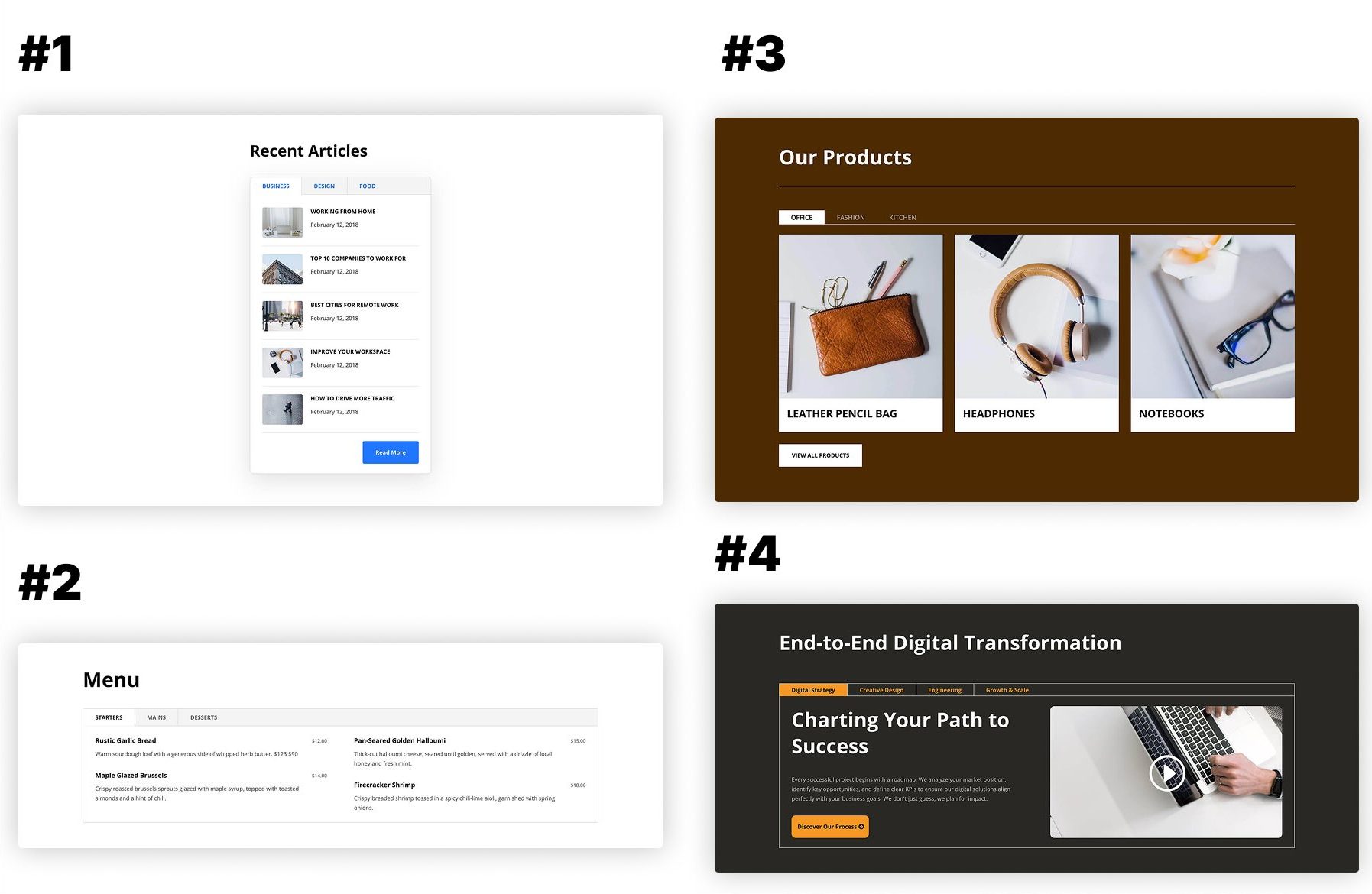
Here’s a quick look at the 4 Tabs + Nested Elements designs included in the pack. The download is further down the post.
Download 4 Tabs + Nested Elements For Divi 5
Get all 4 designs for free. Import them into your Divi Library and add them to any page in the Visual Builder.

What’s Included (5 Exports)
After you download and unzip the file, you’ll find 4 styled Tabs + Nested Elements section exports, plus 1 file containing all layouts.
Styled – Tabs + Nested Elements Section 1 to 4 (4) → Four fully styled tab section layouts with nested content areas, imagery, cards, buttons, structured text, strong hierarchy, and clean spacing that you can use as-is or customize.
Styled – Tabs + Nested Elements Sections (All) → Imports all 4 designs into your Divi Library at once.

How To Use The Tabs + Nested Elements Designs
Keep your download folder handy. We’ll import the files, add a section to a page, and then replace the content.
1. Import Sections Into The Divi Library
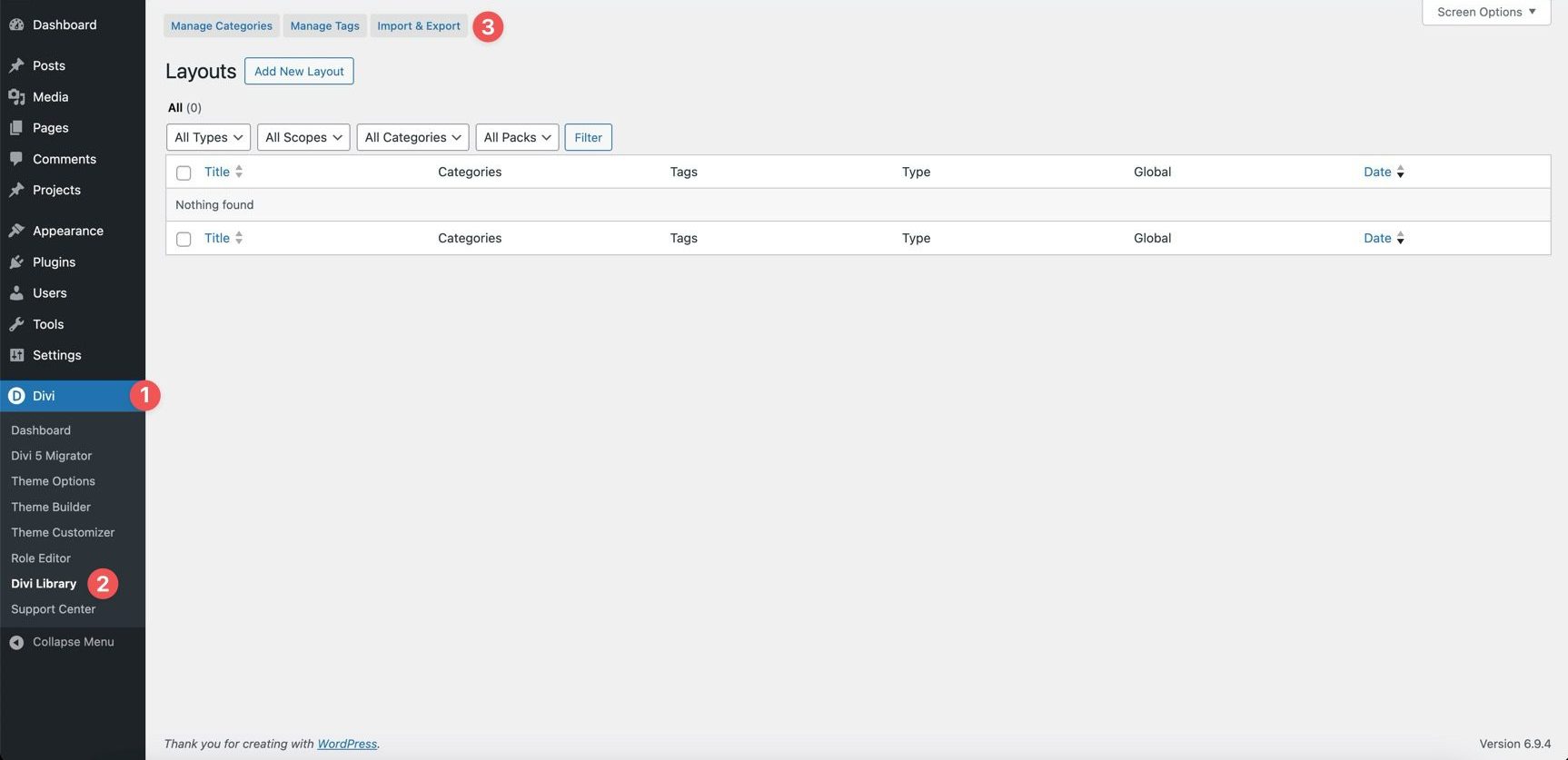
Go to Divi → Divi Library. Click Import & Export at the top of the screen.
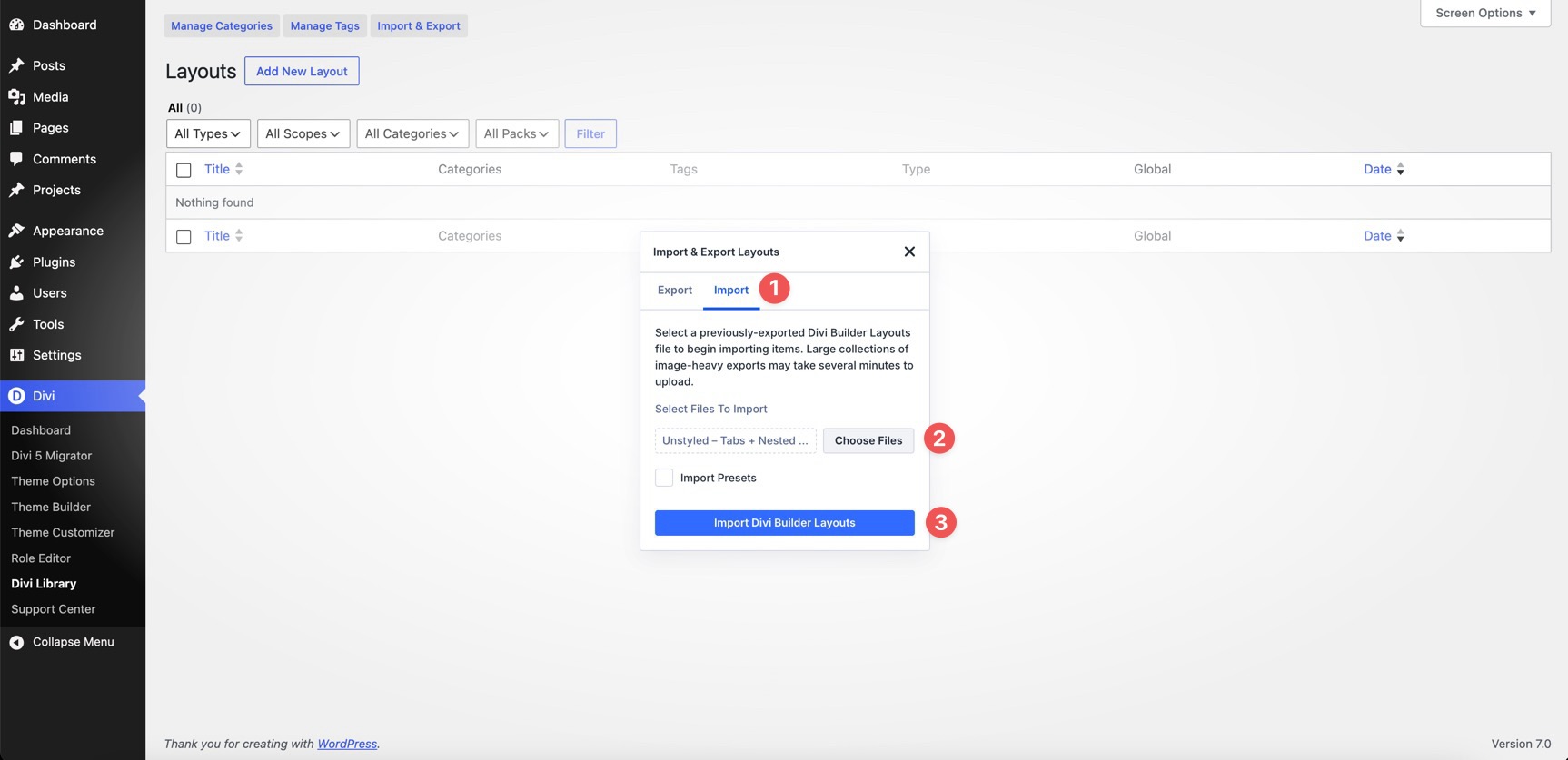
In the Import & Export Layouts modal, switch to the Import tab, then click Choose File and select your JSON file. Choose any Tabs + Nested Elements JSON you’d like to use, then click Import Divi Builder Layouts.
2. Add A Tabs + Nested Elements Section To Any Page
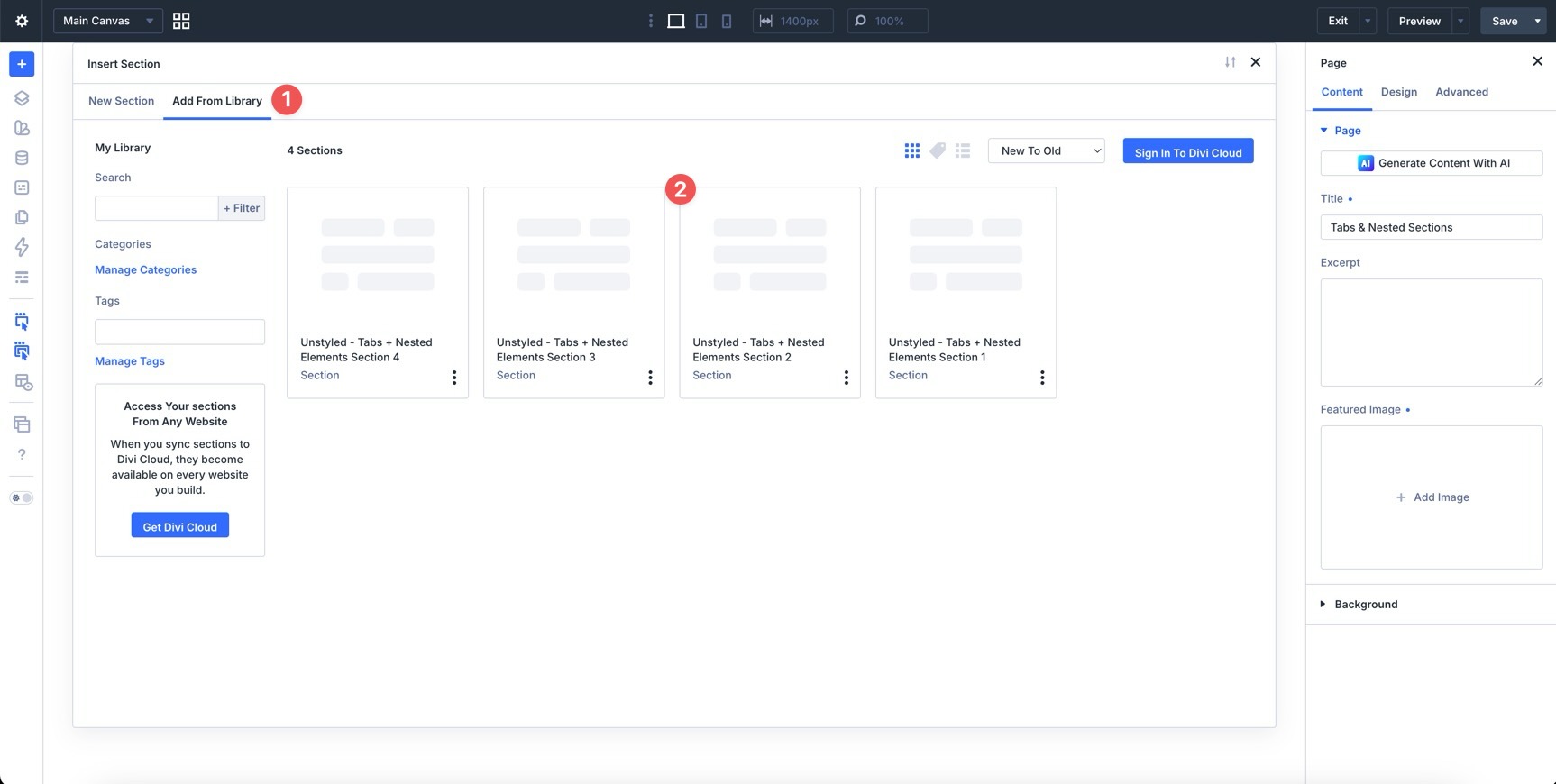
Open a page in the Visual Builder and add a new Section.
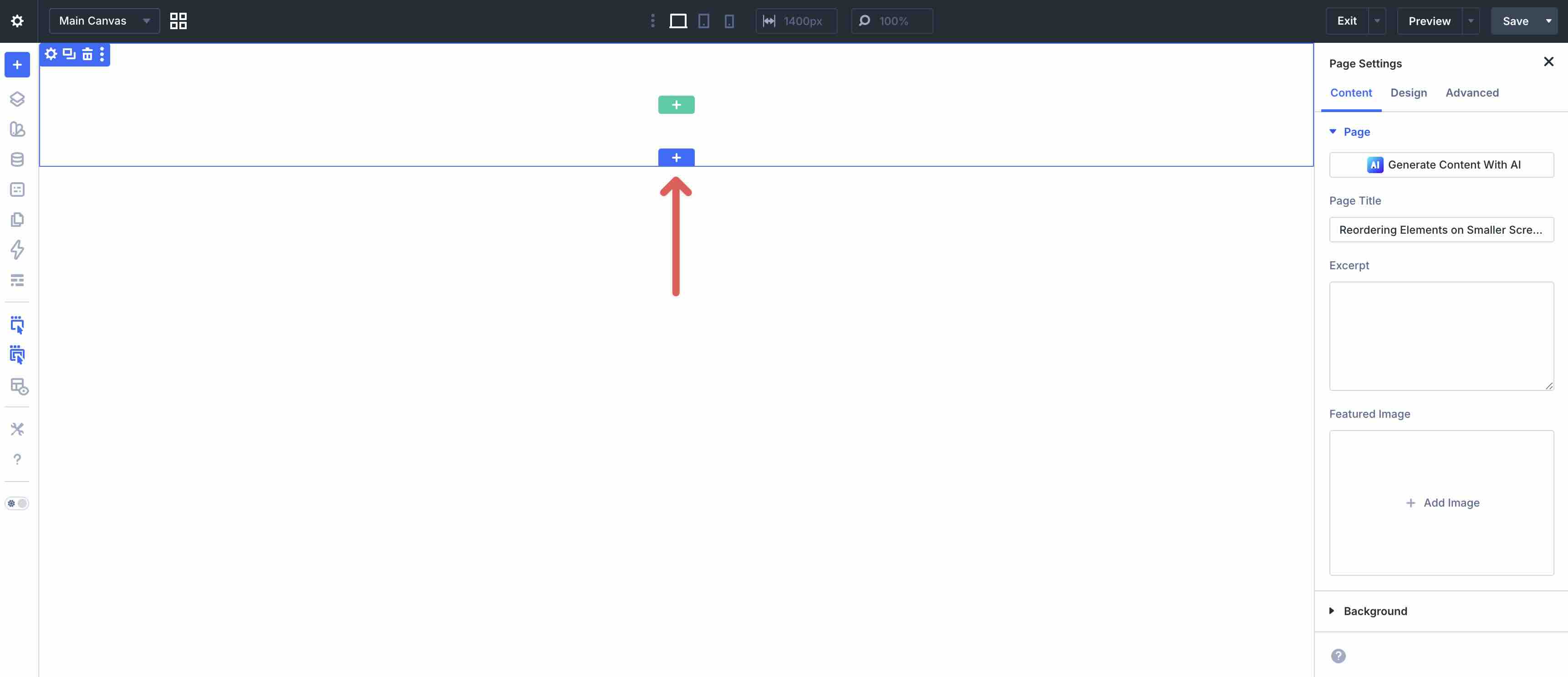
Click Add From Library and select one of your Tabs + Nested Elements sections.
3. Swap The Content
Once the section is on the page, replacing the placeholder content only takes a few clicks. Start by updating the headings, tab labels, body copy, buttons, links, service descriptions, feature details, portfolio text, captions, and supporting content so the section matches your brand and message. Then swap in your own images, icons, nested modules, calls to action, or supporting visuals as needed.
Because these designs rely on tabbed navigation, nested elements, and clear visual hierarchy, it’s best to replace content one tab at a time. This helps preserve the relationship between each tab label, its content panel, imagery, buttons, and supporting layout elements.
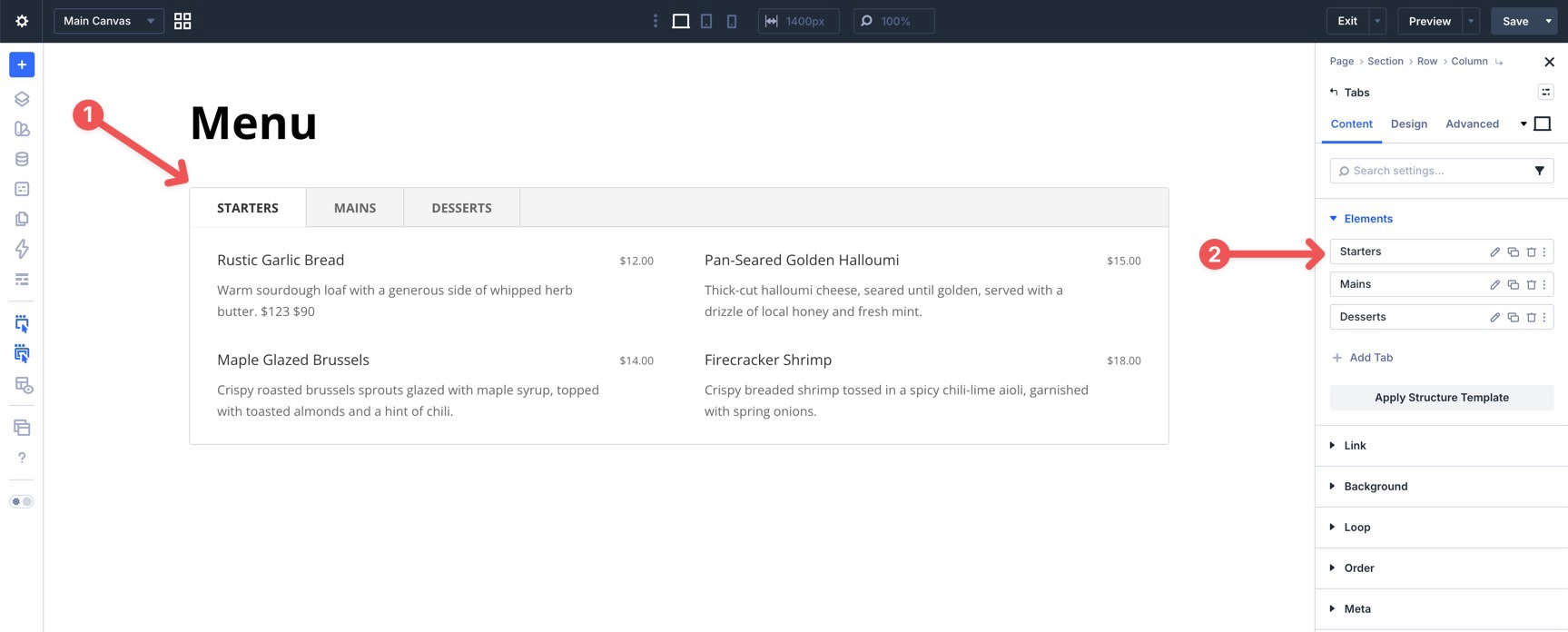
If you want to expand or simplify a section, duplicate or remove existing tabs, rows, columns, groups, nested modules, or content blocks, rather than rebuilding the design from scratch. That’s the easiest way to preserve the original structure, spacing, alignment, and interactive behavior.
4. Adjust Styles (Optional)
These Tabs + Nested Elements designs are already styled, so you can use them right away or refine them to better match your site. Update typography, colors, borders, spacing, backgrounds, images, buttons, tab states, active tab styling, and nested module styles as needed using the settings in the Design tab.
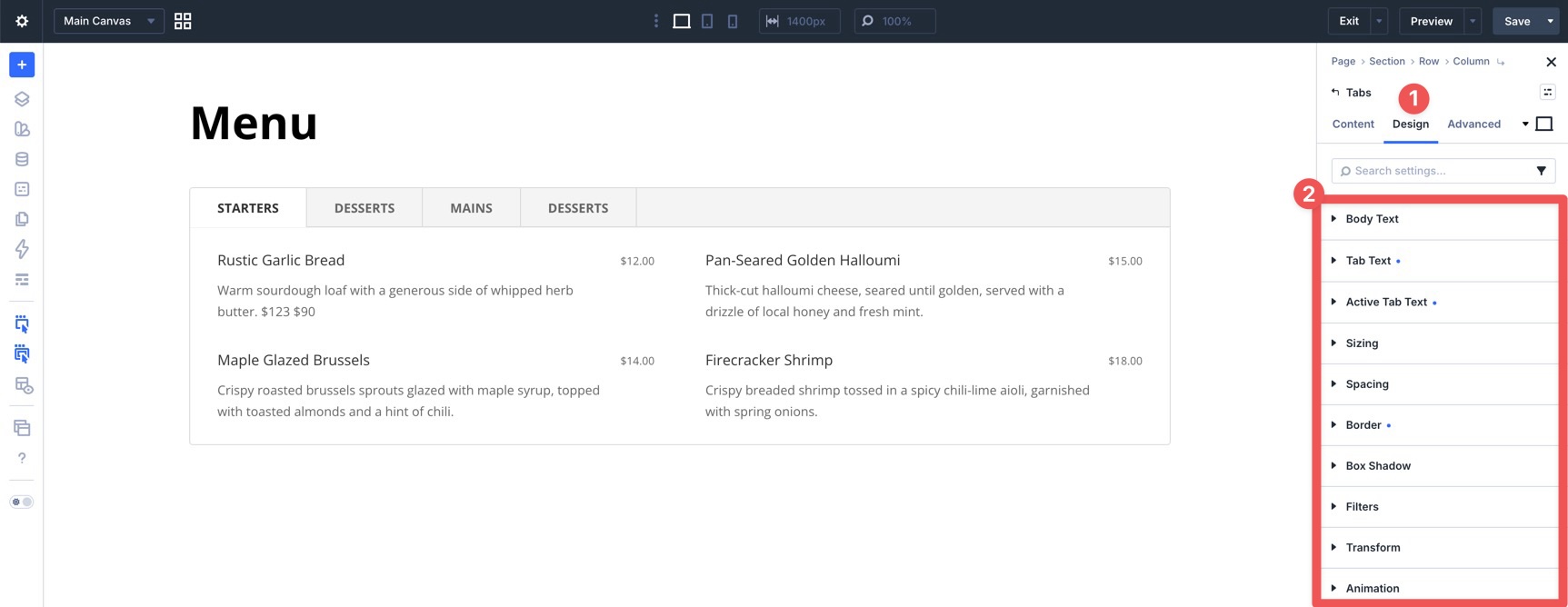
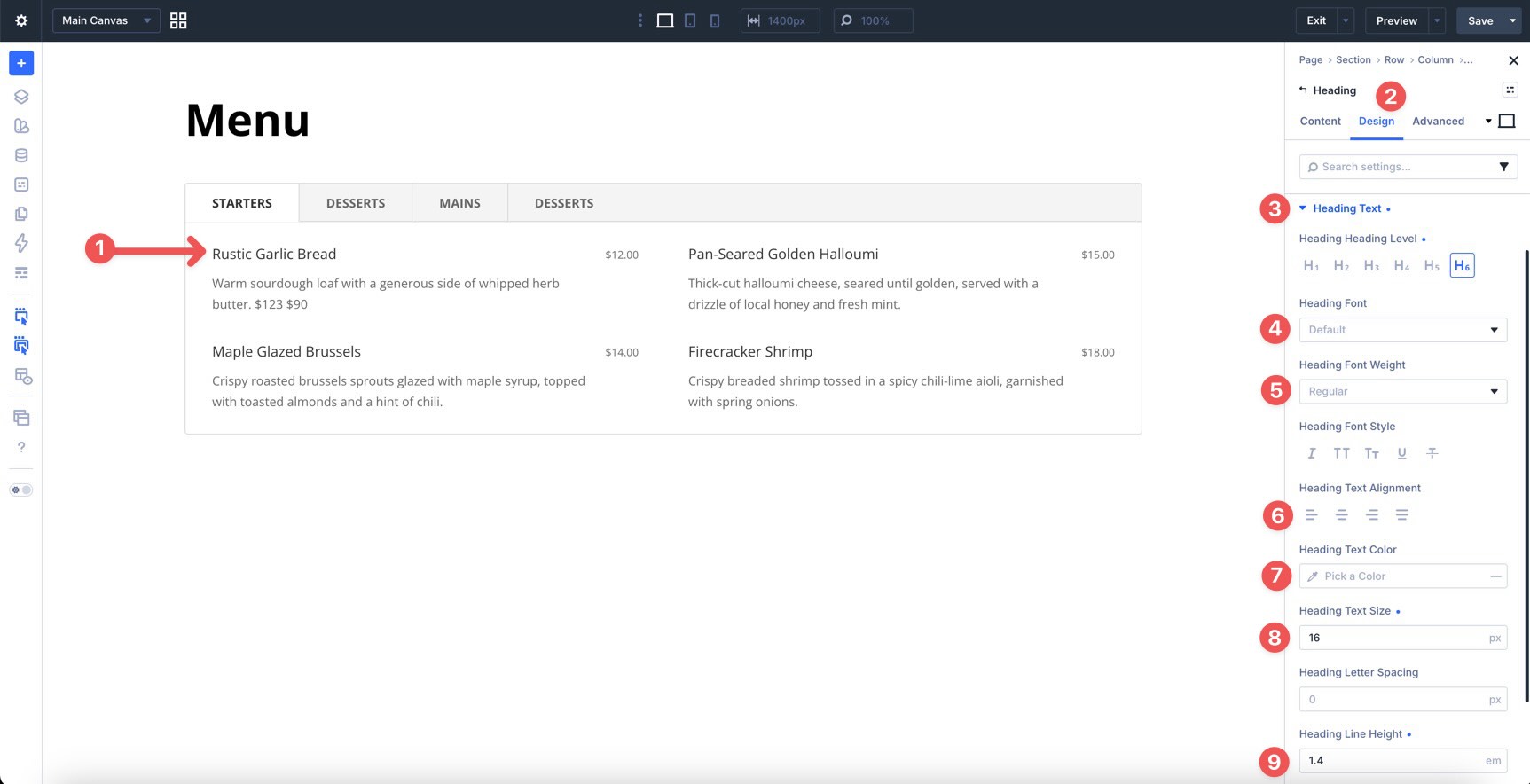
To change typography, open any Text, Heading, or Tabs module and go to the Design tab. Expand the relevant text settings to adjust Font, Font Weight, Text Alignment, Text Color, and more.
To refine the section styling, open the tabs, row, column, group, or nested module you want to adjust and use the Content and Design tabs to tweak Background, Border Width, Border Color, Border Radius, Box Shadow, Sizing, and Spacing.
If your section uses nested images, cards, buttons, text blocks, service details, multi-column content, tabbed galleries, or comparison panels, keep those relationships in mind as you edit so the layout remains intentional, readable, and balanced.
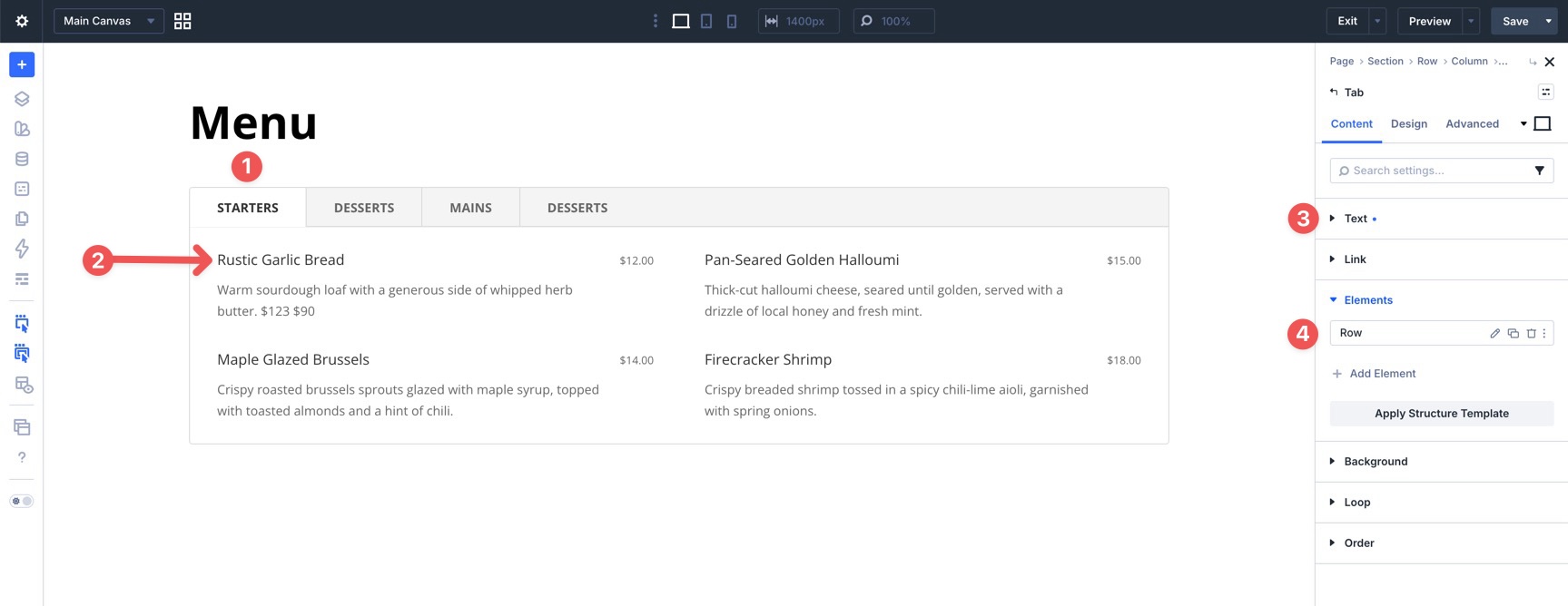
Use Divi’s responsive editing tools to fine-tune spacing, stacking, image size, tab width, tab wrapping, text alignment, and button placement on smaller screens so the layout stays polished across devices.
Tips For Effective Tabs + Nested Elements Sections
Tabs + Nested Elements sections work best when they group related information into clear, easy-to-browse categories. Use these quick tips to keep your sections clean, useful, and easy to customize.
Keep Tab Labels Clear
Tab labels should be short, specific, and easy to understand. Use labels that help visitors know exactly what type of content they’ll see before they click.
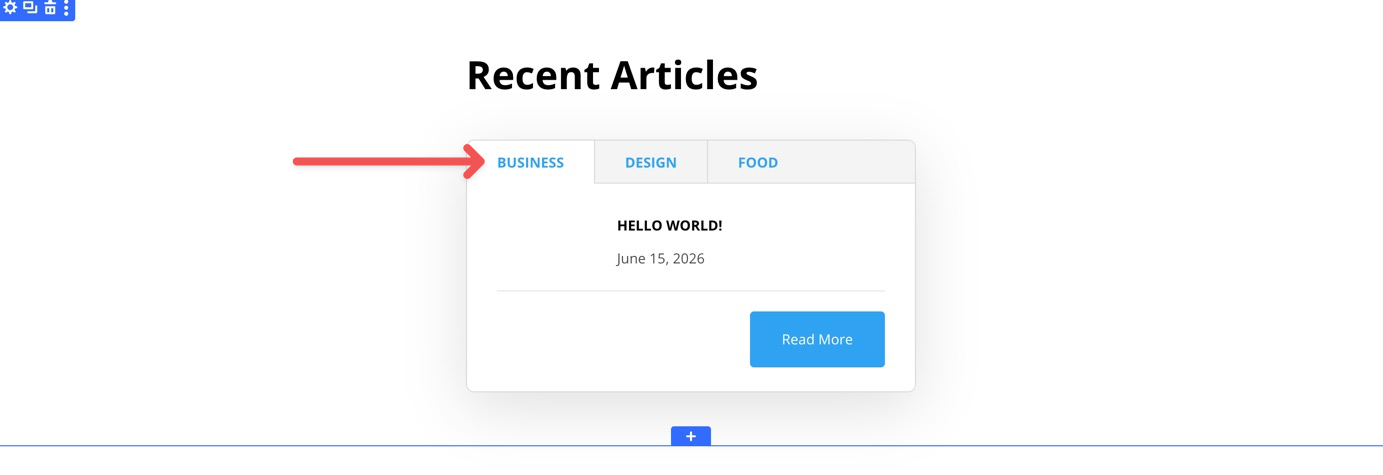
Use Nested Elements With Purpose
Nested elements can make each tab more useful, but they should support the content. Add images, buttons, cards, columns, or supporting details only when they help visitors understand the section faster.
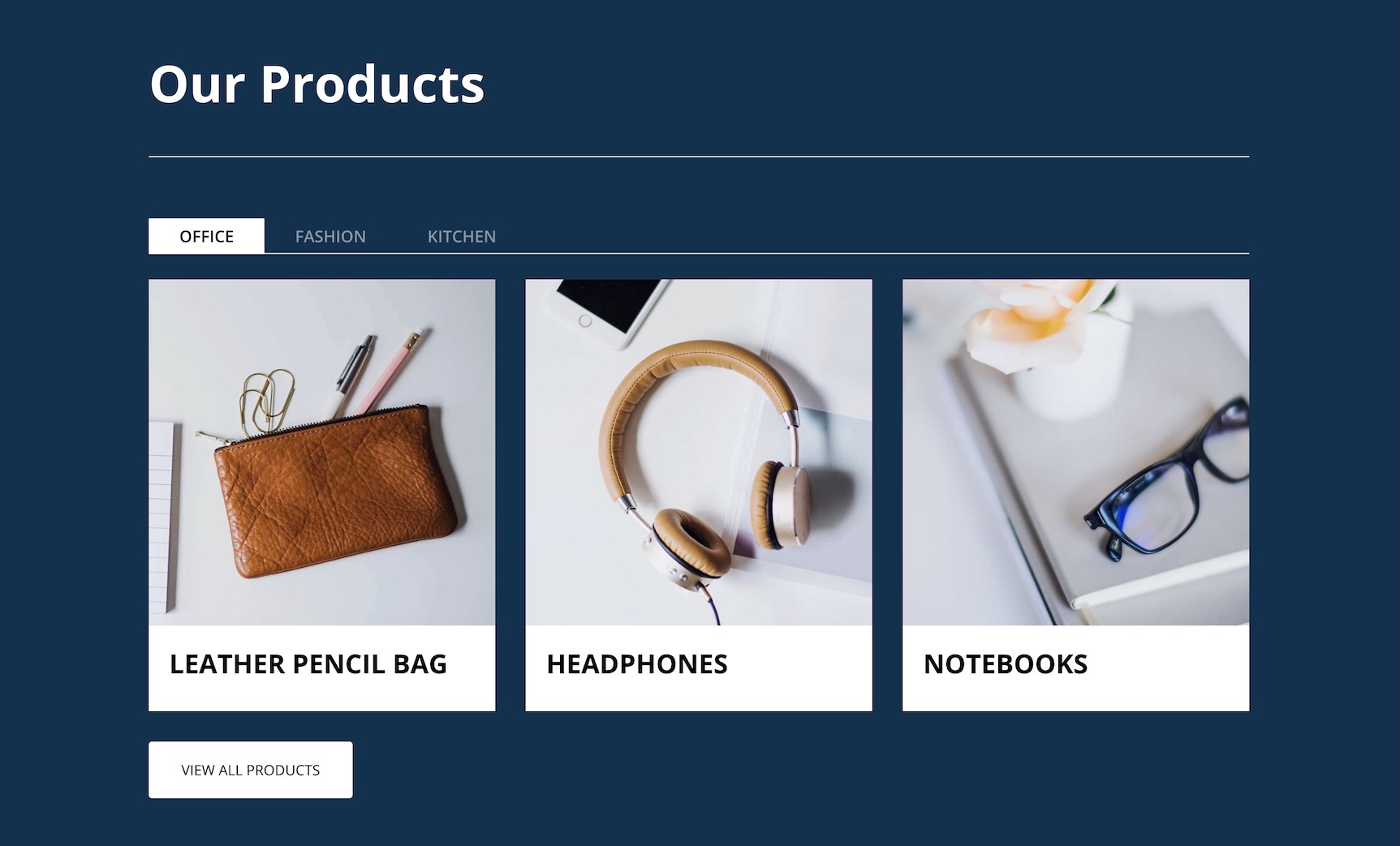
Create A Clear Visual Hierarchy
Use title size, color, spacing, active tab styling, imagery, and button placement to guide visitors through each tab panel. The most important details and calls to action should be easy to spot.
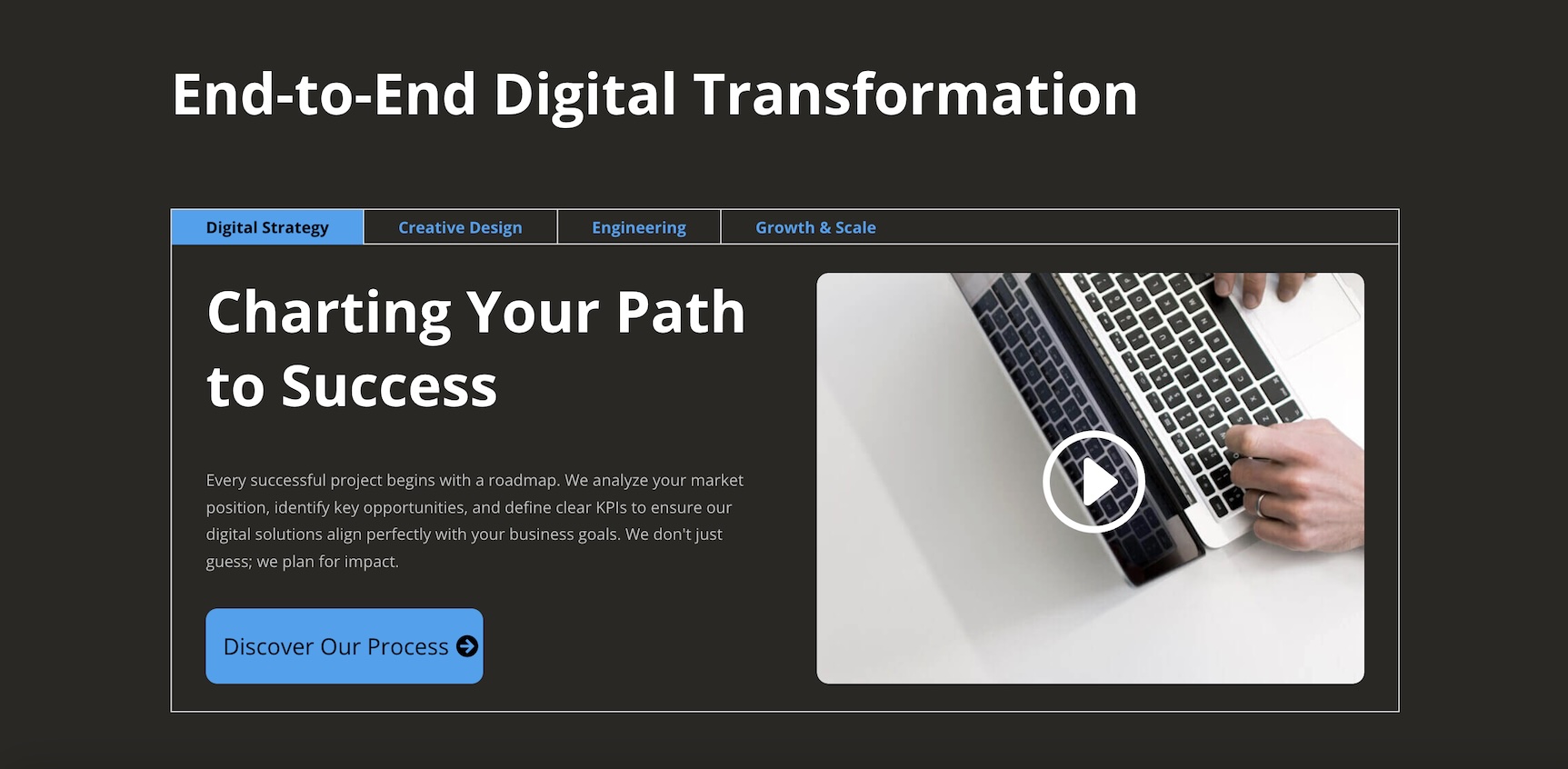
Keep Content Consistent Across Tabs
Tabs feel more polished when each panel follows a similar structure. Keep headings, images, text lengths, cards, and buttons balanced so switching between tabs feels smooth and intentional.
Check The Layout On Mobile
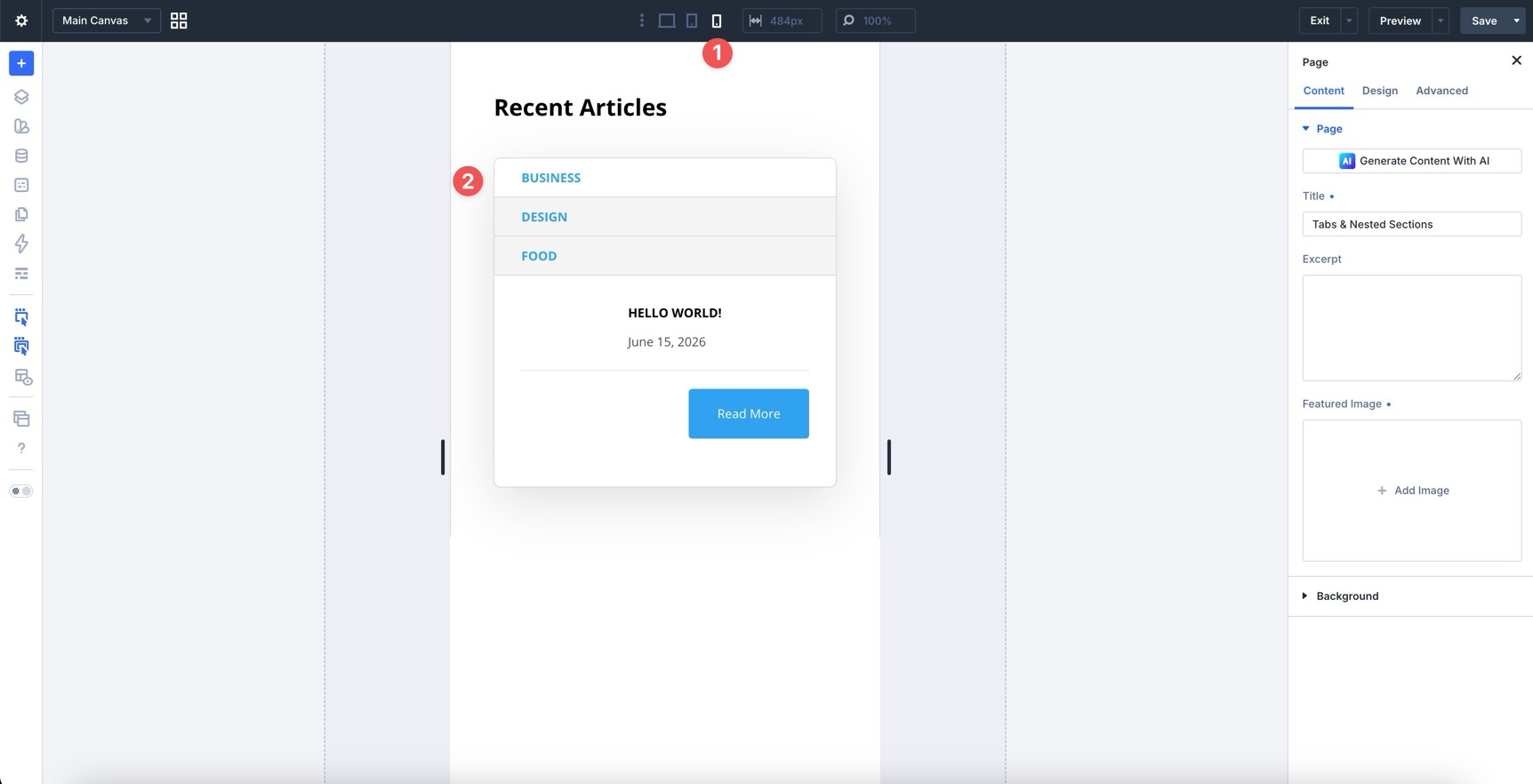
Tabs + Nested Elements sections can change noticeably on tablet and phone screens as tab labels wrap and nested content stacks. Review your layout on smaller devices to ensure tab labels remain readable, content feels balanced, images crop well, and buttons are easy to tap.
Start Building In Divi 5 Today!
These 4 Tabs + Nested Elements designs give you a fast way to build polished, interactive sections for service breakdowns, product details, feature comparisons, process sections, portfolio highlights, FAQs, team information, agency websites, landing pages, and more. Swap in your content, customize the styling if needed, and you’ll have a professional section ready in minutes with Divi 5’s Visual Builder.
The post 4 Tabs + Nested Elements For Divi 5 (Free Download!) appeared first on Elegant Themes Blog.
The Tech Zone


Comments
Post a Comment