How To Mask Text In Divi 5
Some design effects look more complex than they are. Text masking is one of them. It looks like something you would need Photoshop, custom CSS, or a developer to create, but the basic effect can be built directly in Divi 5 using native background, color, and blend mode settings.
Subscribe To Our Youtube Channel
The result is simple in concept: a heading appears to be filled with a gradient, image, GIF, or video instead of a flat text color. In this post, we’ll build that effect step by step and cover the design choices that make masked text look intentional rather than overdone.
What Is Text Masking?
Text masking is a visual effect where the letterforms of your text act as a window into whatever sits behind them. Instead of showing a flat color, the characters reveal an image, gradient, looping video, or GIF. Everything outside the letters stays hidden or covered. Only what falls inside the text shape comes through.

The effect works best when the text is large enough to show the fill clearly. A single heading can carry a landscape photo, a bold gradient, or subtle movement, all contained inside the letters. That makes it especially useful in hero sections, title cards, portfolio headers, and other places where one visual element needs to create interest quickly.
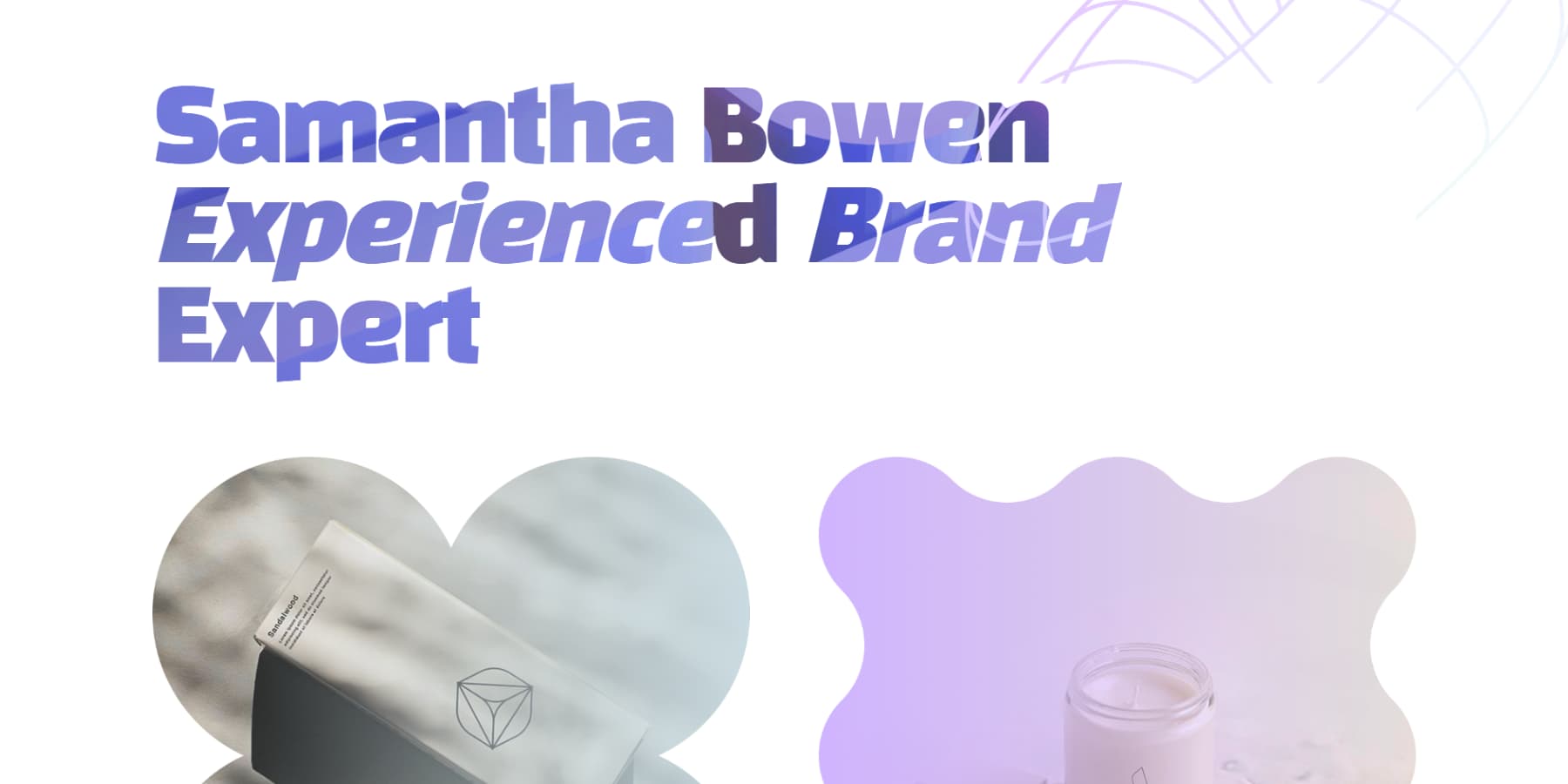
You will often see this effect on creative portfolios, agency sites, fashion brands, music pages, and photography websites. It can also work in more restrained designs when used carefully. A SaaS landing page, for example, might use a soft gradient fill inside one headline to reinforce a brand color system without adding another large graphic.
There is a practical side to the effect too. Text masking combines typography and imagery into one element. Used well, it can add depth without adding extra decorative layers to the layout.
Putting Together Masked Text In Divi 5
Text masking in Divi 5 is easier than it looks. The key is to place a background on the column, then use black text, a white module background, and the Screen blend mode to reveal the column background through the letterforms.
Setting Up The Layout
Start by adding a Section in the Divi 5 Visual Builder. Inside it, add a Row with a single column, then place a Text or Heading module inside that column. Type your content directly into the module.
For layouts that already have other content in the same section, keep the masked text isolated so the effect stays contained. Divi 5’s Nested Rows make this easy. Click the black + icon inside your existing column. When the dialog opens, click the New Row tab, choose a single-column layout, and place your Text or Heading module inside that nested row.
The masking effect stays scoped to that nested column and does not affect the rest of the layout. Divi 5 supports deeper nesting if your design needs it, but one nested row is enough for this effect.
Adding The Mask Background To The Column
Open the Column settings and go to Content > Background. Add a gradient as the background fill and set the direction to 90 degrees. Two colors are enough to get started.
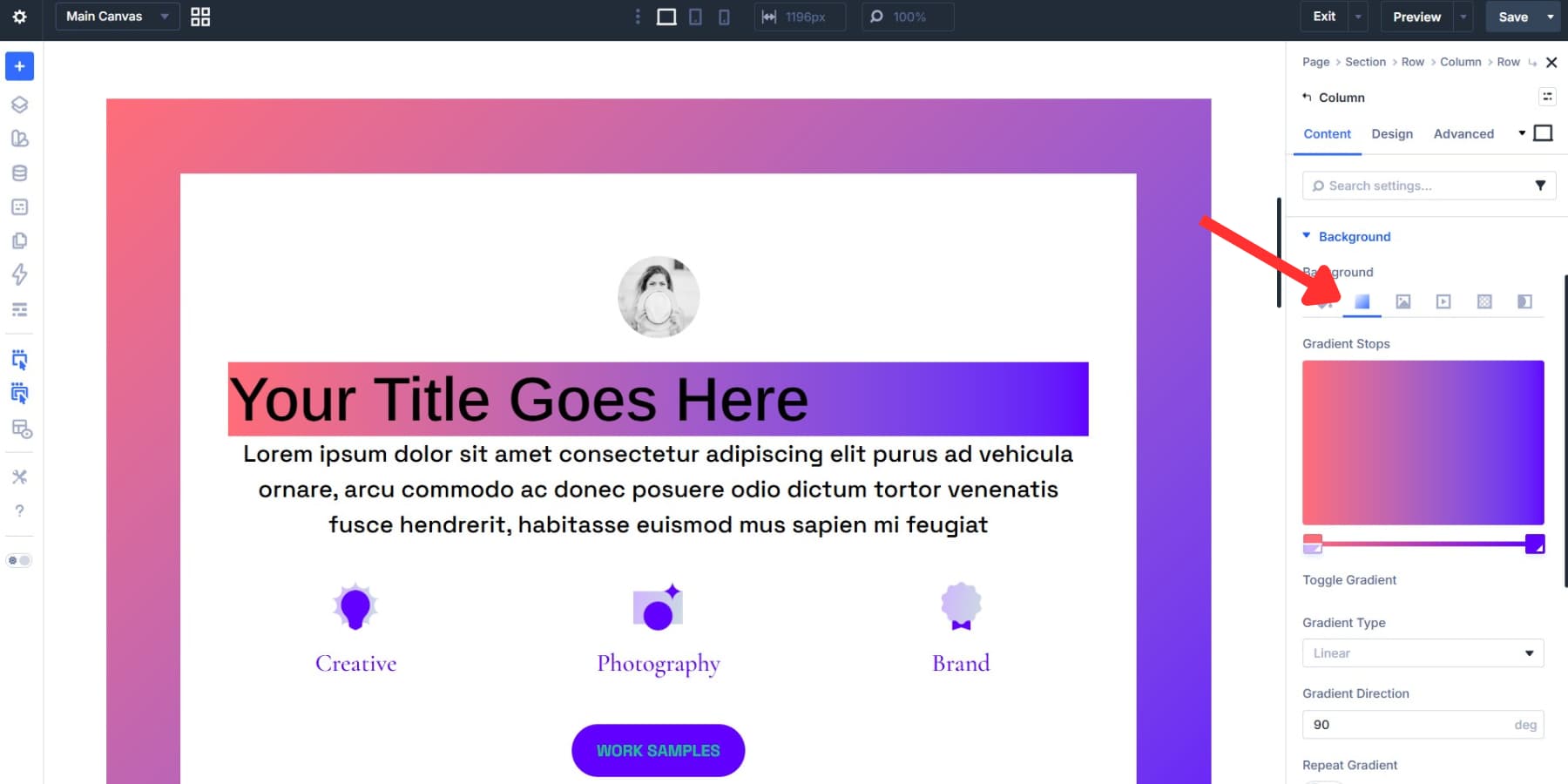
We’re using a gradient here because it is lightweight and easy to control. A 90-degree linear gradient runs left to right, which works well for wide headings. If your text stacks vertically or sits in a narrow column, a 180-degree direction can read better. You can also try diagonal angles like 135 degrees if you want the fill to feel more dynamic.
You can also change the gradient type to circular, elliptical, or conical if that better fits the design.
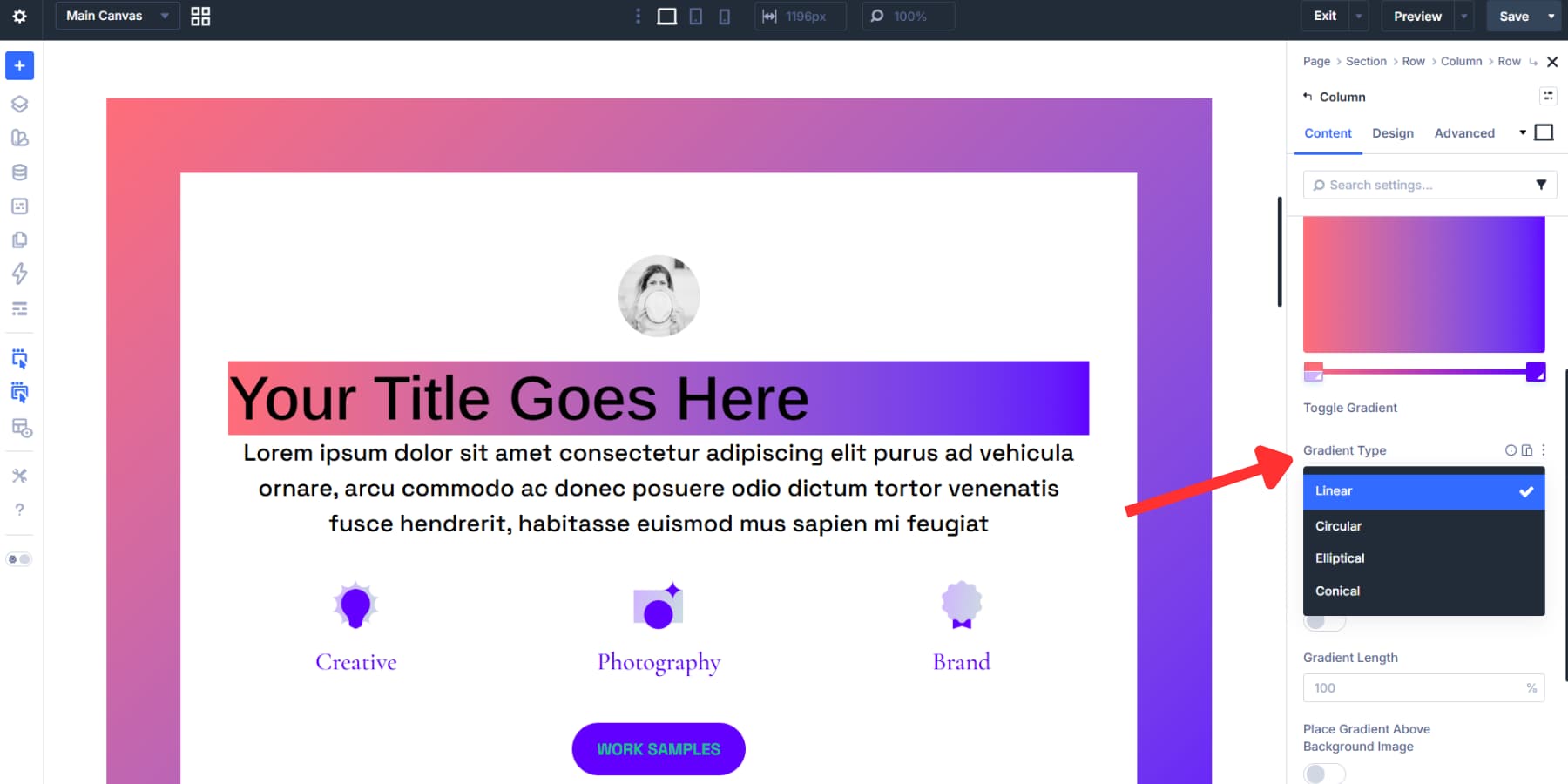
For the color stops, use enough contrast for the fill to remain visible inside the letters. Two closely related tones can look muddy once they are confined to the text shape. A deep blue into a vivid orange, or a dark purple into near white, usually gives the effect more definition.
The column background can also be an image, GIF, or video. A photo adds texture and atmosphere. A GIF adds movement. A video creates the most dramatic version of the effect.
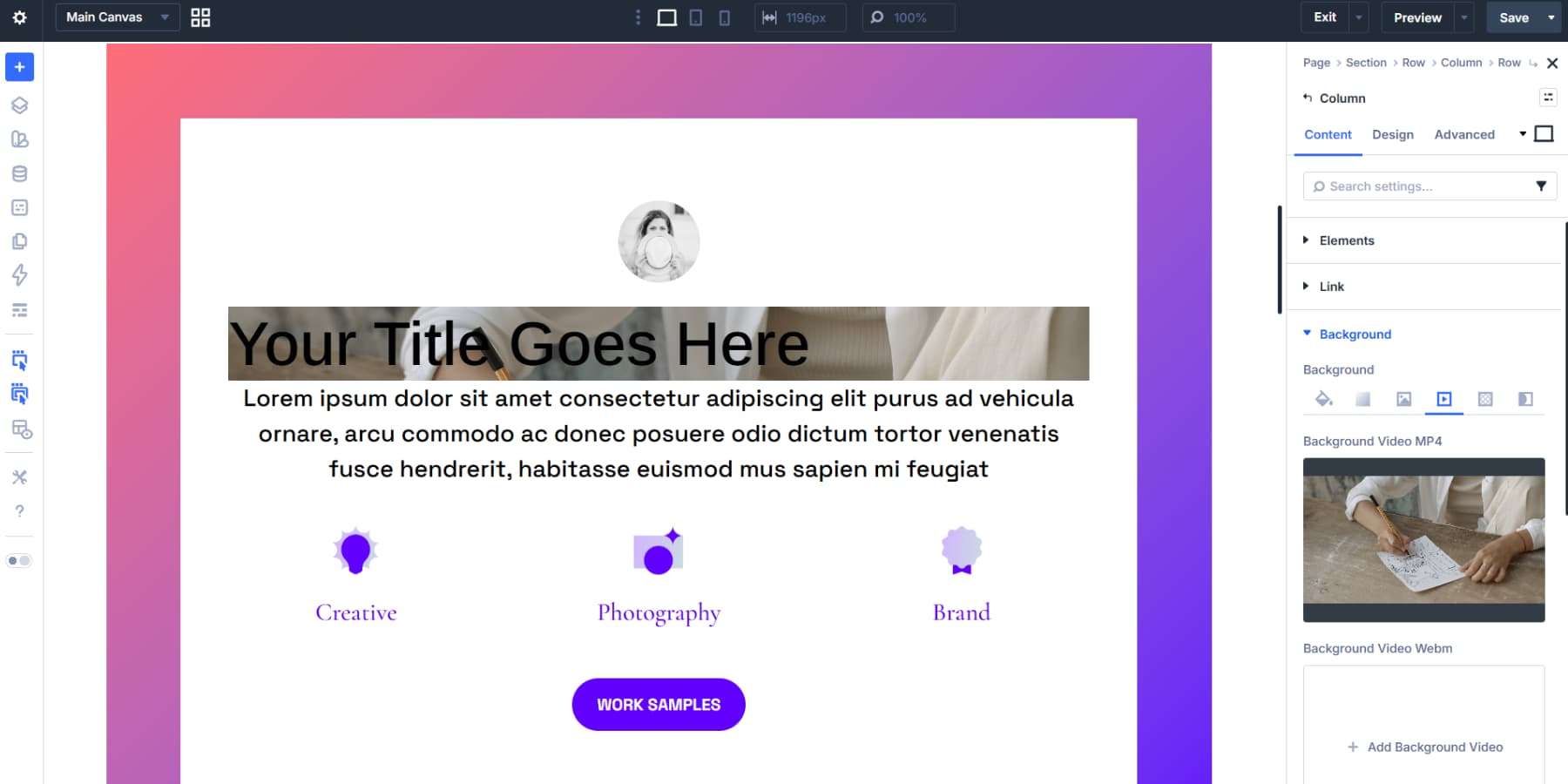
The tradeoff is performance. Video and GIF backgrounds can add noticeable weight to a page, especially on slower connections. Keep files short, compressed, and relevant to the design. A subtle gradient is often the best option when you want the effect without adding heavy media.
Configuring The Text Module
Open the Text or Heading module and add your content if you have not already done so.
Then go to the Design tab. Find the Text Color setting and set it to solid black: #000000. This matters because the blend mode will use the black text to reveal the column background underneath. Choose your font and adjust the size.
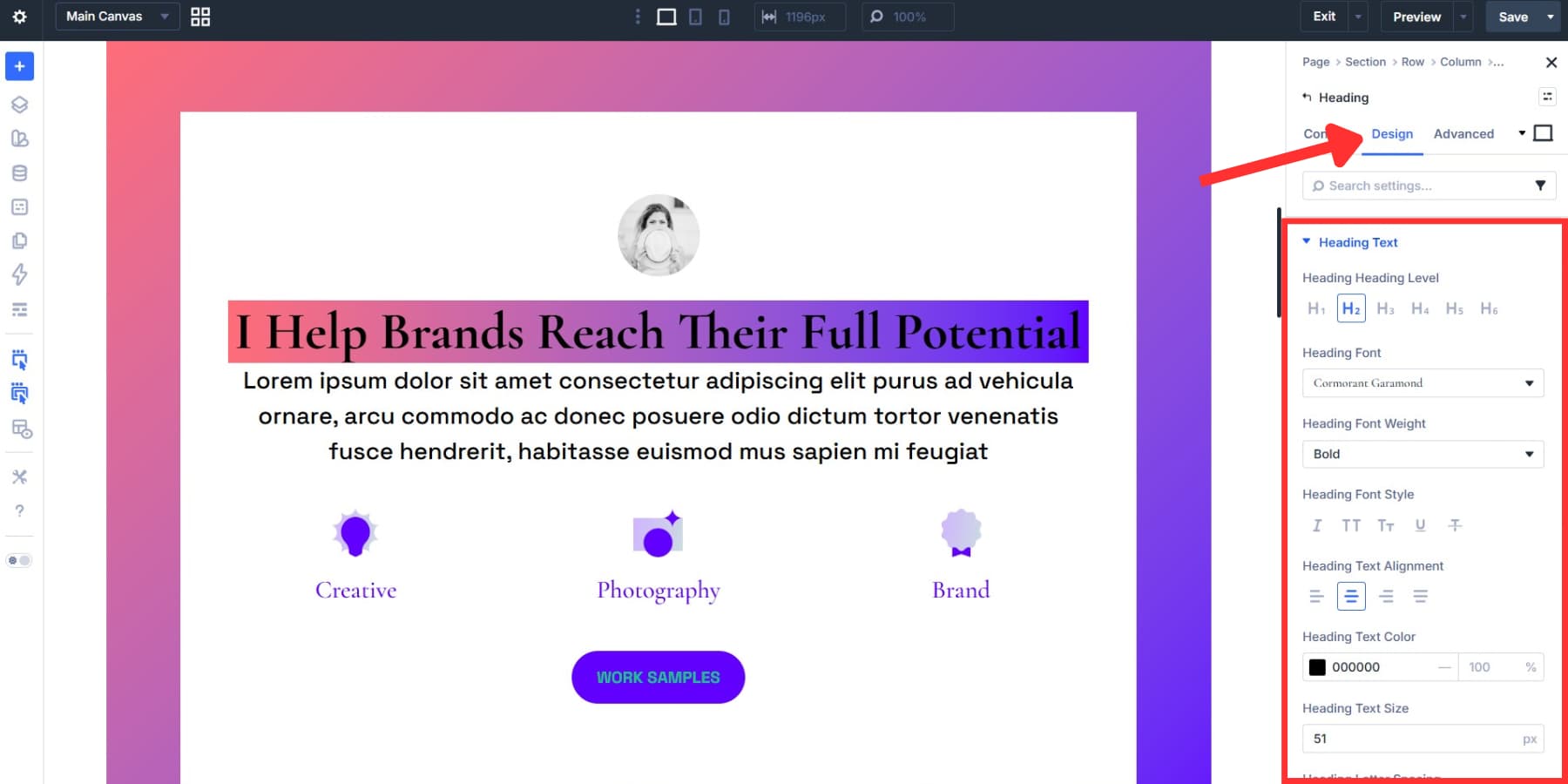
Bold fonts tend to work best. Thin fonts can work, but they give the fill less room to show through. If the effect feels weak, increase the font size, weight, or letter spacing before changing the background.
Once the typography is set, go to the Content tab of the same module and expand the Background section. Add a solid white background: #FFFFFF.
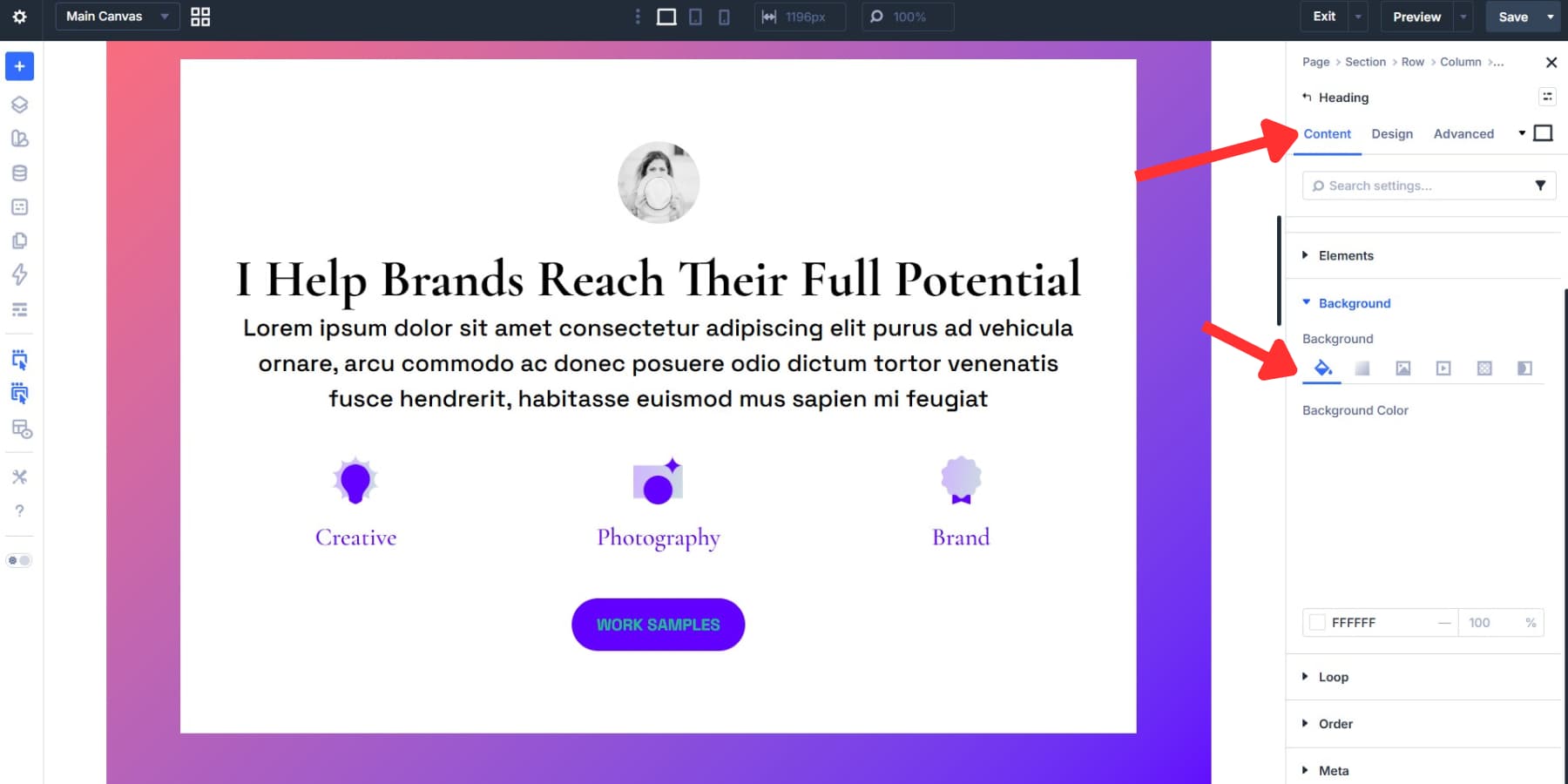
The white background is what covers the column fill outside the letters. Without it, the gradient or media background would remain visible across the whole column instead of appearing only inside the text.
Applying The Screen Blend Mode
Still inside the Text or Heading module, go to the Design tab and expand the Filters section. Look for the Blend setting and select Screen from the dropdown.
This is where the effect comes together. With the Screen blend mode, the white module background stays visible and covers the column background. The black text allows the column background to show through inside the letterforms.
The result is a masked text effect: the gradient, image, GIF, or video appears inside the letters, while the surrounding area stays clean. Your section background still affects the final composition, so make sure it works with the white module background and the colors inside the text.
How To Use Masked Text Effectively
Getting the technique to work is only the first step. The design still depends on the choices you make around type, size, background, and contrast.
- Choose a font with enough weight.
- Bold and heavy typefaces give the fill more room to show through.
- Thin or overly decorative fonts can make the effect hard to read.
- The letterforms need enough surface area to carry the background.
- Use the effect at a large size.
- A small masked heading will rarely have the same impact as a large one.
- Short words, acronyms, and compact phrases often work best.
- The larger the text, the easier it is to see the fill clearly.
- Pay attention to the surrounding background.
- The area outside the module background still affects how the composition feels.
- Dark section backgrounds can make bright fills feel sharper.
- Light backgrounds create a softer, cleaner result.
- Pick a fill with clear contrast or movement.
- High-contrast gradients read better than subtle ones.
- Photos should have enough tonal variation to stay visible inside the letters.
- Video and GIF fills should move slowly enough to stay readable.
Start Building In Divi 5 Today!
Text masking is a simple effect, but it can quickly change the feel of a heading. You are combining a column background, black text, a white module background, and Screen blend mode to make the fill appear inside the letters.
Once you understand the setup, you can reuse the same technique with different fills. Swap the gradient for a photo and the tone changes. Use a video and the section feels more animated. Keep a simple gradient and the effect stays lightweight and brand-focused.
If you are building hero sections, portfolio headers, launch pages, or any design where a headline needs a little more visual weight, masked text is worth keeping in your Divi 5 toolkit.
The post How To Mask Text In Divi 5 appeared first on Elegant Themes Blog.
The Tech Zone


Comments
Post a Comment