7 Contact Sections For Divi 5 (Free Download)
Divi 5 makes it easy to build contact sections that look polished, professional, and ready for real inquiries. In this free pack, you will find 7 Styled Contact Sections, each designed to help visitors reach out quickly using clear layouts, strong typography, and modern form styling. Drop one onto any page, swap the details, and you are ready to go. No extra setup required.
Preview
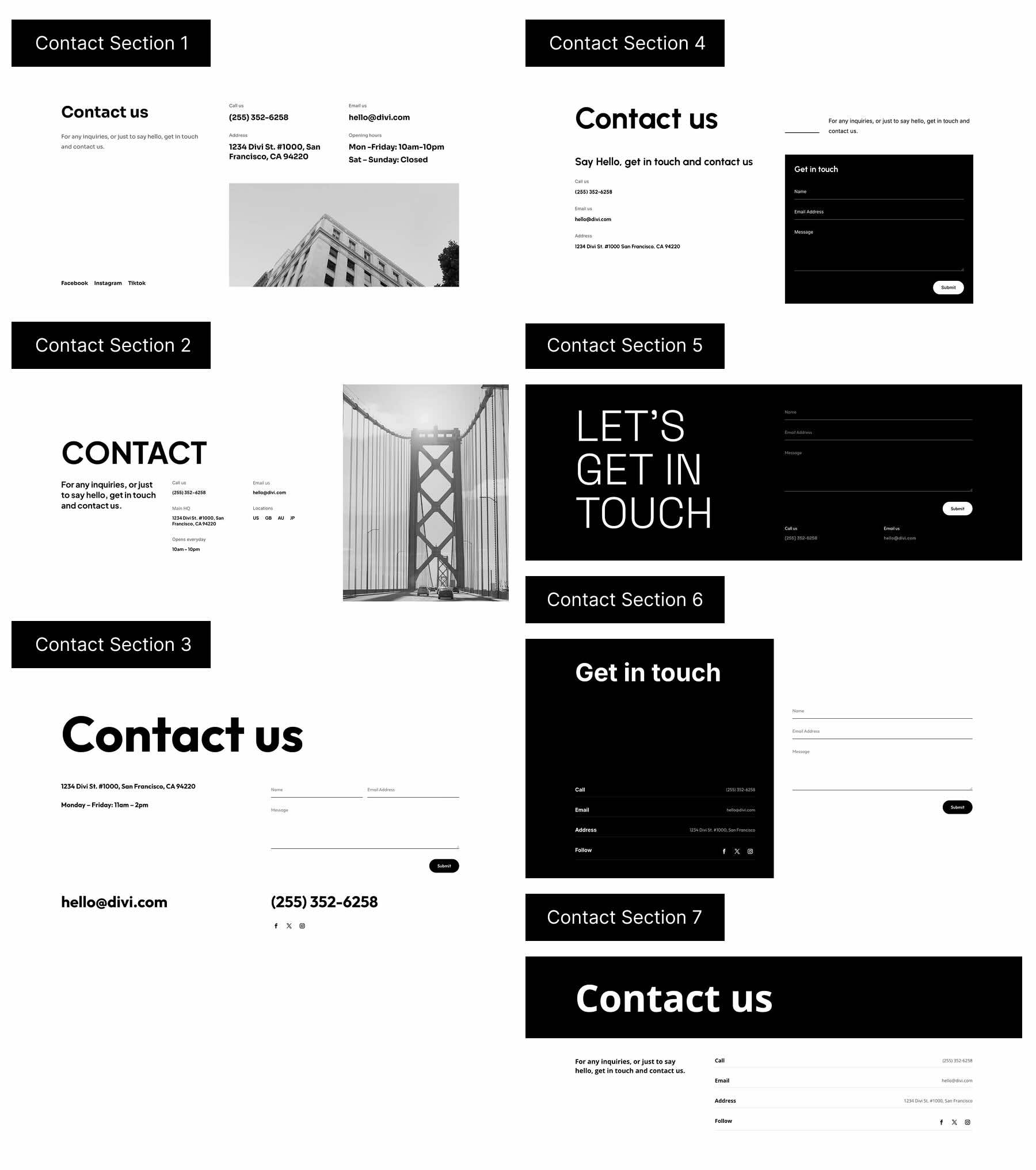
Here’s a quick look at all 7 Styled Contact Sections included in the pack. The download is further down the post.
Download 7 Contact Sections For Divi 5
Get all 7 sections for free. Import them into your Divi Library and add them to any page in the Visual Builder.

What’s Included (8 Exports)
After you download and unzip the file, you’ll find 7 Styled Contact Section exports, plus 1 file containing all designs.
Styled Contact Section 1 to 7 (7) → Seven styled contact section layouts featuring modern form styling, clear contact info blocks, and flexible layouts for quick page building.
Styled Contact Sections (All) → Imports all designs to your Divi Library at once.

How To Use The Contact Sections
Keep your download folder handy. We’ll import, then add a section to a page.
1. Import Sections Into The Divi Library
Go to Divi → Divi Library. Click Import & Export at the top of your screen.
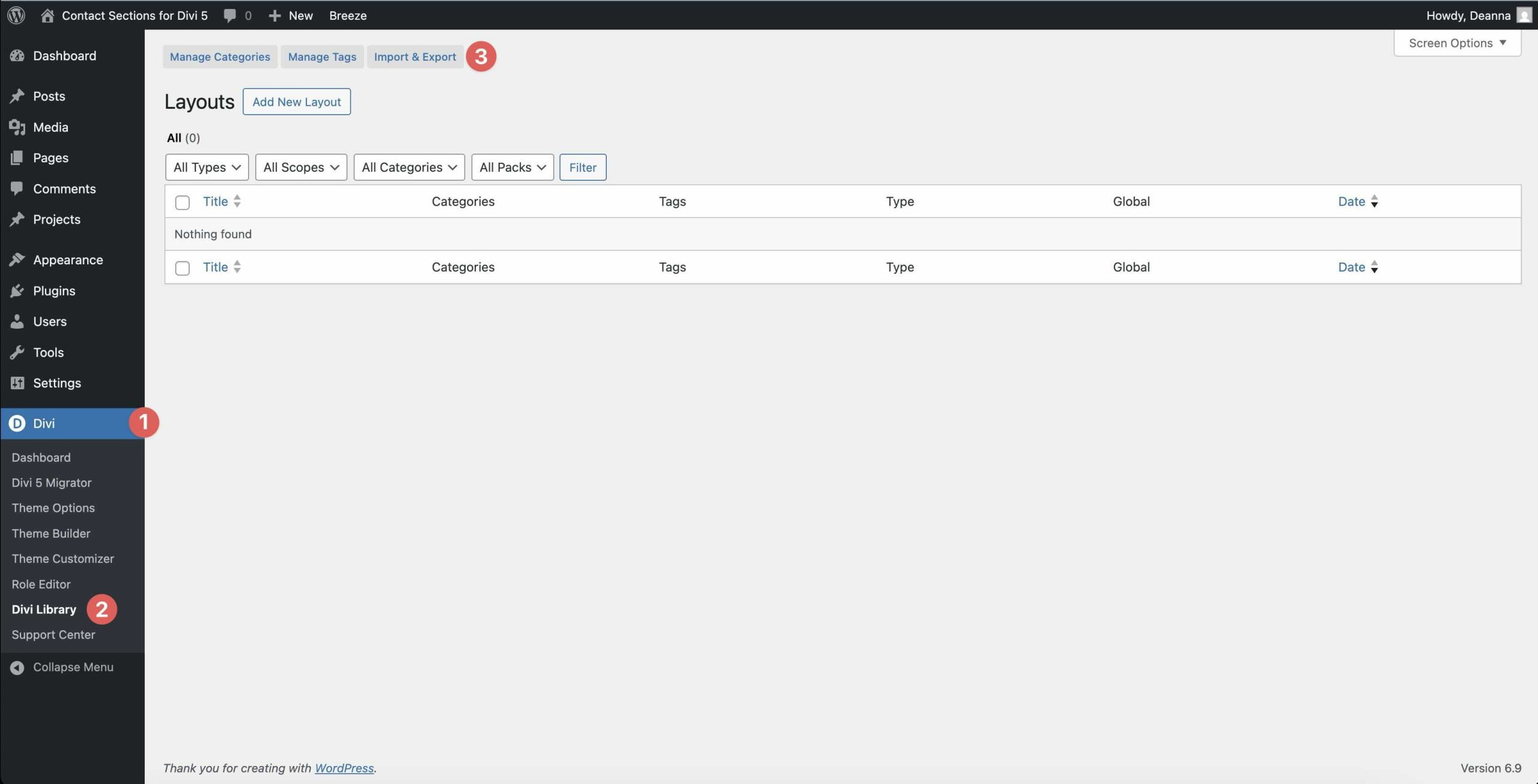
In the Import & Export Layouts modal, switch to the Import tab, then click Choose File and select your JSON.
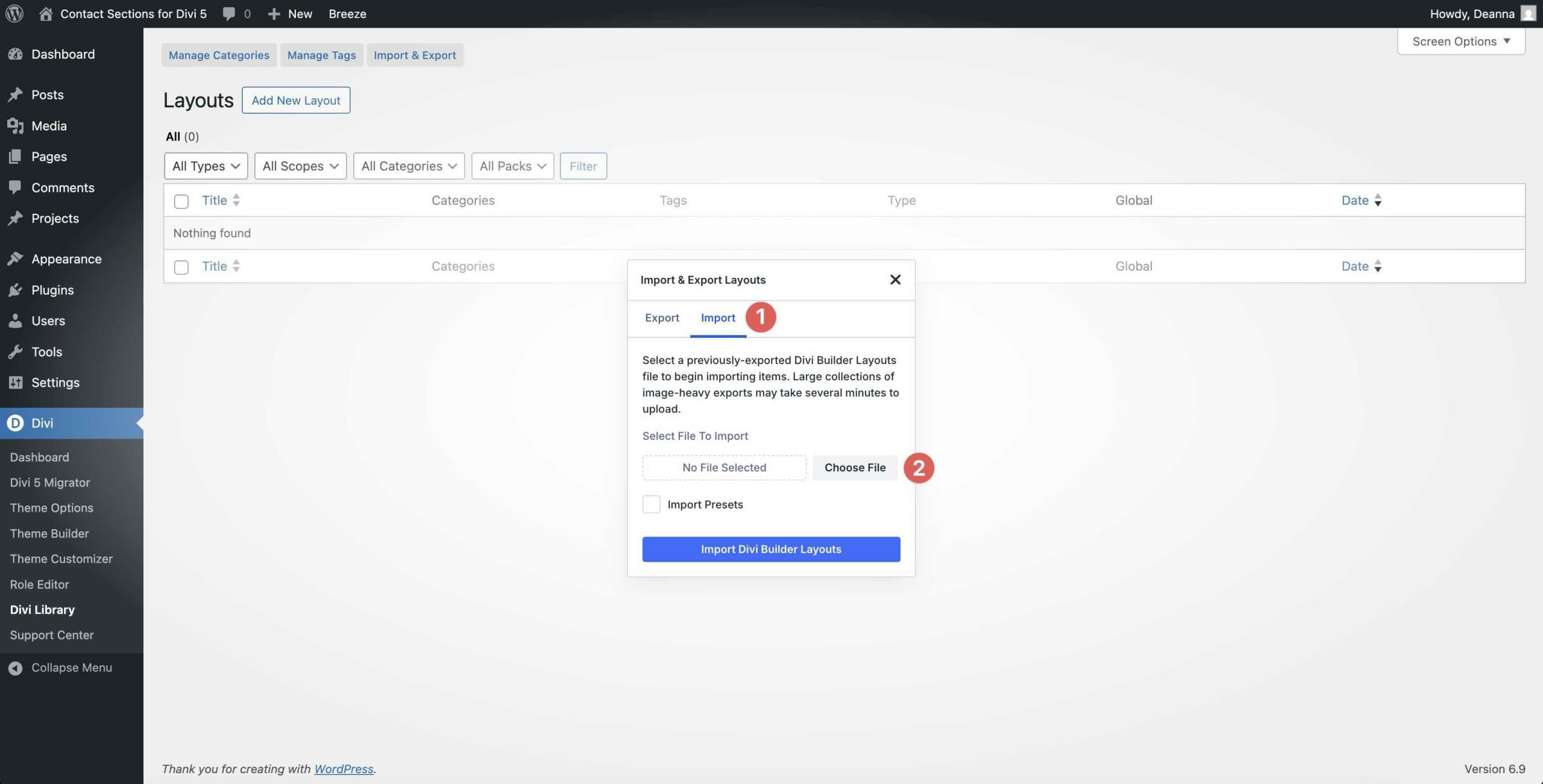
Choose any Styled Contact Section JSON you want to use, then click Import Divi Builder Layouts.
2. Add A Contact Section To Any Page
Open a page in the Visual Builder and add a new Section.
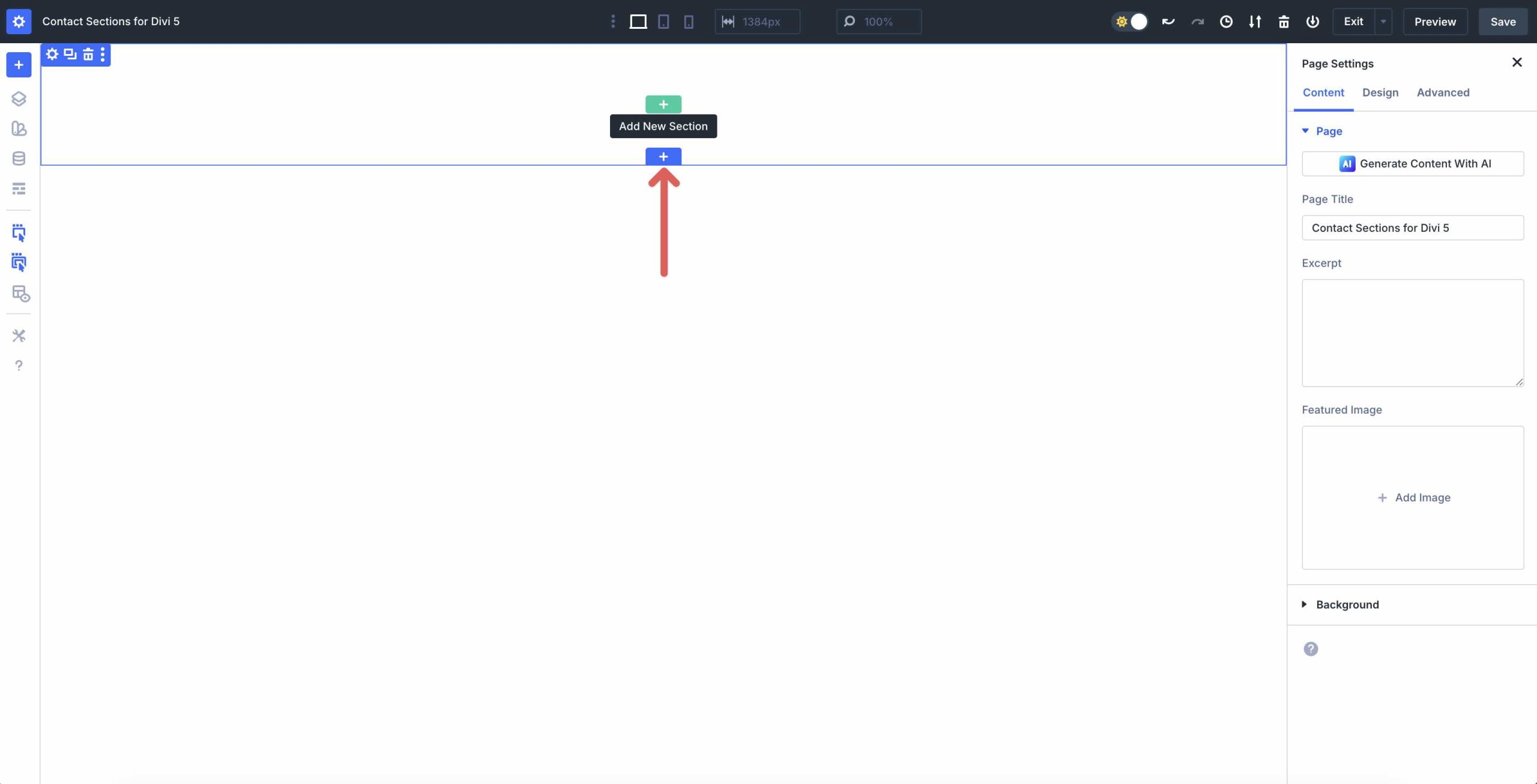
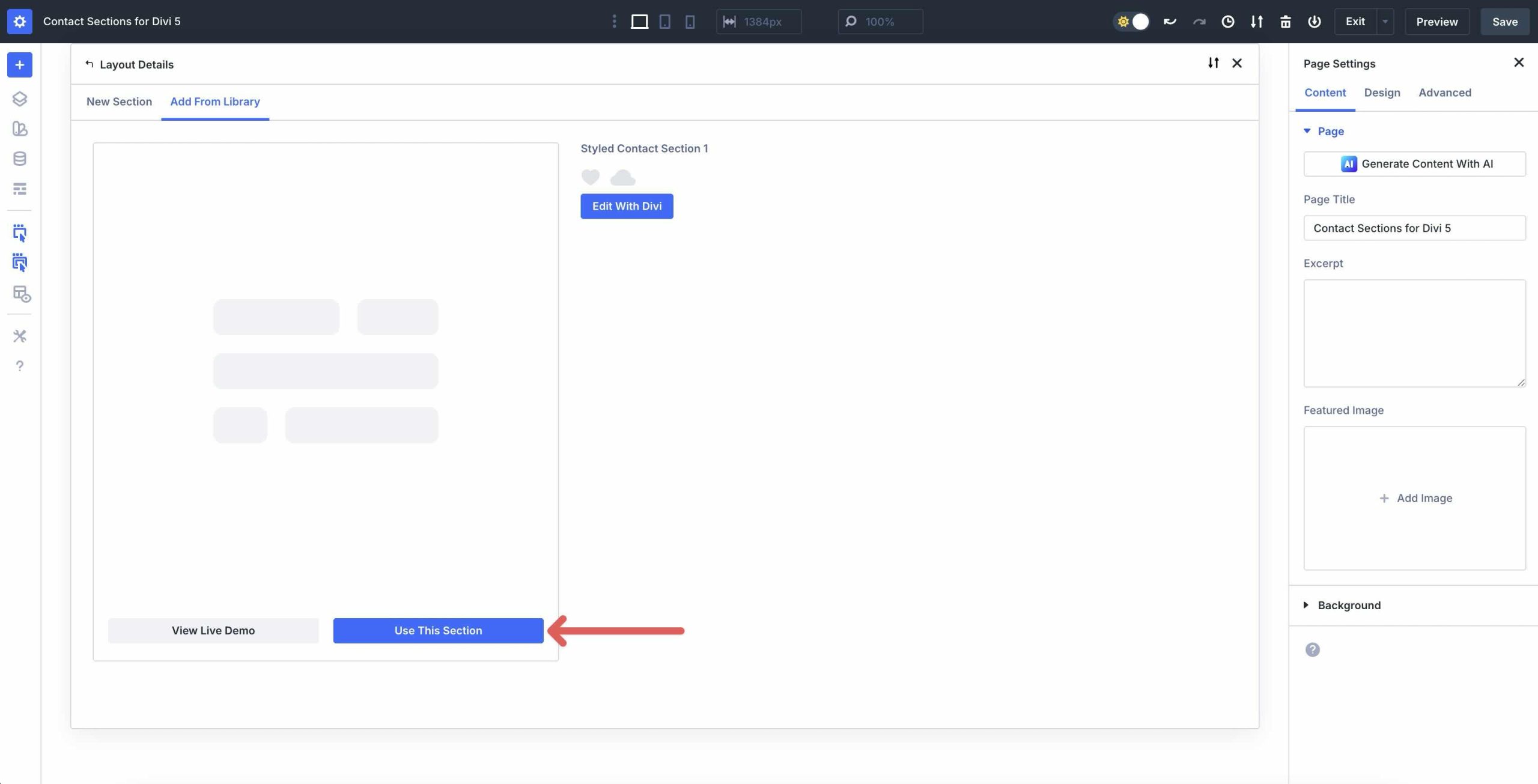
In the Insert Section modal, click Add From Library and select a Contact Section layout.

Finally, click Use This Section.
3. Swap The Content
Once the Section is on the page, replacing the placeholder content takes just a few clicks. Update the heading and supporting text to match your offer, location, or service area.
To update contact details (phone, email, address, hours), click directly into the text modules and replace the placeholder info. If your layout includes a Contact Form Module, open the module settings and update the form fields, success message, and email settings in the Content tab.
To replace images, open the Image settings by navigating to the Content tab of that module. Click Image → Upload or choose an image from your Media Library.
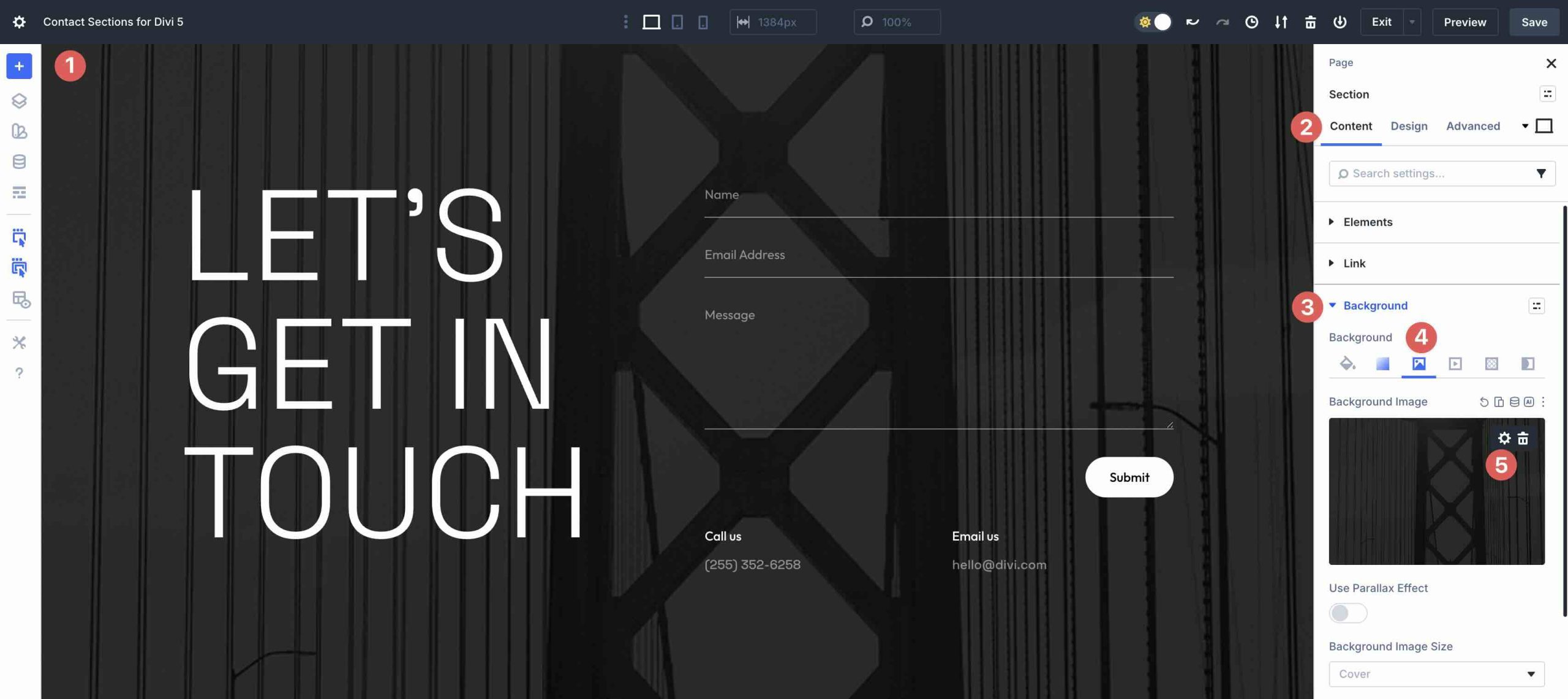
For Background Images or Gradients, go to Section settings → Content tab → Background and drop in your own image or adjust the Gradient Stops.
4. Adjust Styles (Optional)
You can easily match these sections to your brand by updating fonts, colors, spacing, and background treatments.
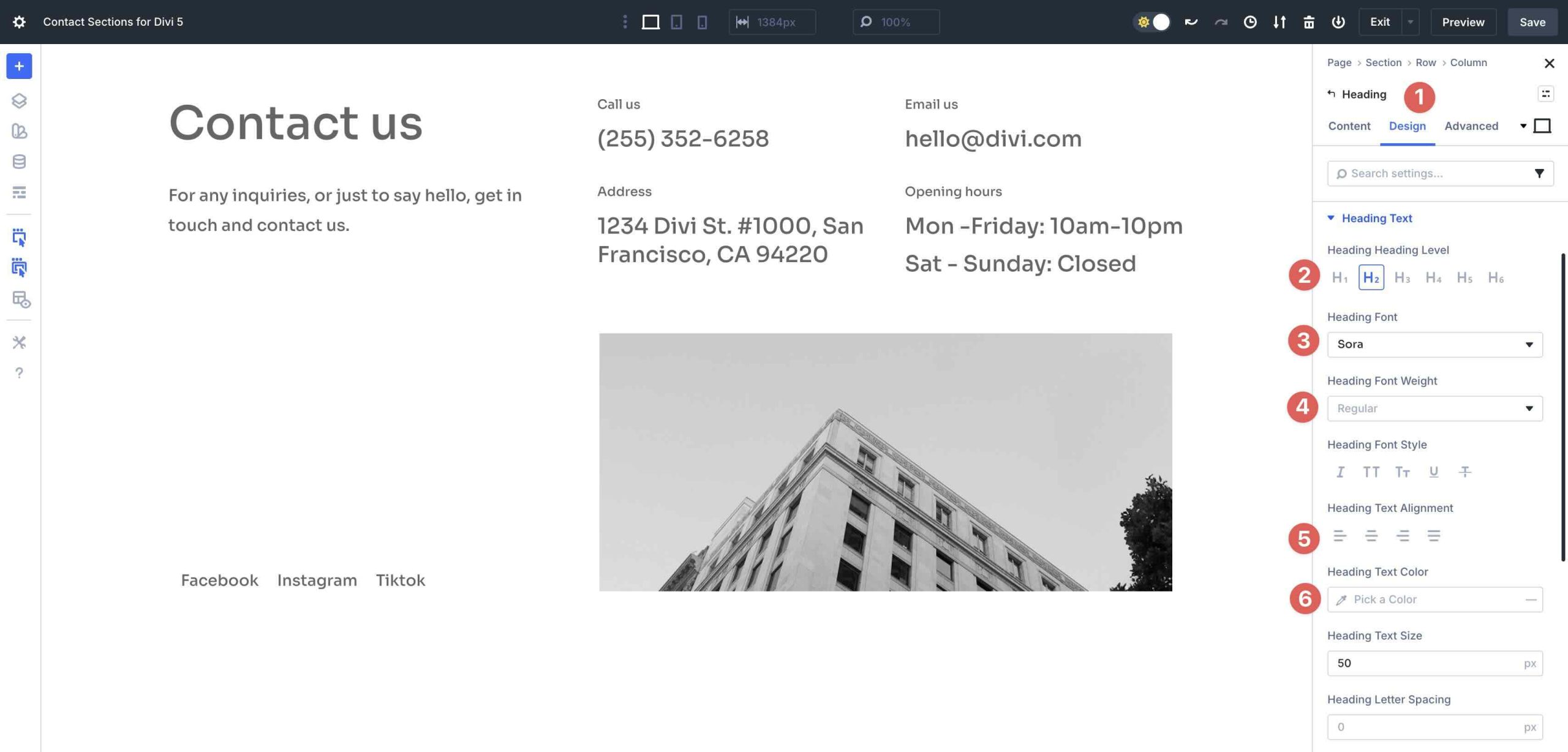
To change typography, open any Text or Heading Module and go to the Design tab. Expand the Text or Heading dropdown menu to change the Heading Level, Font, Font Style, Text Alignment, or Text Color.
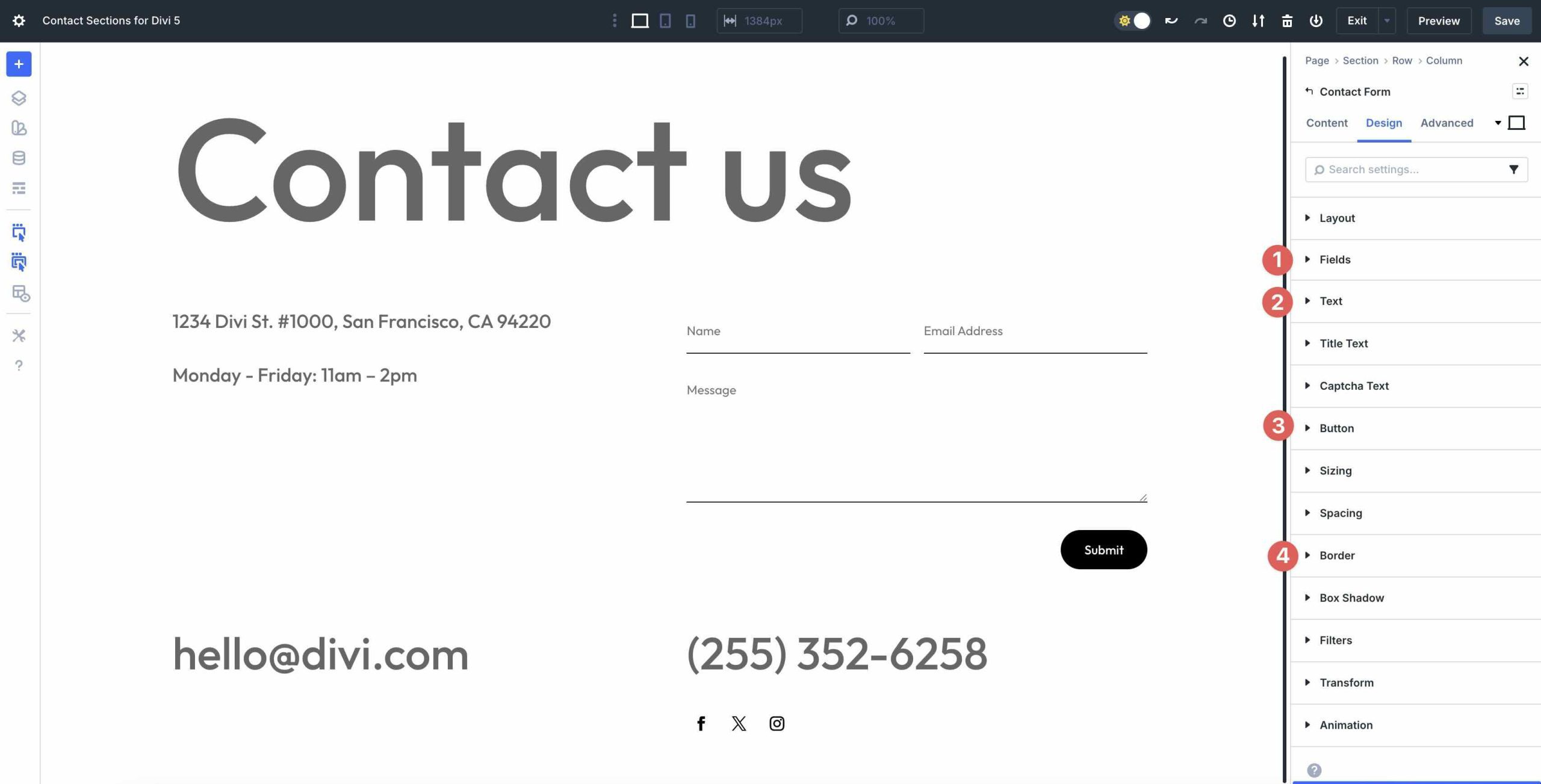
To style the Contact Form Module, open the module settings and use the Design tab to adjust field spacing, borders, focus styles, and button styling so the form matches your brand.
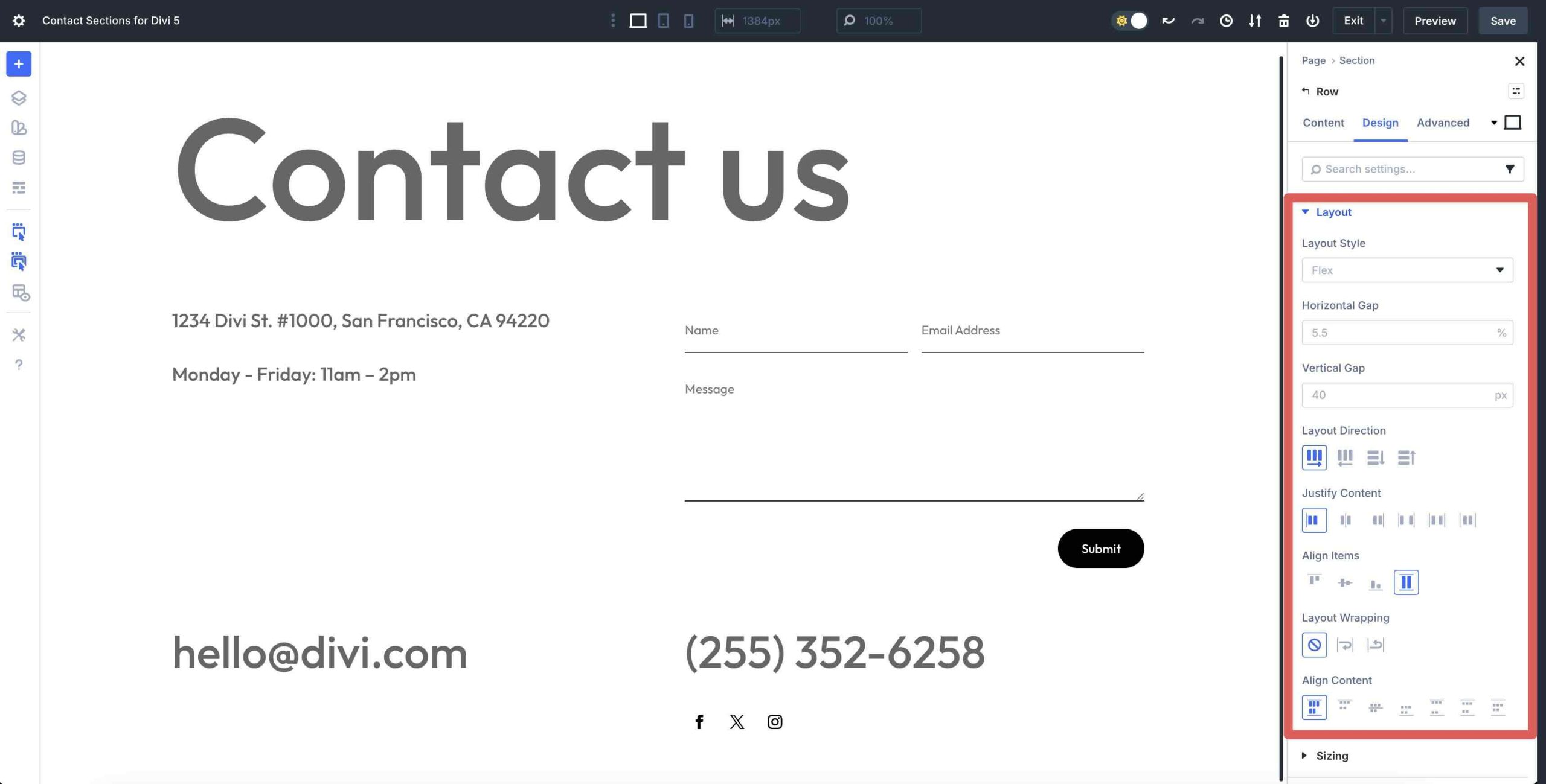
Use Divi’s Layout settings to adjust Flex properties, such as alignment and spacing, particularly when refining the layout of multi-column contact layouts on smaller screens.
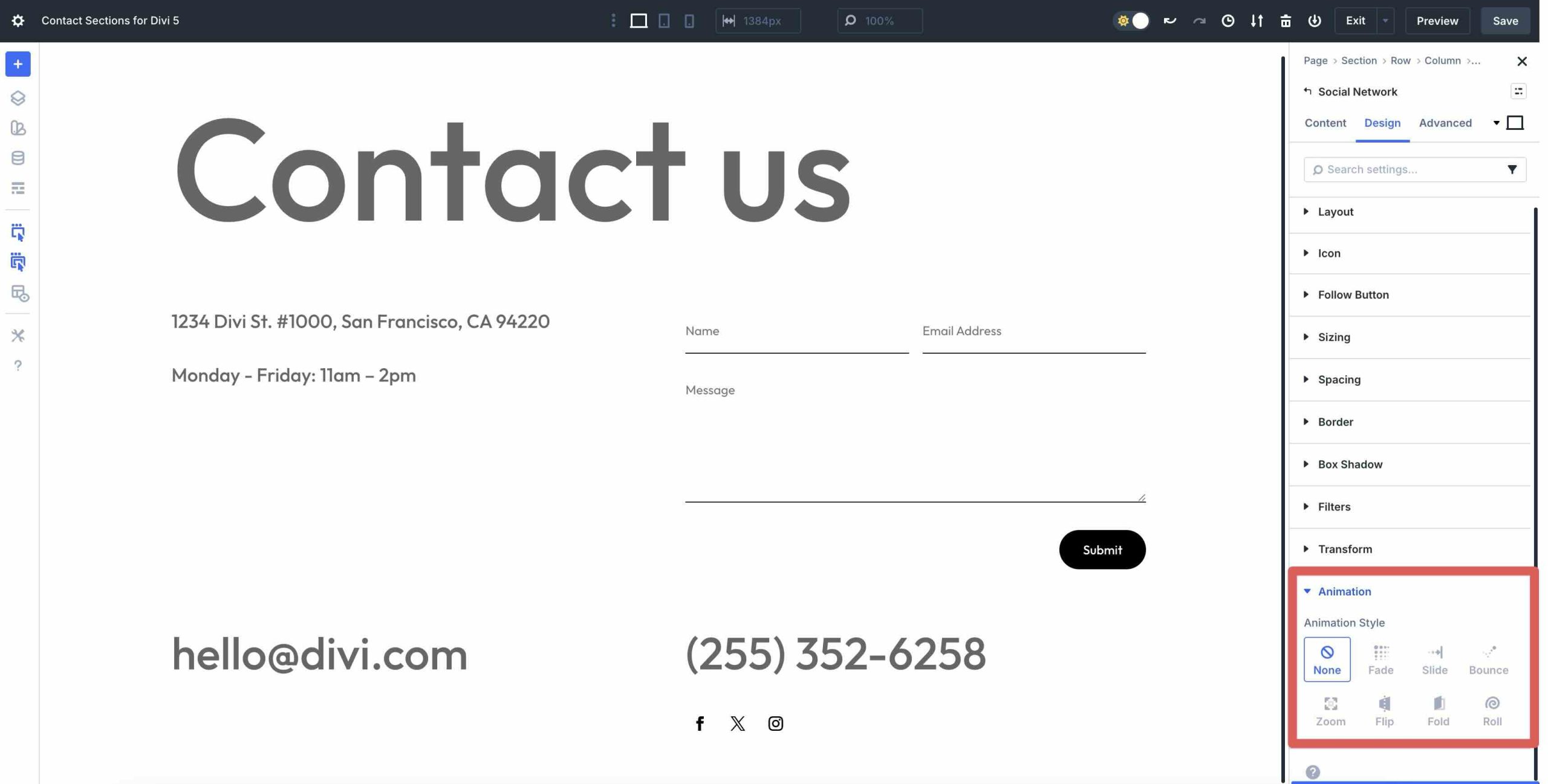
Add subtle effects, such as hover states on buttons or gentle reveal animations, to keep the Section feeling polished without distracting from the form.
Tips For Effective Contact Sections
Contact sections work best when they feel effortless. Utilize these quick wins to maintain a clear, trustworthy, and straightforward layout.
Lead With A Clear Invitation
Use a direct headline and a concise line of context so visitors know what to expect next. Make it obvious whether the form is for quotes, bookings, support, or general questions.
Offer Multiple Ways To Reach You
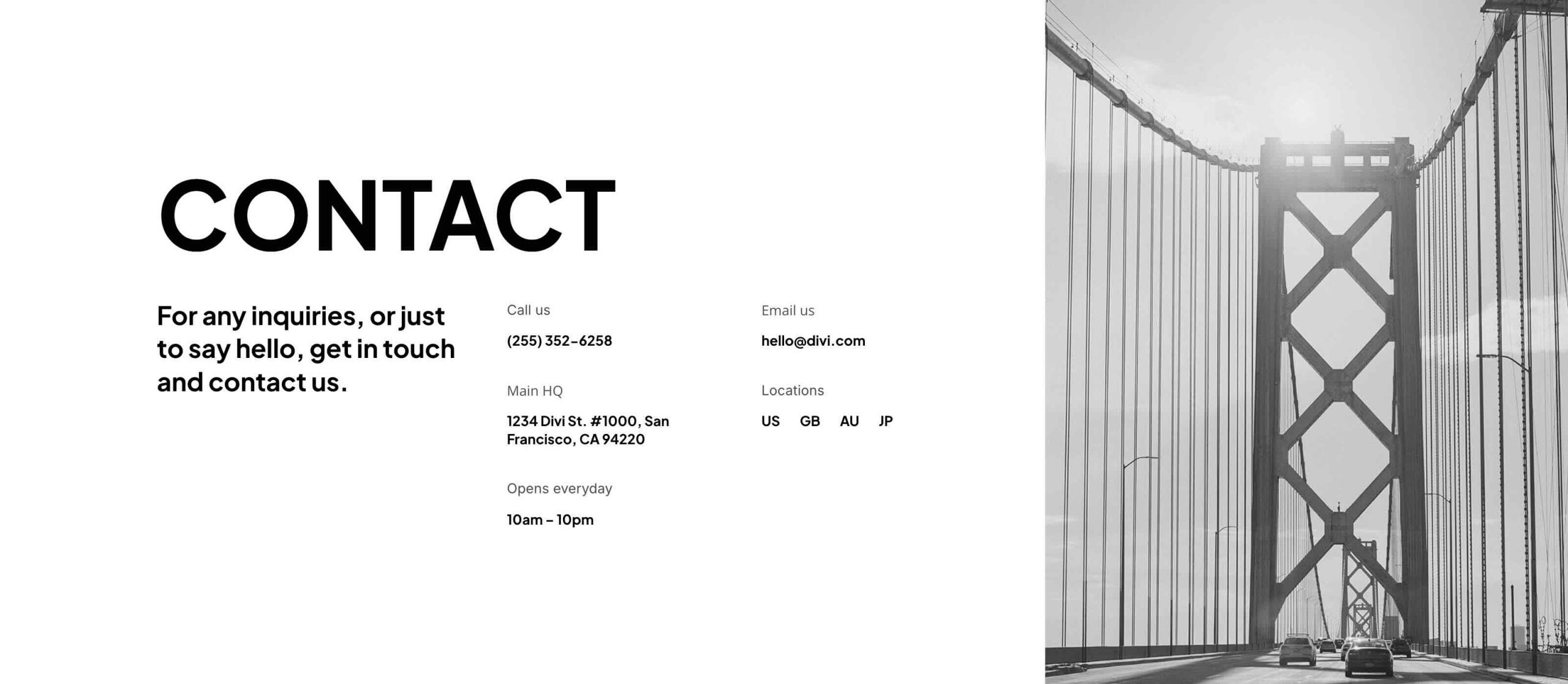
Not everyone wants to fill out a form. Include a phone number, email, or address when it makes sense, and keep those details scannable by maintaining spacing and using clear labels.
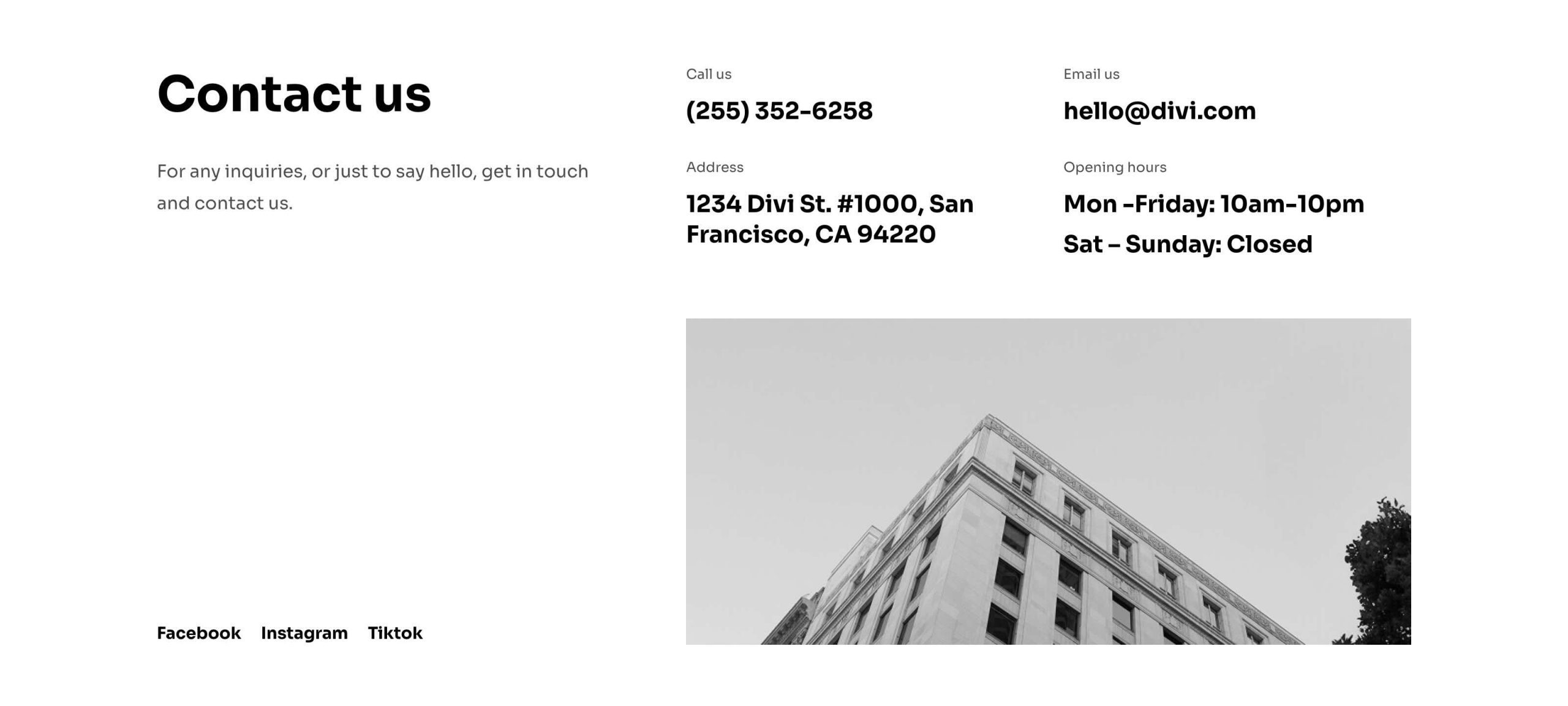
Keep Forms Short
Ask only for what you need. Fewer fields usually mean more submissions. If you need more detail, consider using a dropdown to route inquiries instead of adding multiple text inputs.
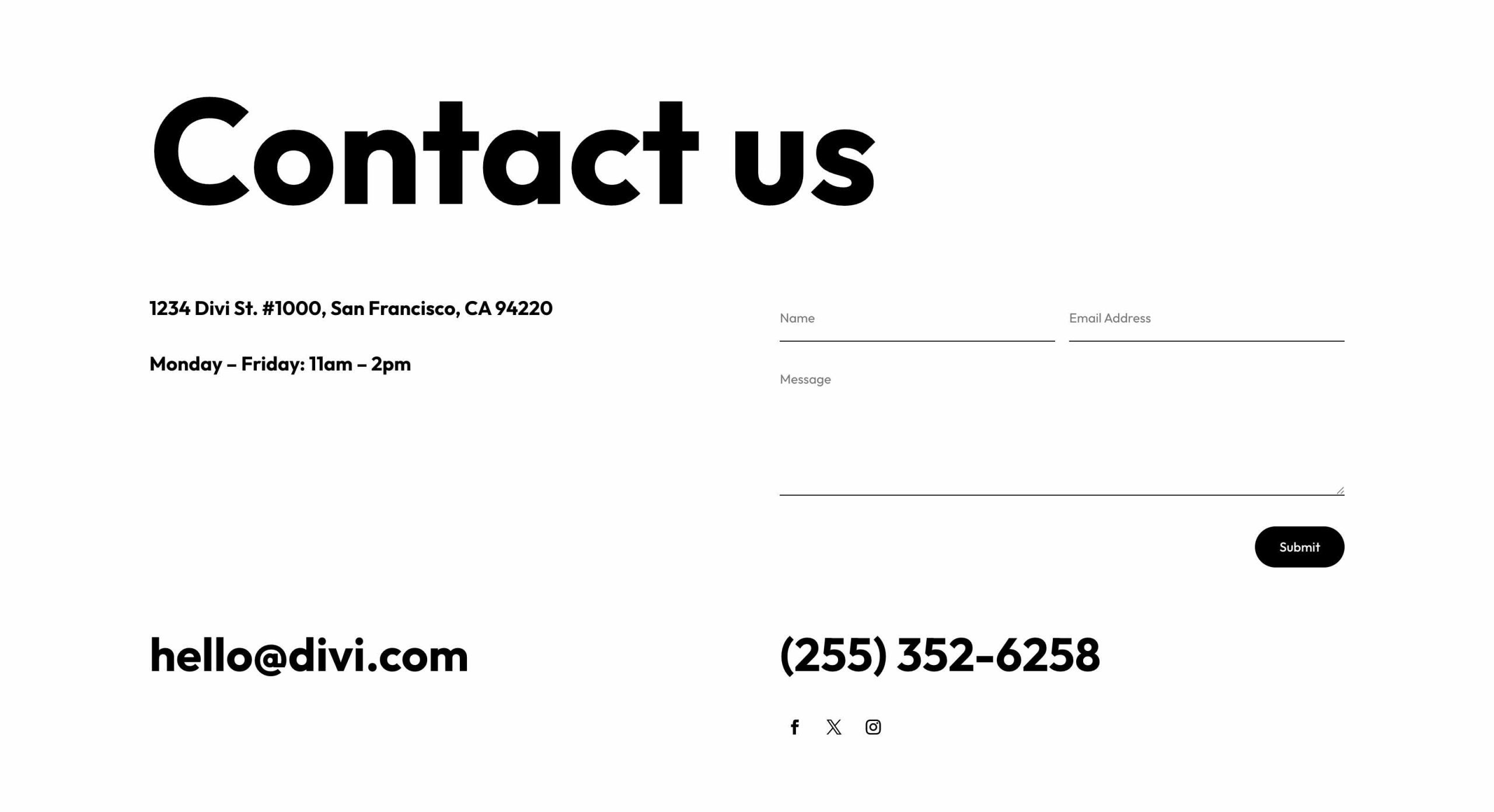
Plan For Mobile
Ensure the form fields are easy to tap and that the text is not cramped. If your layout uses multiple columns, confirm the stacking order still reads naturally on smaller screens.
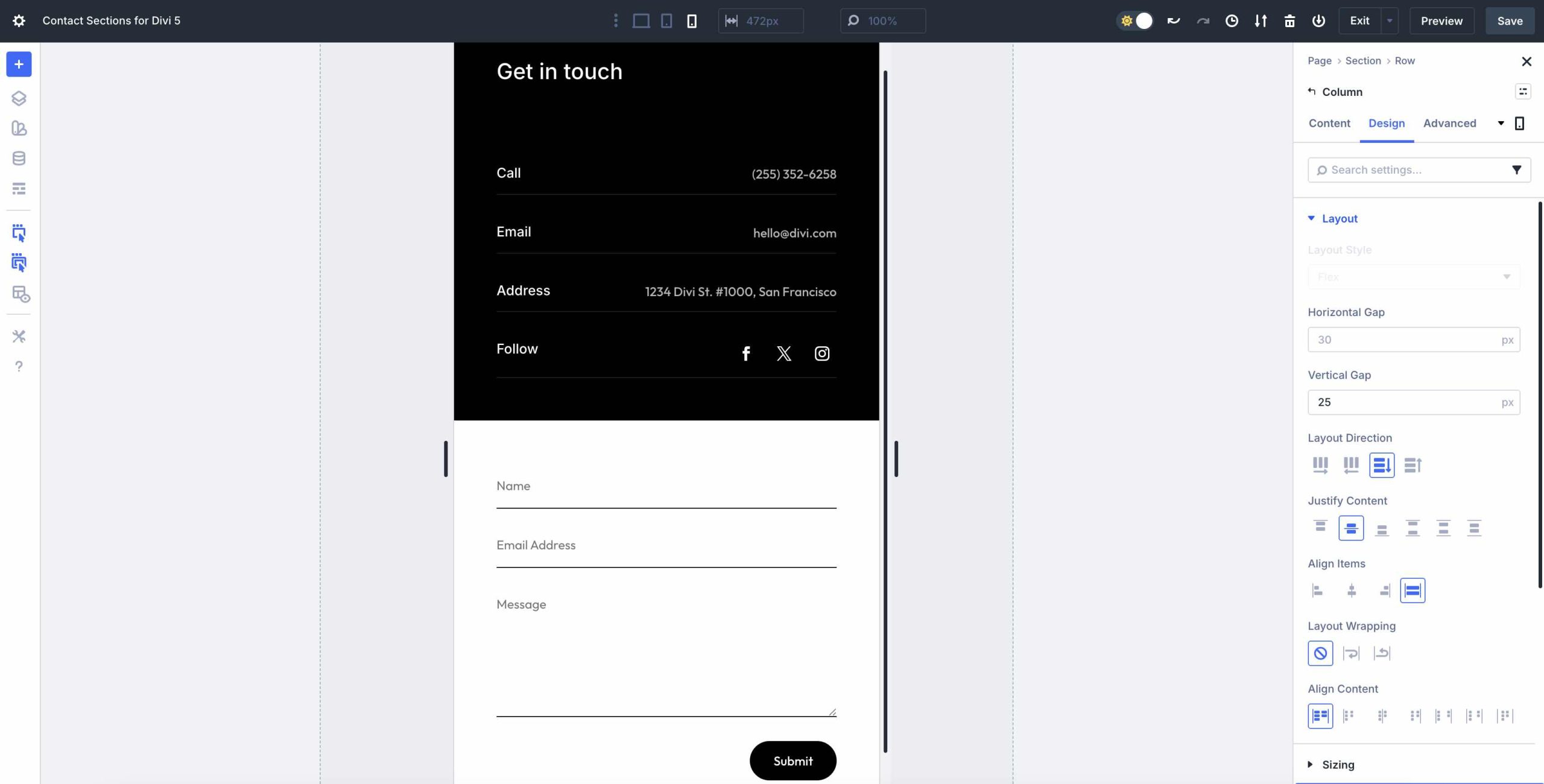
Make The CTA Obvious
Your submit button should stand out and use clear language, such as “Send Message” or “Request A Quote.” If you include a second CTA (such as “Call Now”), maintain a clear hierarchy with contrast and spacing.
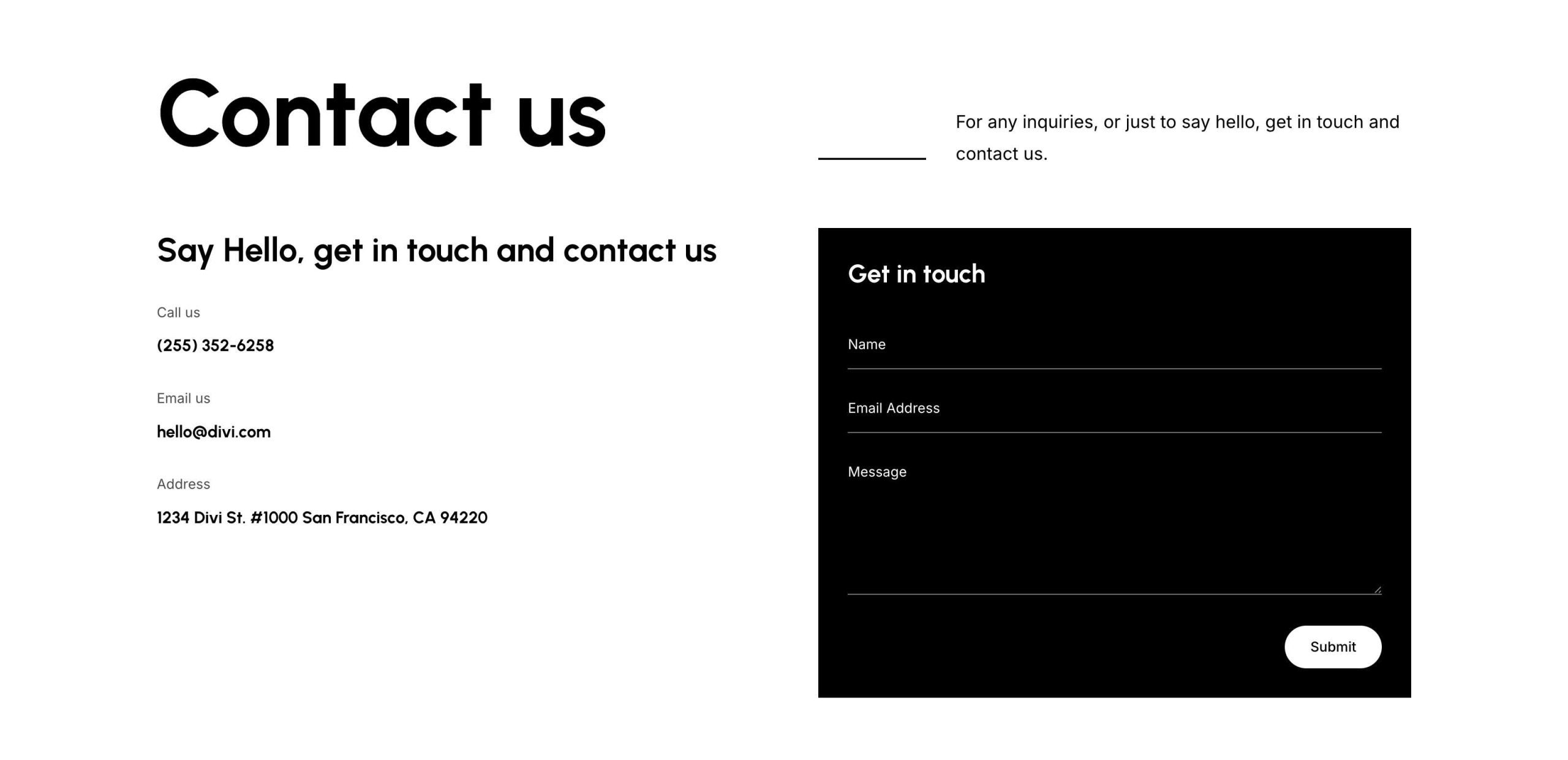
Start Building In Divi 5 Today
These 7 Contact Sections give you a fast way to build modern contact areas for service pages, landing pages, and full contact pages. Swap the details, adjust the styling, and you will have a polished layout that fits your site in minutes with Divi 5‘s Visual Builder.
The post 7 Contact Sections For Divi 5 (Free Download) appeared first on Elegant Themes Blog.
The Tech Zone


Comments
Post a Comment